1. పరిచయం
This manual provides detailed instructions for the installation, operation, and maintenance of your Naifay Android 12 Double Din Car Stereo. Please read this manual thoroughly before using the product to ensure proper function and safety. Keep this manual for future reference.

Image 1.1: Naifay Android 12 Double Din Car Stereo with included backup camera, GPS antenna, and a smartphone displaying Carplay/Android Auto.
2. ఉత్పత్తి ముగిసిందిview
2.1 ముఖ్య లక్షణాలు
- ఆపరేటింగ్ సిస్టమ్: Android 12 with 4-Core processor, 2GB RAM, and 32GB ROM.
- ప్రదర్శన: 10.1-inch 2.5D capacitive IPS touch screen with 1024x600 resolution, supporting 1080P video playback.
- కనెక్టివిటీ: Built-in Wireless Carplay & Android Auto, Wired/Wireless Mirrorlink (iOS wireless, Android wireless/wired).
- నావిగేషన్: Integrated GPS module for offline and online navigation.
- వైర్లెస్: WiFi connection for app downloads and internet access, Bluetooth 5.1 for hands-free calling and audio streaming.
- ఆడియో: FM Radio with preset stations, 10-band EQ settings with various default styles.
- ఇన్పుట్లు/అవుట్పుట్లు: Two USB ports, AHD backup camera input, Steering Wheel Control (SWC) support.
- అదనపు విధులు: Split screen mode, multi-format music and video player, customizable UI and wallpapers.
2.2 పెట్టెలో ఏముంది
ప్యాకేజీ కింది భాగాలను కలిగి ఉంటుంది:
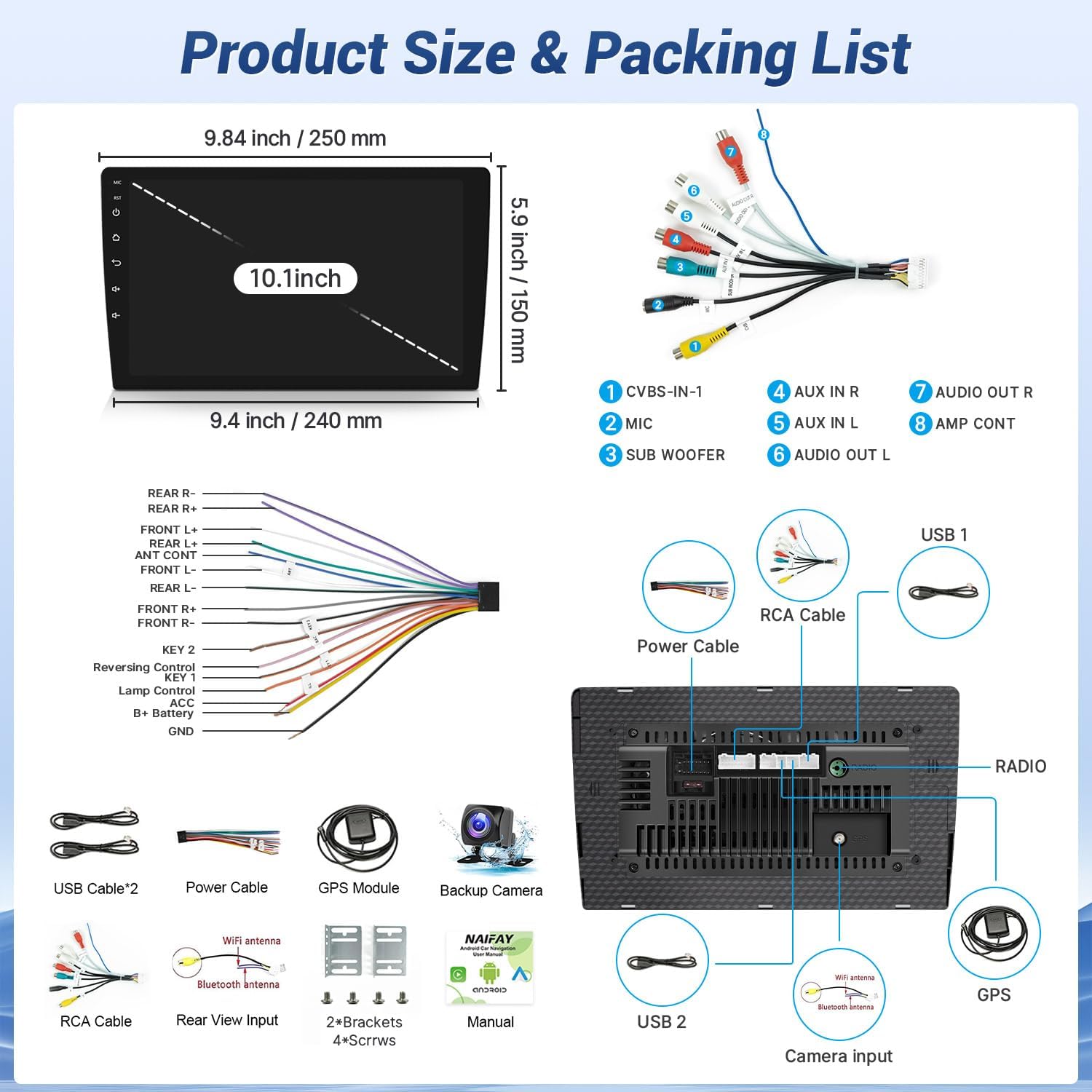
చిత్రం 2.1: వివరణాత్మకమైనది view of the product dimensions, rear panel connections, and the complete packing list.
- Naifay 10.1-inch Android Car Stereo Unit
- పవర్ కేబుల్
- USB కేబుల్స్ (x2)
- GPS మాడ్యూల్
- బ్యాకప్ కెమెరా
- RCA కేబుల్
- వైఫై యాంటెన్నా
- బ్లూటూత్ యాంటెన్నా
- మౌంటు బ్రాకెట్లు (x2)
- స్క్రూలు (x4)
- వినియోగదారు మాన్యువల్
3. భద్రతా సమాచారం
సంస్థాపన మరియు ఆపరేషన్ సమయంలో క్రింది భద్రతా మార్గదర్శకాలను గమనించండి:
- ప్రొఫెషనల్ ఇన్స్టాలేషన్ సిఫార్సు చేయబడింది: Due to the complexity of vehicle wiring, professional installation is highly recommended to prevent damage to the unit or vehicle.
- విద్యుత్ సరఫరా: Ensure the car radio operates on a 12V power supply. Connecting to a voltage over 12V may damage the unit.
- వైరింగ్: Always use the provided power cables. Do not attempt to connect original car plugs directly to the unit without verifying compatibility. Incorrect wiring can lead to malfunctions or damage.
- ఫ్యూజ్ ప్రత్యామ్నాయం: If a fuse needs replacement, use only the same type and rating.
- డ్రైవింగ్ భద్రత: మీ డ్రైవింగ్ దృష్టి మరల్చే విధంగా యూనిట్ను ఆపరేట్ చేయవద్దు. ఎల్లప్పుడూ రోడ్డు భద్రతకు ప్రాధాన్యత ఇవ్వండి.
- ఉష్ణోగ్రత: యూనిట్ను ఎక్కువసేపు తీవ్రమైన ఉష్ణోగ్రతలకు లేదా ప్రత్యక్ష సూర్యకాంతికి గురిచేయకుండా ఉండండి.
4. సెటప్ మరియు ఇన్స్టాలేషన్
4.1 ప్రీ-ఇన్స్టాలేషన్ చెక్
- Verify the installation size: 178(L) x 65(W) x 70(H) mm (Standard 2 DIN opening size). The 10.1-inch screen extends beyond the standard double DIN chassis. Ensure your vehicle's dashboard has sufficient space for the screen's dimensions (approximately 9.84 inches / 250 mm wide and 5.9 inches / 150 mm high).
- ఇన్స్టాలేషన్ ప్రారంభించే ముందు వాహనం యొక్క బ్యాటరీని డిస్కనెక్ట్ చేయండి.
4.2 వైరింగ్ కనెక్షన్లు
Refer to the wiring diagram provided in Image 2.1 and the specific backup camera connection diagram below.

Image 4.1: Diagram illustrating the connection of the backup camera to the car stereo system.
- Connect the video input cable (yellow RCA) from the backup camera to the 'CVBS-IN-1' port on the stereo's rear panel.
- Connect the pink wire from the stereo's power cable to the reversing trigger cable (usually a reverse light signal wire).
- Connect the backup camera's power cable: the red wire to the car's reversing light positive, and the black wire to the car's reversing light negative (ground).
- Ensure all other power and speaker connections are made according to the main wiring diagram. The red and yellow wires of the stereo's power supply should be connected to the positive side of the car's power supply, and the black wire to the negative (ground).
4.3 యూనిట్ మౌంట్
Install the head unit into the double DIN slot using the provided mounting brackets and screws. Ensure the unit is securely fastened. The screen is designed to protrude slightly from the dash for optimal viewing.

Image 4.2: Visual comparison of a car dashboard before and after the installation of the Naifay Android 12 car stereo, highlighting the screen size and fit.
5. ఆపరేటింగ్ సూచనలు
5.1 వైర్లెస్ కార్ప్లే & ఆండ్రాయిడ్ ఆటో
This stereo supports wireless Apple Carplay and wireless Android Auto. To connect:
- మీ స్మార్ట్ఫోన్లో బ్లూటూత్ మరియు వై-ఫైని ప్రారంభించండి.
- కారు స్టీరియోలో, Carplay లేదా Android Auto అప్లికేషన్కు నావిగేట్ చేయండి.
- Pair your phone via Bluetooth with the car stereo.
- Once paired, the system will automatically establish a Wi-Fi connection for Carplay or Android Auto.
You can now access phone functions like navigation, calls, messages, and music via the stereo's touchscreen or voice commands (Siri/Google Assistant).

చిత్రం 5.1: ముగిసిందిview of wireless Carplay, Android Auto, and Mirror Link functionalities on the Naifay car stereo.

Image 5.2: Screenshot of the Wireless Apple Carplay interface on the stereo display.

Image 5.3: Screenshot of the Wireless Android Auto interface on the stereo display.
5.2 మిర్రర్ లింక్ ఫంక్షన్
The Mirror Link function allows you to display your smartphone screen on the car stereo. iOS devices support wireless connection, while Android devices support both wireless and wired connections.
- For wireless connection (iOS & Android): Connect your phone to the stereo's Wi-Fi hotspot.
- For wired connection (Android only): Connect your Android phone to the stereo via a USB cable.
- Open the Mirror Link application on the stereo and follow the on-screen prompts to establish the connection.

Image 5.4: Illustration of the Mirror Link feature, showing a smartphone screen mirrored onto the car stereo display.
5.3 GPS నావిగేషన్
The unit features a built-in GPS module for navigation. You can use pre-installed offline maps or download online maps when connected to Wi-Fi.
- To use offline maps, ensure the GPS module is connected and maps are downloaded.
- For online maps, connect the stereo to Wi-Fi or your phone's hotspot.
- Open the Navigation app and enter your destination.

Image 5.5: Display showing GPS navigation, Wi-Fi connection, and Bluetooth interface on the car stereo.

చిత్రం 5.6: వివరణాత్మకమైనది view of the GPS navigation map interface on the stereo screen.
5.4 Wi-Fi కనెక్షన్
Connect the stereo to a Wi-Fi network to access online content and download applications.
- సెట్టింగ్లు > Wi-Fiకి వెళ్లండి.
- Select your desired network and enter the password.
- Once connected, you can use apps like YouTube, Spotify, and other Play Store applications.

Image 5.7: Display showing various applications available when the stereo is connected to Wi-Fi.
5.5 బ్లూటూత్ 5.1
The integrated Bluetooth 5.1 allows for hands-free calling and wireless audio streaming.
- Enable Bluetooth on your phone and the car stereo.
- కోసం వెతకండి available devices on your phone and select the stereo's Bluetooth name.
- ప్రాంప్ట్ చేయబడితే జత చేసే కోడ్ను నిర్ధారించండి.
Once connected, you can make/receive calls, access your phonebook, and play music wirelessly.

Image 5.8: Screenshots demonstrating Bluetooth 5.1 features, including hands-free calling and music playback.
5.6 FM రేడియో
Access local radio stations with the built-in FM tuner.
- Open the FM Radio application.
- Use the scan function to find and save available stations.
- Adjust EQ settings for preferred audio output.

Image 5.9: Display of the FM radio interface, showing station tuning and frequency.
5.7 స్టీరింగ్ వీల్ కంట్రోల్ (SWC)
The unit supports analog steering wheel controls. Manual learning is required to map your vehicle's steering wheel buttons to the stereo functions.
- Go to Settings > Steering Wheel Control.
- Follow the on-screen instructions to assign functions (e.g., volume up/down, track skip, mode) to your steering wheel buttons.

Image 5.10: Screenshot of the Steering Wheel Control learning interface on the car stereo.
5.8 బ్యాకప్ కెమెరా
The included AHD backup camera provides a wide-angle view for safer reversing.
- When the vehicle is shifted into reverse gear, the camera feed will automatically display on the stereo screen.
- Ensure the camera is properly installed and wired as per Section 4.2.

Image 5.11: Display showing the backup camera view with parking guidelines, alongside other features like split screen and FM radio.
5.9 స్ప్లిట్ స్క్రీన్ ఫంక్షన్
The split screen feature allows you to run two applications simultaneously on the display.
- To activate, long-press the recent apps button or drag an app to one side of the screen.
- Select a second app to occupy the other half of the screen.

చిత్రం 5.12: ఉదాample of the split screen function, showing two applications running side-by-side on the stereo display.
6. నిర్వహణ
- స్క్రీన్ క్లీనింగ్: Use a soft, lint-free cloth to clean the touchscreen. Avoid abrasive cleaners or solvents that may damage the screen.
- సాఫ్ట్వేర్ అప్డేట్లు: Periodically check for software updates to ensure optimal performance and access to new features. Updates can usually be found through the system settings or the manufacturer's webసైట్.
- సాధారణ సంరక్షణ: Keep the unit free from dust and moisture. Ensure proper ventilation around the unit to prevent overheating.
7. ట్రబుల్షూటింగ్
If you encounter issues with your Naifay car stereo, refer to the following troubleshooting guide:
| సమస్య | సాధ్యమైన కారణం | పరిష్కారం |
|---|---|---|
| యూనిట్ పవర్ ఆన్ చేయదు | తప్పు వైరింగ్; పేలిన ఫ్యూజ్; తగినంత విద్యుత్ సరఫరా లేదు. | Check all power connections (red, yellow, black wires). Verify the fuse. Ensure the car battery is providing 12V. |
| Slow performance or glitches | Too many apps running; Low RAM/ROM; Software issue. | Close unnecessary applications. Perform a factory reset (backup data first). Check for software updates. |
| Wireless Carplay/Android Auto disconnects or fails to connect | Bluetooth/Wi-Fi interference; Incorrect pairing; Software bug. | Ensure Bluetooth and Wi-Fi are enabled on both devices. Forget and re-pair the device. Restart both phone and stereo. |
| టచ్ స్క్రీన్ స్పందించడం లేదు | Software freeze; Hardware malfunction. | Restart the unit (press the RST button if available). If the issue persists, contact customer support. |
| శబ్దం లేదు | Speaker wiring issue; Volume too low; Mute activated. | Check speaker connections. Increase volume. Ensure the unit is not muted. |
| బ్యాకప్ కెమెరా ప్రదర్శించబడటం లేదు | Incorrect camera wiring; Camera malfunction. | Verify the camera's power and video connections (refer to Image 4.1). Ensure the pink reversing trigger wire is correctly connected. |
| Unit does not fit dashboard opening | Incorrect vehicle application; Screen dimensions exceed space. | This unit has a 10.1-inch screen that extends beyond a standard double DIN chassis. Confirm your vehicle's dashboard has adequate space for the screen's dimensions (250mm x 150mm). Professional installation may be required for custom fitting. |
8. స్పెసిఫికేషన్లు
| ఫీచర్ | స్పెసిఫికేషన్ |
|---|---|
| ఆపరేటింగ్ సిస్టమ్ | ఆండ్రాయిడ్ 12 |
| CPU | 4-కోర్ |
| మెమరీ (RAM+ROM) | 2GB RAM + 32GB ROM |
| స్క్రీన్ పరిమాణం | 10.1 అంగుళాలు |
| స్క్రీన్ రకం | IPS Touch Screen (2.5D Tempered Glass) |
| స్క్రీన్ రిజల్యూషన్ | 1024x600 |
| వైర్లెస్ కనెక్టివిటీ | Wireless Carplay, Wireless Android Auto, WiFi, Bluetooth 5.1 |
| మిర్రర్ లింక్ | Wired/Wireless (Android), Wireless (iOS) |
| GPS నావిగేషన్ | Built-in GPS Module, supports offline/online maps |
| రేడియో ట్యూనర్ | FM రేడియో |
| ఆడియో అవుట్పుట్ మోడ్ | స్టీరియో |
| బ్యాకప్ కెమెరా | AHD, 170-degree wide angle, waterproof |
| ఉత్పత్తి కొలతలు | 9.8 x 1.57 x 5.79 inches (Unit chassis: 178x65x70mm) |
| వస్తువు బరువు | 2.72 పౌండ్లు |
| తయారీదారు | నైఫే |
9. వారంటీ మరియు మద్దతు
Naifay is committed to providing excellent customer service and technical support.
- ప్రతిస్పందన సమయం: Expect a quick reply to inquiries within 24 hours.
- రిటర్న్ పాలసీ: 60-day no-worry return period.
- వారంటీ: 12 months replacement available within 12 months of purchase.
- సాంకేతిక మద్దతు: జీవితకాల అమ్మకాల తర్వాత సంప్రదింపులు మరియు సాంకేతిక మద్దతు అందించబడతాయి.
For any questions regarding pre-sales information, installation guidance, or technical support, please contact Naifay customer service. You can typically find contact information by clicking 'sold by Naifay' on the product page and then 'ask a question'.

Image 9.1: Summary of Naifay's customer support commitments, including response time, return policy, warranty, and lifetime technical support.


