పరిచయం
ధన్యవాదాలు, ధన్యవాదాలు.asing the LINQ 8in1 PRO USB-C Multiport Hub 140W. This manual provides detailed instructions for setting up, operating, and maintaining your device. Please read this manual thoroughly before use to ensure optimal performance and longevity of your product.
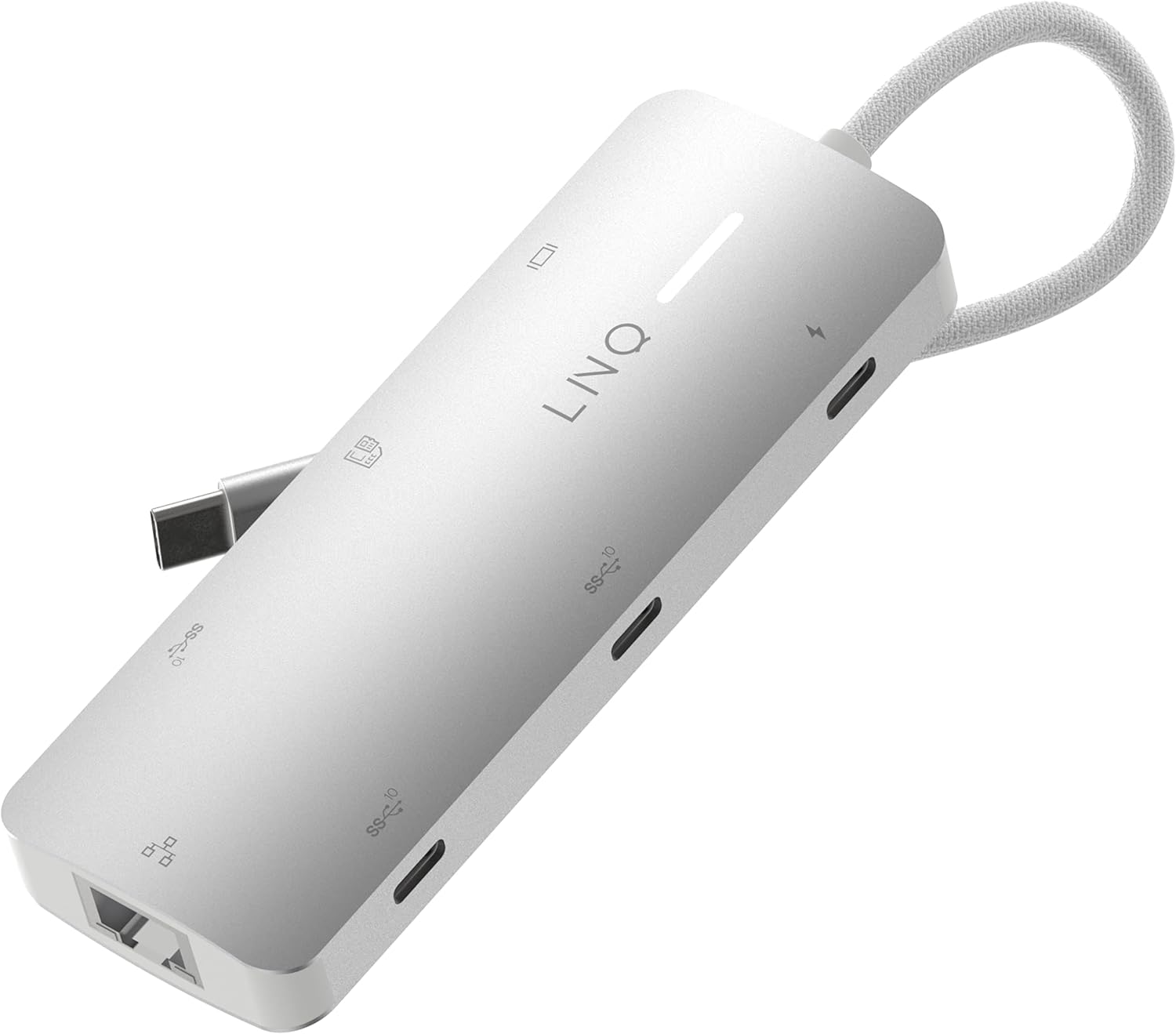
Image: The LINQ 8in1 PRO USB-C Multiport Hub 140W, a compact gray device with a braided USB-C cable, showcasing its sleek design and multiple ports.
కీ ఫీచర్లు
- Expands one USB-C port into eight versatile connections.
- HDMI 2.0 Output: Supports up to 4K resolution at 60Hz with HDR for high-quality video output.
- USB-C PD3.1 Charging: Delivers up to 140W Power Delivery, ensuring fast charging for connected devices. (Note: The hub requires 15W for its own operation).
- USB-A Data Port: One USB-A port with 10Gbps data transfer speed (USB 3.2 Gen 2).
- USB-C Data Ports: Two USB-C ports, each offering 10Gbps data transfer speed (USB 3.2 Gen 2).
- Multi-Gigabit Ethernet: Provides a stable wired internet connection up to 2500Mbps (2.5Gbps).
- TF/Micro SD Card Reader: Integrated slot for reading TF/Micro SD memory cards.
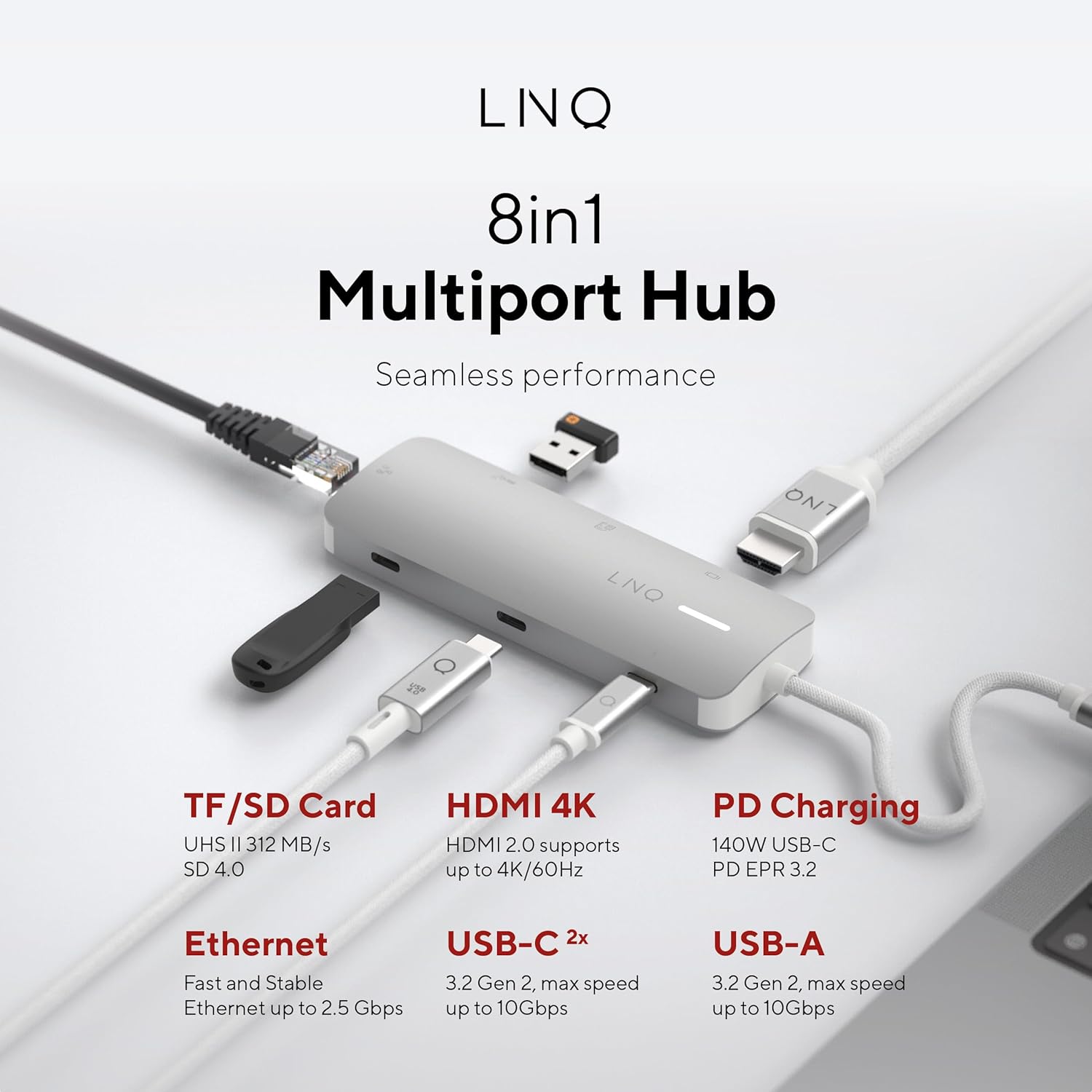
చిత్రం: ఒక ఓవర్ హెడ్ view of the LINQ 8in1 PRO USB-C Multiport Hub, illustrating its various ports including TF/SD Card, HDMI 4K, PD Charging, Ethernet, USB-C (2x), and USB-A, with their respective functionalities.
సెటప్ గైడ్
Follow these steps to set up your LINQ 8in1 PRO USB-C Multiport Hub:
- హోస్ట్ పరికరానికి కనెక్ట్ చేయండి: Plug the integrated USB-C cable of the hub into an available USB-C port on your laptop, tablet, or smartphone. Ensure the USB-C port on your host device supports video output (DisplayPort Alternate Mode) and Power Delivery for full functionality.
- విద్యుత్ కనెక్షన్ (ఐచ్ఛికం కానీ సిఫార్సు చేయబడింది): For optimal performance and to charge your host device, connect a USB-C Power Delivery charger (up to 140W) to the USB-C PD3.1 port on the hub.
- పెరిఫెరల్స్ కనెక్ట్ చేయండి:
- HDMI డిస్ప్లే: Connect an HDMI cable from the hub's HDMI 2.0 port to your monitor or TV.
- ఈథర్నెట్: Connect an Ethernet cable from your router or modem to the hub's Multi-Gigabit Ethernet port.
- USB పరికరాలు: Plug in your USB-A and USB-C peripherals (e.g., external hard drives, keyboards, mice, flash drives) into the corresponding data ports.
- మెమరీ కార్డ్లు: Insert your TF/Micro SD card into the card reader slot.
- డ్రైవర్ ఇన్స్టాలేషన్: The hub is typically plug-and-play and does not require specific drivers for most operating systems (Windows, macOS, Chrome OS, Linux). If you encounter issues, ensure your operating system is up to date.

Image: The LINQ 8in1 PRO USB-C Multiport Hub with various cables connected, demonstrating its ability to expand connectivity for a laptop, including an HDMI display, Ethernet, and USB devices.
ఆపరేటింగ్ సూచనలు
Once connected, the LINQ 8in1 PRO USB-C Multiport Hub operates automatically. Here are specific instructions for using its various functions:
Video Output (HDMI)
Connect an HDMI cable from the hub to your external display. Your operating system should automatically detect the new display. You can configure display settings (e.g., extend, duplicate, resolution) through your computer's display settings.

Image: A close-up of a computer monitor displaying a vibrant image, illustrating the high-quality video output achieved via the hub's HDMI connection.
Data Transfer (USB-A, USB-C, SD/TF Card)
Simply plug your USB devices or memory cards into the respective ports. They will appear as removable storage or connected peripherals on your host device. For optimal data transfer speeds, ensure your devices and cables support USB 3.2 Gen 2 (10Gbps) and SD 4.0 (UHS-II).
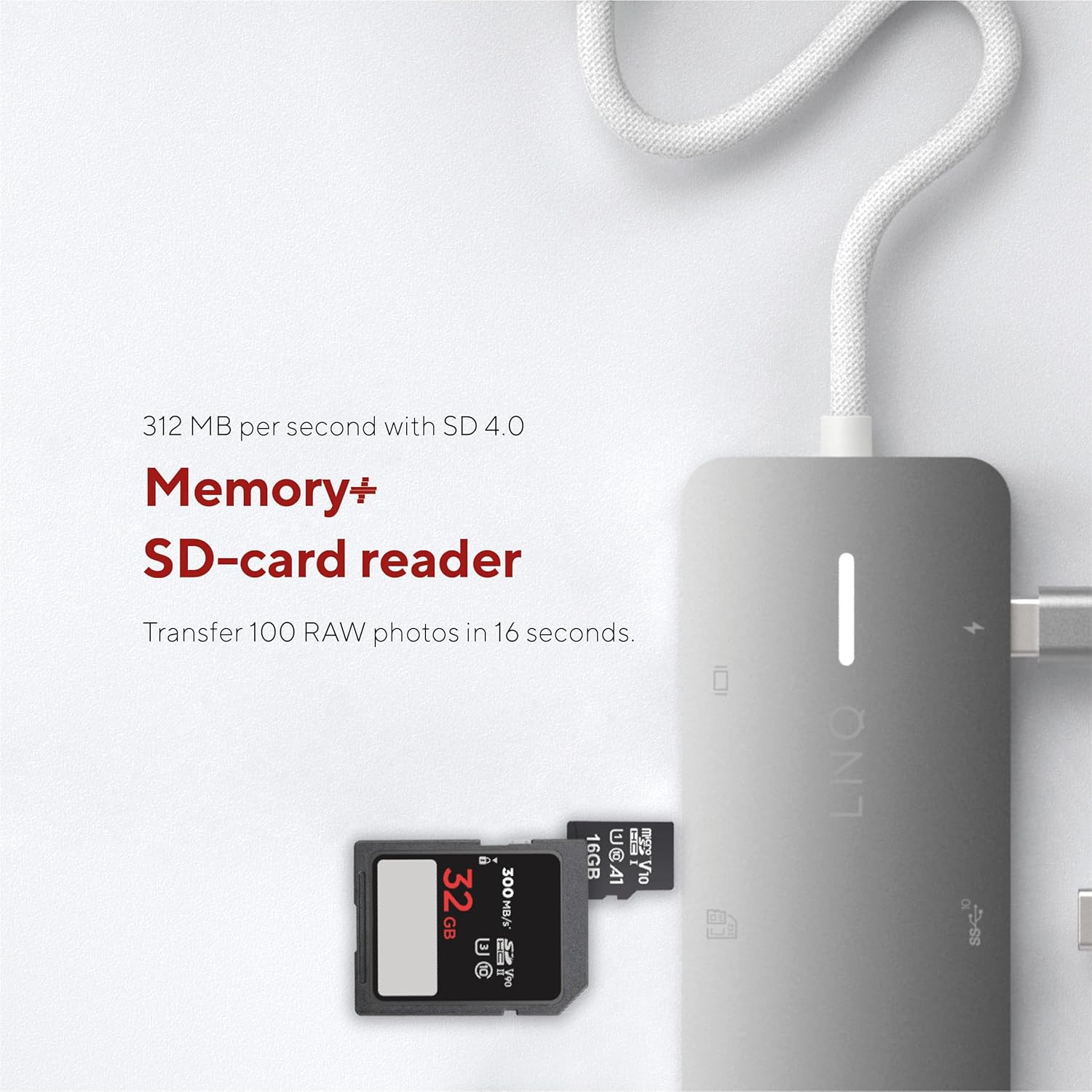
Image: A close-up of an SD card being inserted into the hub's card reader slot, highlighting its memory expansion capability.
Network Connection (Ethernet)
Connect an Ethernet cable to the hub's Ethernet port. Your host device will automatically detect the wired network connection. This provides a stable and fast internet connection, ideal for large file transfers or online gaming.

Image: An Ethernet cable plugged into the hub's Ethernet port, demonstrating its network connectivity feature.
Power Delivery (USB-C PD)
When a compatible USB-C PD charger is connected to the hub's PD port, it will pass power through to your host device and other connected peripherals. This allows you to charge your laptop while using the hub's other functions.
నిర్వహణ
- శుభ్రపరచడం: Use a soft, dry cloth to clean the surface of the hub. Do not use liquid cleaners or aerosols.
- నిల్వ: ప్రత్యక్ష సూర్యకాంతి మరియు తీవ్రమైన ఉష్ణోగ్రతలకు దూరంగా చల్లని, పొడి ప్రదేశంలో హబ్ను నిల్వ చేయండి.
- నిర్వహణ: హబ్ను వదలడం లేదా బలమైన ప్రభావాలకు గురిచేయడం మానుకోండి. పరికరాన్ని విడదీయడానికి ప్రయత్నించవద్దు.
- కేబుల్ కేర్: ఇంటిగ్రేటెడ్ USB-C కేబుల్ను ఎక్కువగా వంచవద్దు లేదా క్రింప్ చేయవద్దు.
ట్రబుల్షూటింగ్
| సమస్య | సాధ్యమైన కారణం | పరిష్కారం |
|---|---|---|
| HDMI ద్వారా డిస్ప్లే అవుట్పుట్ లేదు. |
|
|
| USB పరికరాలు గుర్తించబడలేదు. |
|
|
| Slow Ethernet speed or no connection. |
|
|
| Host device not charging. |
|
|
స్పెసిఫికేషన్లు
| ఫీచర్ | వివరాలు |
|---|---|
| మోడల్ సంఖ్య | LQ49081 |
| కొలతలు (LxWxH) | 4.41 x 1.69 x 0.63 అంగుళాలు |
| బరువు | 2.43 ఔన్సులు |
| రంగు | బూడిద రంగు |
| HDMI అవుట్పుట్ | 1x HDMI 2.0 (up to 4K@60Hz, HDR support) |
| USB-C PD పోర్ట్ | 1x USB-C PD3.1 (up to 140W charging input, 15W reserved for hub) |
| USB-A డేటా పోర్ట్ | 1x USB-A (10Gbps, USB 3.2 Gen 2) |
| USB-C డేటా పోర్ట్లు | 2x USB-C (10Gbps, USB 3.2 Gen 2) |
| ఈథర్నెట్ పోర్ట్ | 1x Multi-Gigabit Ethernet (up to 2.5Gbps) |
| కార్డ్ రీడర్ | 1x TF/Micro SD (UHS-II, SD 4.0 compatible) |
| అనుకూల పరికరాలు | Universal (USB-C enabled devices with DisplayPort Alt Mode and Power Delivery support) |
వారంటీ సమాచారం
LINQ products typically come with a limited manufacturer's warranty. Please refer to the warranty card included with your product or visit the official LINQ webవివరణాత్మక వారంటీ నిబంధనలు మరియు షరతుల కోసం సైట్ను చూడండి. వారంటీ క్లెయిమ్ల కోసం కొనుగోలు రుజువుగా మీ కొనుగోలు రసీదును ఉంచండి.
కస్టమర్ మద్దతు
For technical assistance, troubleshooting, or general inquiries regarding your LINQ 8in1 PRO USB-C Multiport Hub 140W, please contact LINQ customer support through their official webసైట్ లేదా మీ ఉత్పత్తి ప్యాకేజింగ్లో అందించిన సంప్రదింపు సమాచారం.
Webసైట్: www.linqbyelements.dk (దయచేసి గమనించండి: ఇది ఒక ప్లేస్హోల్డర్ URL, refer to actual product documentation for correct support contact.)


