పరిచయం
This manual provides comprehensive instructions for the installation, operation, and maintenance of your Abysm Gaming Oceanic 360 White ARGB Liquid Cooling System. This advanced cooling solution features a customizable 2.8-inch LCD display for real-time monitoring of critical system parameters such as CPU temperature, fan speed, and more. Please read this manual thoroughly before installation and use to ensure optimal performance and longevity of your product.
సెటప్ గైడ్
1. ప్యాకేజీ విషయాలు
ఇన్స్టాలేషన్ ప్రారంభించే ముందు, అన్ని భాగాలు ప్యాకేజీలో ఉన్నాయని నిర్ధారించుకోండి:
- Oceanic 360 Liquid Cooler (Radiator, Pump with LCD Display, and Fans pre-attached or separate)
- Mounting hardware for compatible CPU sockets (AMD AM5, AM4; Intel LGA 2066 / 2011 / 1156 / 1155 / 1151 / 1150 / 1200 / 1700 / 1851)
- వినియోగదారు మాన్యువల్ (ఈ పత్రం)

Figure 1: Abysm Gaming Oceanic 360 White ARGB Liquid Cooling System. This image shows the complete liquid cooling unit, including the radiator, three ARGB fans, and the pump block with its integrated LCD display.
2. సంస్థాపనా దశలు (సాధారణం)
కింది దశలు సాధారణ ఓవర్ను అందిస్తాయిview of the installation process. Refer to the detailed diagrams and instructions included with your physical product for specific mounting procedures for your CPU socket type.
- CPU సాకెట్ను సిద్ధం చేయండి: Install the appropriate backplate and standoffs for your motherboard's CPU socket (AMD or Intel).
- థర్మల్ పేస్ట్ వర్తించు: Apply a thin, even layer of thermal paste to the center of your CPU's integrated heat spreader (IHS).
- Mount the Pump Block: Carefully place the pump block onto the CPU, aligning it with the standoffs. Secure it with the provided thumb screws or mounting brackets.
- Install the Radiator: Mount the radiator to an available fan mounting location in your PC case (e.g., top, front, or rear). Ensure adequate airflow.
- Install the Fans: Attach the 120mm ARGB PWM fans to the radiator. The fans feature a click system for efficient cable management.
- కేబుల్స్ కనెక్ట్ చేయండి:
- Connect the pump's 3-pin connector to the CPU_FAN or AIO_PUMP header on your motherboard.
- Connect the fans' 4-pin PWM connectors to available fan headers on your motherboard or a fan controller.
- Connect the ARGB lighting cables to a compatible 5V ARGB header on your motherboard or an ARGB controller.
- కేబుల్ నిర్వహణ: Route all cables neatly to ensure proper airflow within the case.

Figure 2: Radiator Fins. This image provides a detailed view of the radiator's aluminum fins, designed for efficient heat dissipation.
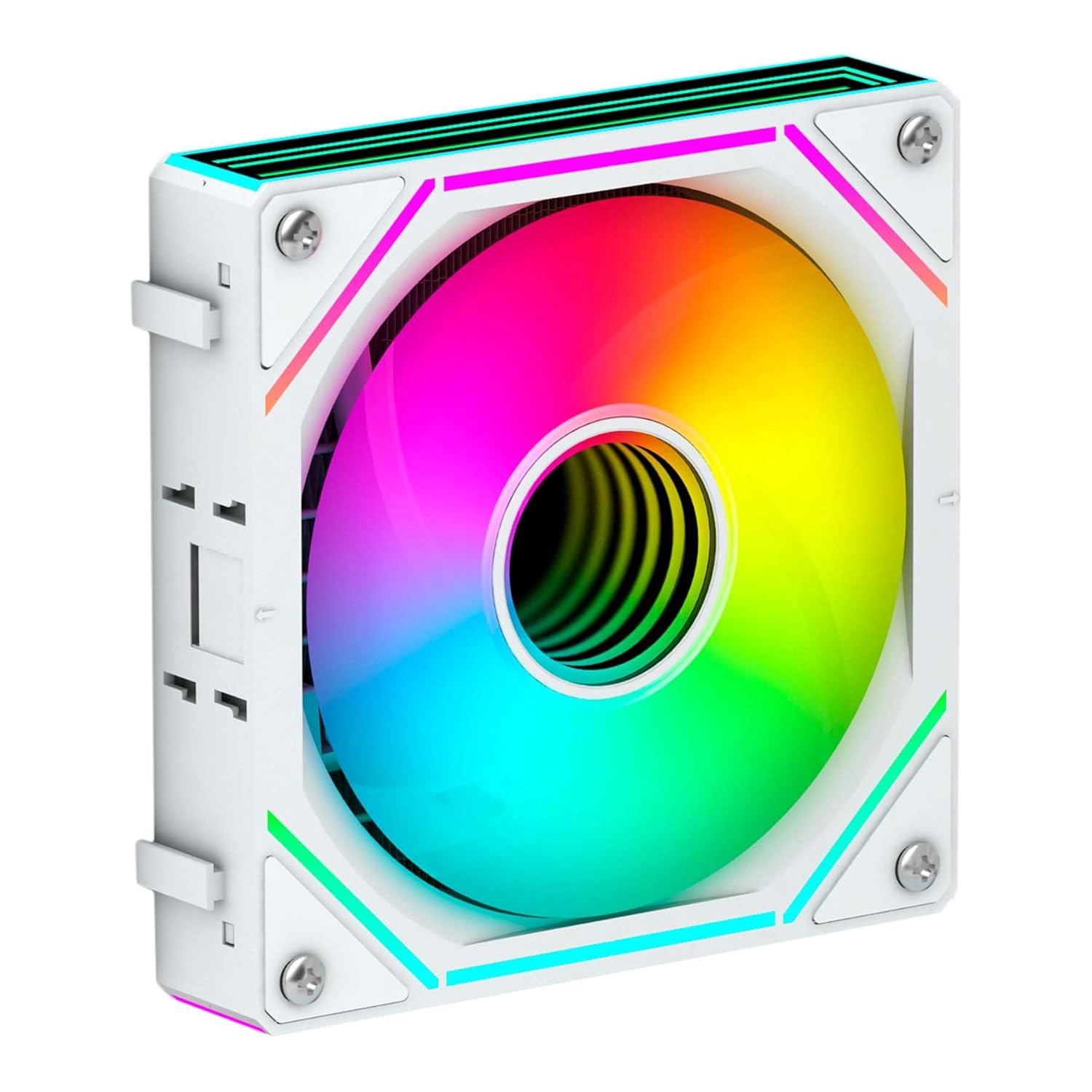
Figure 3: ARGB Fan. This image shows a single 120mm ARGB fan, highlighting its design and lighting capabilities.
ఆపరేటింగ్ సూచనలు
1. ప్రారంభ పవర్-ఆన్
Upon initial power-on, the LCD display on the pump block will activate. It will typically show default system information such as CPU temperature and fan speed. Ensure all fans are spinning and the pump is operating silently.
2. Customizable LCD Display
The 2.8-inch IPS LCD display is a key feature, allowing for real-time monitoring and personalization.
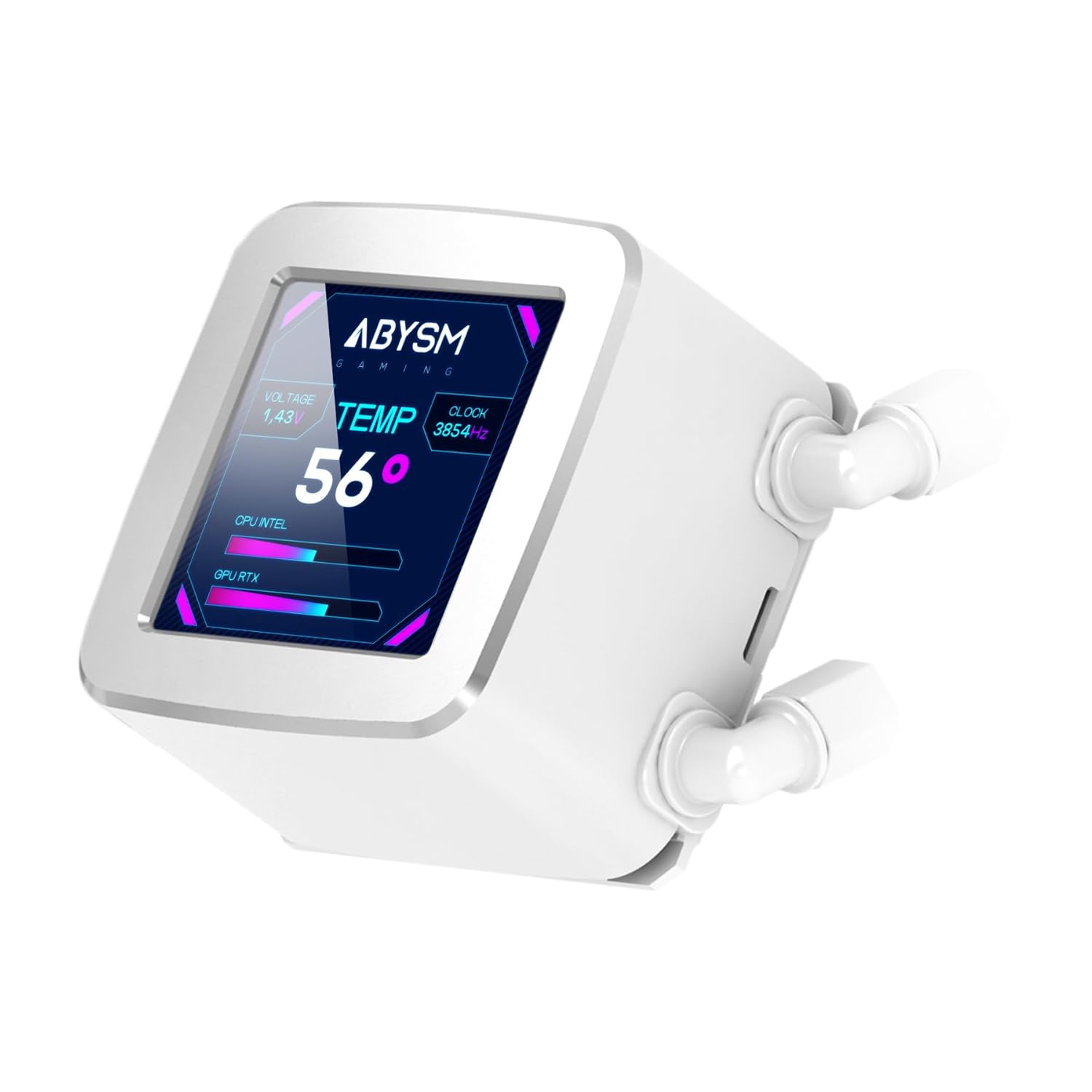
Figure 4: LCD Display. This image highlights the customizable 2.8-inch LCD screen on the pump, displaying real-time system information like CPU temperature, voltage, and clock speed.
- మానిటరింగ్ పారామితులు: The display can show various PC hardware parameters, including:
- CPU ఉష్ణోగ్రత
- GPU Load
- CPU లోడ్
- ఫ్యాన్ వేగం
- నెట్వర్క్ వేగం
- వాల్యూమ్tage
- క్లాక్ స్పీడ్
- అనుకూలీకరణ: The screen supports displaying custom content such as:
- చిత్రాలు
- యానిమేటెడ్ GIFలు
- లోగోలు
- MP4 videos
To customize the display, you will need to download and install the dedicated software from the Abysm Gaming official website. Follow the software's instructions for uploading and managing custom content and selecting monitoring layouts.
3. ARGB లైటింగ్ నియంత్రణ
The ARGB fans can be controlled via your motherboard's ARGB software (if connected to a compatible header) or a dedicated ARGB controller. This allows for synchronization with other ARGB components in your system.
నిర్వహణ
Regular maintenance ensures optimal performance and extends the lifespan of your liquid cooling system.
- దుమ్ము శుభ్రపరచడం: దుమ్ము పేరుకుపోకుండా నిరోధించడానికి రేడియేటర్ రెక్కలు మరియు ఫ్యాన్ బ్లేడ్లను కాలానుగుణంగా శుభ్రం చేయండి, ఇది గాలి ప్రవాహానికి మరియు శీతలీకరణ సామర్థ్యానికి ఆటంకం కలిగిస్తుంది. కంప్రెస్డ్ ఎయిర్ లేదా మృదువైన బ్రష్ను ఉపయోగించండి.
- ఫ్యాన్ తనిఖీ: Check fan blades for any obstructions or signs of wear. The FDB (Fluid Dynamic Bearing) fans are designed for durability and quiet operation.
- ట్యూబ్ తనిఖీ: Inspect the Teflon-coated tubes for any kinks, leaks, or damage. While designed for durability, regular checks are recommended.
- పంప్ ఆపరేషన్: Listen for any unusual noises from the pump, which could indicate an issue. The pump is designed for quiet operation.
- థర్మల్ పేస్ట్: Reapplying thermal paste every few years, or if the cooler is re-seated, can help maintain optimal thermal transfer.
ట్రబుల్షూటింగ్
If you encounter issues with your Abysm Gaming Oceanic 360 liquid cooler, refer to the following common problems and solutions:
- అధిక CPU ఉష్ణోగ్రతలు:
- Ensure the pump is running and connected correctly to the motherboard's CPU_FAN or AIO_PUMP header.
- Verify that fans are spinning and oriented correctly for airflow (pushing air through the radiator).
- Check if the pump block is securely seated on the CPU with adequate thermal paste.
- Clean any dust buildup on the radiator and fans.
- ఫ్యాన్లు తిరగకపోవడం లేదా ARGB వెలిగిపోకపోవడం:
- మదర్బోర్డ్ లేదా కంట్రోలర్కు అన్ని ఫ్యాన్ మరియు ARGB కేబుల్ కనెక్షన్లను తనిఖీ చేయండి.
- Ensure the motherboard's ARGB header is enabled in the BIOS/UEFI.
- Verify that the ARGB software is installed and configured correctly.
- LCD Display Not Working or Showing Incorrect Information:
- Ensure the display's power and data cables are securely connected.
- Install or update the Abysm Gaming display software.
- Check for any software conflicts with other monitoring utilities.
- అసాధారణ పంపు శబ్దం:
- Ensure the pump is receiving stable power.
- Check for air bubbles in the loop (often resolves itself after some operation).
- If noise persists and performance is affected, contact customer support.
స్పెసిఫికేషన్లు
| మోడల్ సంఖ్య | AB336012 |
| బ్రాండ్ | Abysm Gaming |
| ఉత్పత్తి కొలతలు | 15.63"లీ x 2.05"వా x 4.72"హ |
| వస్తువు బరువు | 4.84 పౌండ్లు |
| శీతలీకరణ పద్ధతి | లిక్విడ్ |
| అనుకూల పరికరాలు | CPU |
| మెటీరియల్ | అల్యూమినియం (రేడియేటర్) |
| గరిష్ట భ్రమణ వేగం | 1800 RPM (ఫ్యాన్లు) |
| శబ్దం స్థాయి | 19 డెసిబెల్స్ |
| పవర్ కనెక్టర్ రకం | 3-Pin (Pump), 4-Pin PWM (Fans) |
| వాల్యూమ్tage | 12 వోల్ట్లు |
| వాట్tage | 3 watts (Pump) |
| LCD డిస్ప్లే | 2.8-inch IPS, Customizable |
| ట్యూబ్ మెటీరియల్ | Teflon-coated |
వారంటీ మరియు మద్దతు
For warranty information, please refer to the documentation included with your product or visit the official Abysm Gaming website. The manufacturer, Abysm Gaming, provides support for this product.
If you require technical assistance or have questions not covered in this manual, please contact Abysm Gaming customer support through their official channels.


