1. పరిచయం
This manual provides detailed instructions for the installation, operation, and maintenance of your ESSGOO 10.26-inch Portable Wireless CarPlay & Android Auto Display. Please read this manual thoroughly before using the product to ensure proper function and safety. Keep this manual for future reference.

Image 1.1: The ESSGOO 10.26-inch Portable Wireless CarPlay & Android Auto Display, showing the main unit, front camera, rear camera, and mounting accessories.
2. ఉత్పత్తి ముగిసిందిview
కీ ఫీచర్లు
- వైర్లెస్ కార్ప్లే/ఆండ్రాయిడ్ ఆటో: Seamless smartphone integration for navigation, music, and apps.
- డ్యూయల్ కెమెరా సిస్టమ్: 4K front camera with WDR technology and 1080P waterproof rear camera for comprehensive recording.
- 10.26-అంగుళాల IPS డిస్ప్లే: Full HD (1600x600) resolution with wide viewing కోణాలు.
- Wireless Mirror Link: Supports Miracast/Airplay for screen projection from your smartphone.
- లూప్ రికార్డింగ్: Continuous recording with automatic overwriting of old files, critical event locking.
- వాయిస్ నియంత్రణ: Compatible with Siri and Google Assistant for hands-free operation.
- Multiple Audio Output Modes: Built-in speaker, AUX, FM transmitter, and Bluetooth 5.3.
- విస్తృత వాహన అనుకూలత: Suitable for most 12-24V vehicles.
- Includes 64GB TF Card: Ready for immediate recording.
ప్యాకేజీ విషయాలు

Image 2.1: Diagram showing the display unit, adhesive mount, stickers, 1080P rear camera (6m cable), AUX cable (1m), cigarette lighter power adapter (3m), user manual, and 64GB TF card.
- 1x ESSGOO 10.26-inch Display Unit
- 1x Adhesive Mount (141mm x 67mm x 2mm)
- 1x Set of Mounting Stickers
- 1x 1080P Rear Camera (with 6m cable)
- 1x AUX Cable (1m)
- 1x Cigarette Lighter Power Adapter (3m)
- 1x వినియోగదారు మాన్యువల్
- 1x 64GB TF కార్డ్
3. సెటప్ మరియు ఇన్స్టాలేషన్
3.1 డిస్ప్లేను మౌంట్ చేయడం
- Clean the dashboard surface where the display will be mounted.
- Attach the adhesive mount to the display unit and adjust the angle as desired.
- అంటుకునే నుండి రక్షిత పొరను తొలగించండి.
- Firmly press the display unit onto the dashboard.
Image 3.1: Visual guide for mounting the display on the car's central console.
3.2 కనెక్ట్ పవర్
Connect the Type-C power cable from the display to the cigarette lighter power adapter, then plug the adapter into your car's cigarette lighter socket.
3.3 వెనుక కెమెరా ఇన్స్టాలేషన్
The rear camera provides a 1080P ultra-high-definition video feed and an ultra-wide 170° viewing angle. It is waterproof for reliable outdoor use.
- Connect the rear camera cable to the AV IN port on the main display unit.
- Route the camera cable to the rear of your vehicle.
- Connect the rear camera's positive power cable to your car's reverse light power source. This enables automatic display of the rear view రివర్స్ చేసినప్పుడు.
- Mount the rear camera in a suitable location, typically above the license plate.

Image 3.2: Wiring diagram for connecting the rear camera to the display and the car's reverse lights.
4. ఆపరేటింగ్ సూచనలు
4.1 వైర్లెస్ కార్ప్లే & ఆండ్రాయిడ్ ఆటో
The ESSGOO display supports wireless Apple CarPlay and Android Auto, allowing you to access navigation, music, videos, and other applications from your smartphone directly on the display.
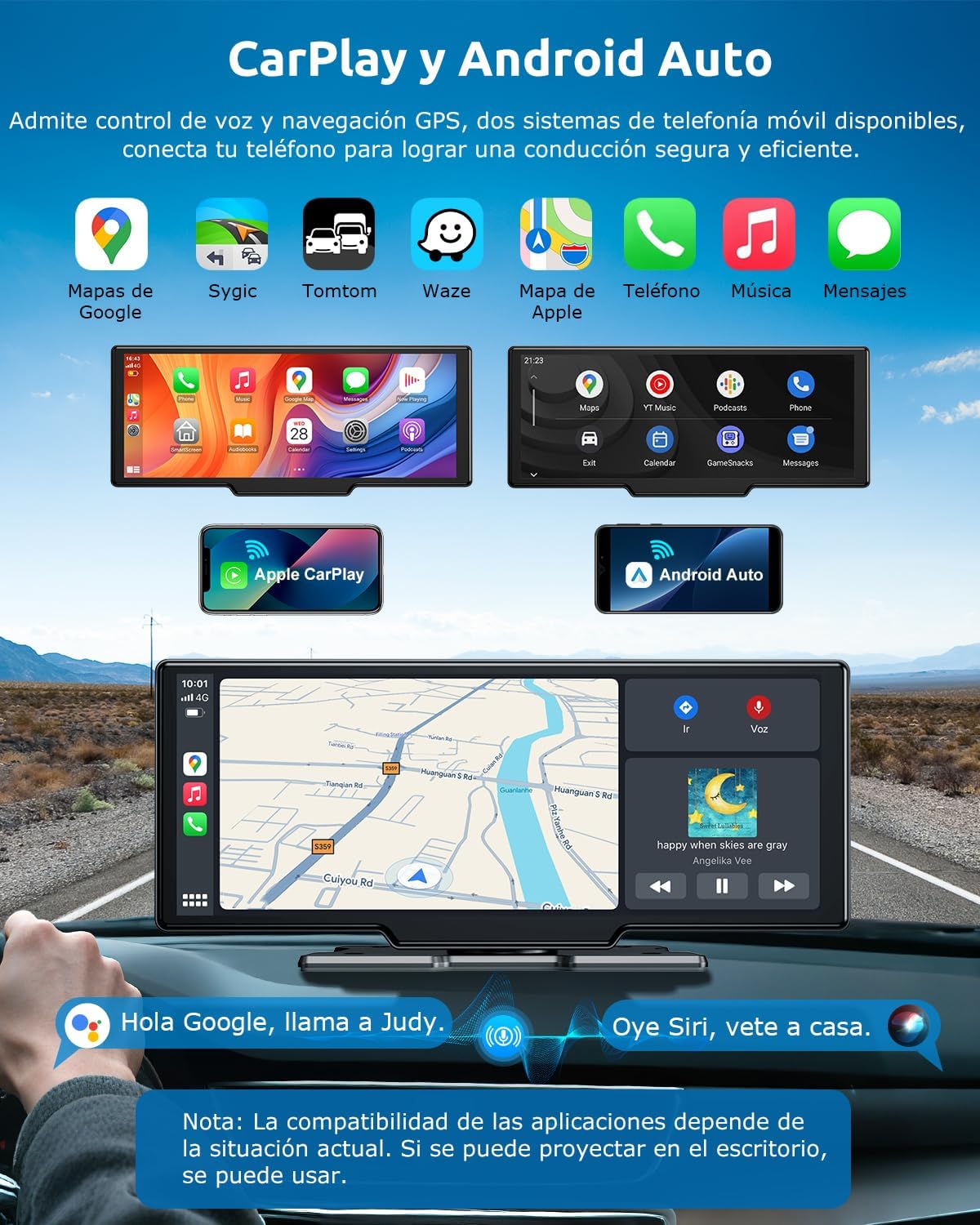
Image 4.1: The display showcasing both Apple CarPlay and Android Auto interfaces, with various compatible apps.
Connecting Apple CarPlay:
- On the display, tap the CarPlay icon.
- On your iPhone (iOS 10 or higher), activate Wi-Fi and Bluetooth.
- Connect to the device named "ESSGOO-XXXXXX" via Bluetooth.
- Confirm to use CarPlay when prompted.
- Wait approximately 20 seconds for a successful connection.

Image 4.2: Step-by-step guide for connecting an iPhone to the display for Apple CarPlay functionality. For more information on CarPlay, visit Apple CarPlay.
Connecting Android Auto:
- On the display, tap the Android Auto icon.
- On your Android phone (Android 11 or higher), activate Wi-Fi and Bluetooth.
- Connect to the device named "ESSGOO-XXXXXX" via Bluetooth.
- Allow the connection when prompted.
- Wait 10-20 seconds for a successful connection.

Image 4.3: Step-by-step guide for connecting an Android phone to the display for Android Auto functionality. For more information on Android Auto, visit ఆండ్రాయిడ్ ఆటో.
4.2 వాయిస్ నియంత్రణ
Utilize voice commands for hands-free navigation, calls, messages, and music playback, enhancing driving safety.

Image 4.4: The display showing voice command prompts for Google Assistant and Siri, integrated with navigation and music playback.
4.3 Wireless Mirror Link (AirPlay/Miracast)
Project your smartphone screen wirelessly onto the ESSGOO display using AirPlay (for iOS) or Miracast (for Android). Note that Netflix is not supported via mirror link.
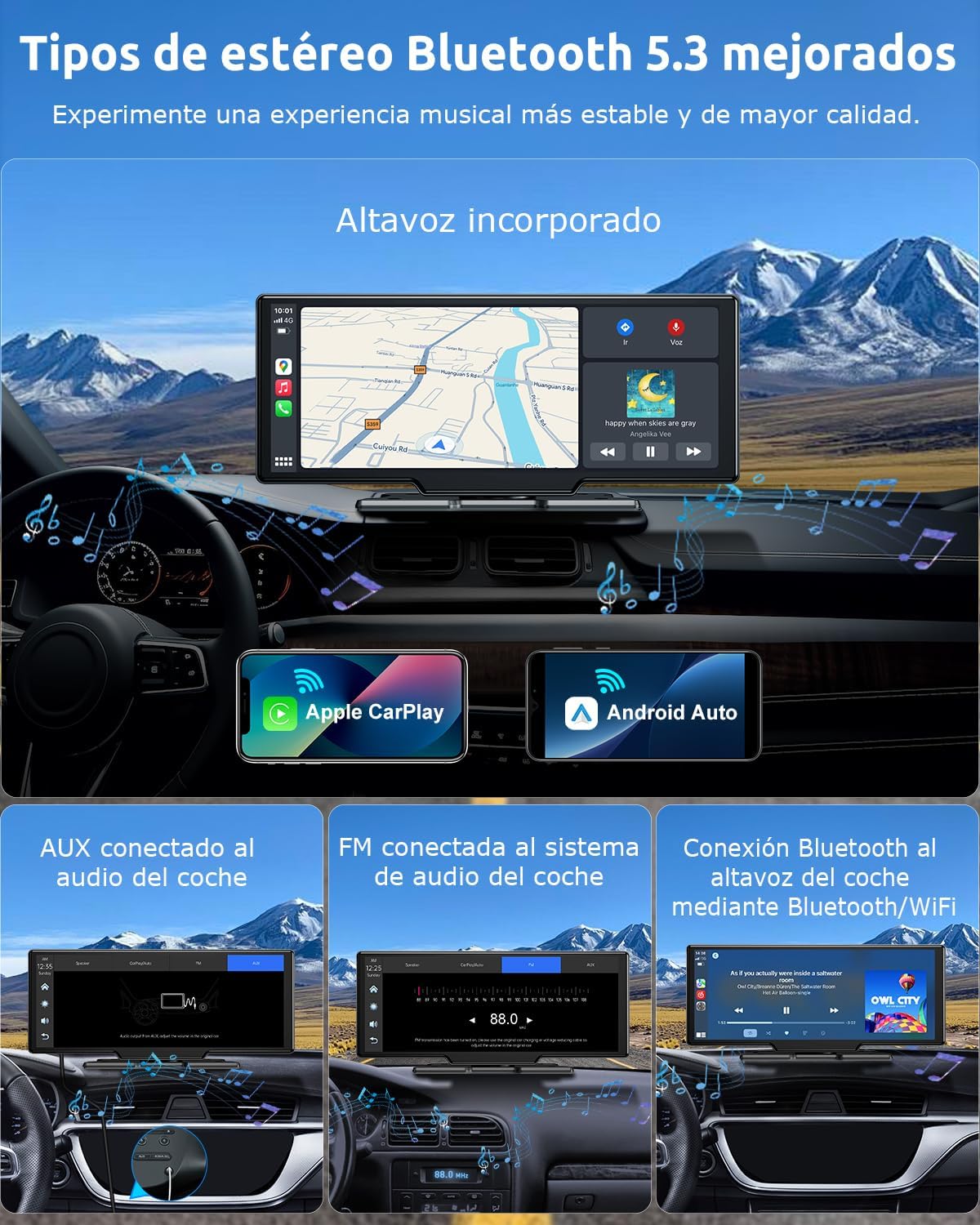
Image 4.5: The display mirroring a smartphone screen, illustrating the wireless mirror link feature.
AirPlay Connection Steps:
- On the display, tap the AirPlay icon.
- Connect to the device "ESSGOO-XXXXXX" via Wi-Fi and enter the password (default: 12345678).
- Once Wi-Fi is connected, activate the screen mirroring function on your mobile phone.
- Select the mirrored object.
- Wait approximately 20 seconds for a successful connection.

Image 4.6: Step-by-step guide for connecting an iPhone to the display using AirPlay for screen mirroring.
Miracast Connection Steps:
- On the display, tap the Android Miracast icon.
- Activate the Miracast interface on your Android phone.
- Find the mobile phone screen projection function (Wireless Projection) in your phone's system settings.
- Click to connect the device: "ESSGOO-BTXXXXXX".
- Wait 10-20 seconds for a successful connection.

Image 4.7: Step-by-step guide for connecting an Android phone to the display using Miracast for screen mirroring.
4.4 Camera Functions (Dash Cam & Rear Camera)
The integrated front 4K camera and optional 1080P rear camera provide comprehensive video recording capabilities.

చిత్రం 4.8: ముగిసిందిview of the camera system, highlighting 4K HD, waterproof design, 170° wide angle, night vision, parking assistance, split screen, loop recording, and included 64GB TF card.
లూప్ రికార్డింగ్:
The device supports intelligent loop recording. When the storage card is full, the system automatically overwrites the oldest unlocked files to ensure continuous recording. Important videos can be locked to prevent overwriting in case of an accident.

Image 4.9: Visual representation of the loop recording function, showing continuous video capture and automatic memory management.
స్ప్లిట్ స్క్రీన్ డిస్ప్లే:
The 10.26-inch display supports various split-screen modes, allowing you to view multiple functions simultaneously, such as navigation and music, or front and rear camera feeds.
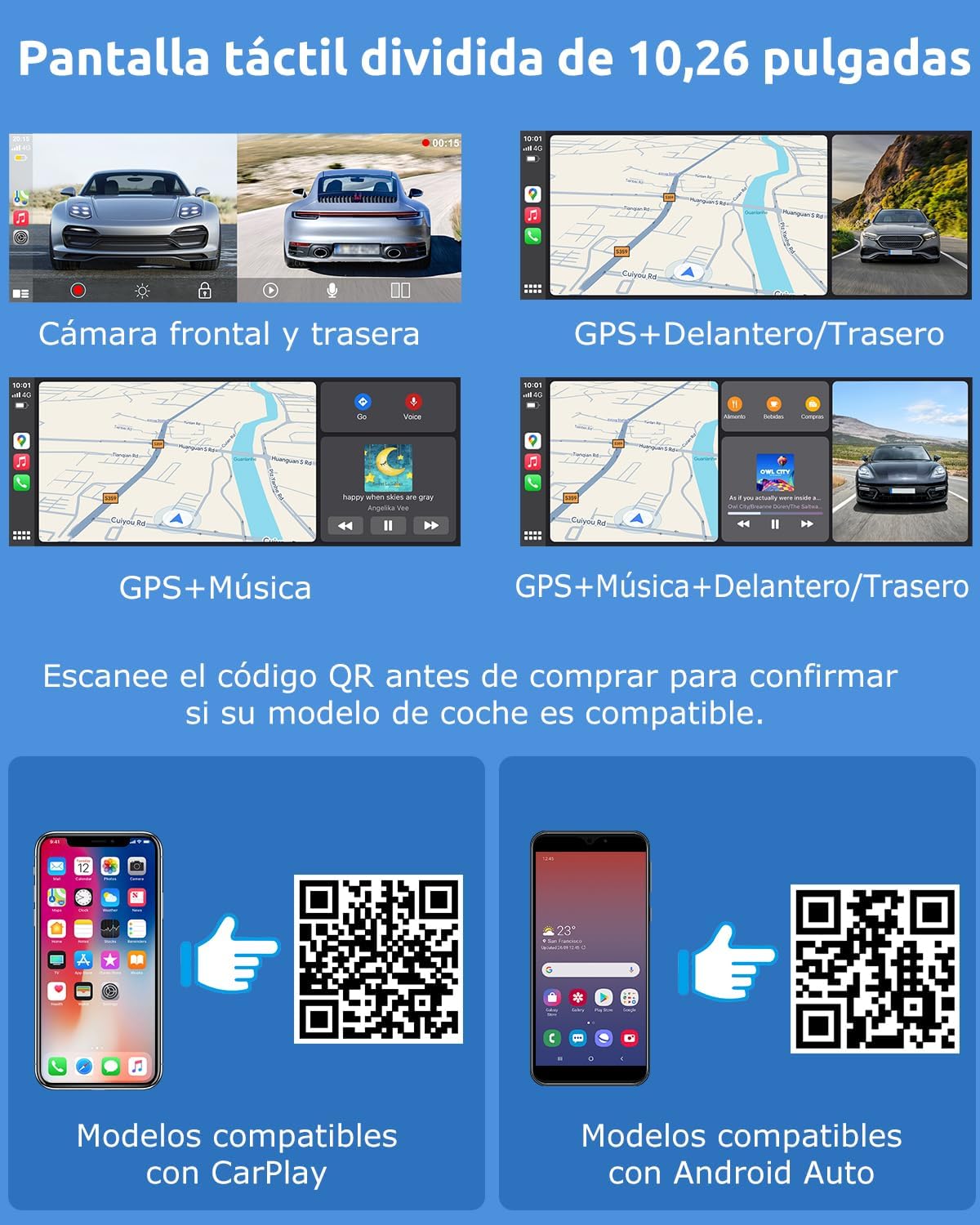
చిత్రం 4.10: ఉదాamples of split-screen configurations, including front and rear camera views, GPS with front/rear camera, GPS with music, and GPS with music and front/rear camera.
Viewing and Sharing Recordings:
మీరు చెయ్యగలరు view and share your dash cam recordings directly from your smartphone by scanning a QR code to download the companion app.

Image 4.11: Guide for scanning a QR code to download the Vlidyre app for viewing, replaying, sharing, and downloading recorded videos. Download the Vlidyre app here: Vlidyre App.
4.5 ఆడియో అవుట్పుట్ ఎంపికలు
The display offers multiple ways to output audio to your car's sound system:
- అంతర్నిర్మిత స్పీకర్: For direct audio output from the device.
- AUX కనెక్షన్: Connect via the included 3.5mm AUX cable to your car's audio input for higher quality sound.
- FM ట్రాన్స్మిటర్: Transmit audio wirelessly to your car's FM radio by tuning to a specific frequency.
- బ్లూటూత్ 5.3: Connect to your car's Bluetooth system for wireless audio streaming.

Image 4.12: Illustration of the different audio output methods: built-in speaker, AUX connection, FM transmitter, and Bluetooth connection to the car's audio system.
Bluetooth 5.3 Connection Steps:
- On the display, tap the Bluetooth Music icon.
- Select "BT Manage".
- Connect to the device named "ESSGOO-XXXXXX" from your phone's Bluetooth settings.
- Once successfully connected, you can play music from your phone.

Image 4.13: Step-by-step guide for connecting your smartphone to the display via Bluetooth 5.3 for audio streaming.
5. నిర్వహణ
- Keep the display clean using a soft, dry cloth. Avoid abrasive cleaners.
- అన్ని కేబుల్స్ సురక్షితంగా కనెక్ట్ అయ్యాయని నిర్ధారించుకోండి.
- Regularly check the rear camera for dirt or obstructions and clean as needed.
- Periodically format the TF card to maintain optimal recording performance and free up space. Back up important recordings before formatting.
- పరికరాన్ని అధిక ఉష్ణోగ్రతలు లేదా ప్రత్యక్ష సూర్యకాంతికి ఎక్కువ కాలం బహిర్గతం చేయకుండా ఉండండి.
6. ట్రబుల్షూటింగ్
| సమస్య | సాధ్యమైన కారణం | పరిష్కారం |
|---|---|---|
| డిస్ప్లే పవర్ ఆన్ అవ్వదు. | కరెంటు లేదు, కనెక్షన్ లేదు, పవర్ అడాప్టర్ తప్పు. | Check power cable connection to the cigarette lighter and the display. Ensure the car's power outlet is functional. |
| CarPlay/Android Auto కనెక్ట్ కావడం లేదు. | Bluetooth/Wi-Fi off, incorrect pairing, incompatible phone OS. | Ensure phone's Bluetooth and Wi-Fi are active. Re-pair the device. Verify phone OS compatibility (iOS 7+, Android 11+). Clear connection records on both devices and try again. |
| ఆడియో లేదు లేదా ఆడియో నాణ్యత సరిగా లేదు. | Incorrect audio output setting, loose AUX cable, FM interference. | Check audio output settings on the display (Built-in Speaker, AUX, FM, Bluetooth). Ensure AUX cable is fully inserted. If using FM, try a different frequency to avoid interference. Adjust car stereo volume. |
| వెనుక కెమెరా కనిపించడం లేదు. | Loose connection, incorrect wiring, faulty camera. | Check the rear camera cable connection to the display. Verify the camera's power connection to the reverse light. |
| Device gets excessively hot. | Prolonged use in high temperatures, poor ventilation. | Ensure adequate ventilation around the device. Avoid direct sunlight exposure. If overheating persists, discontinue use and contact support. |
| Screen mirroring issues. | Wi-Fi connection issues, app incompatibility. | Ensure stable Wi-Fi connection. Note that some apps (e.g., Netflix) are not supported for mirroring. |
7. స్పెసిఫికేషన్లు
| ఫీచర్ | స్పెసిఫికేషన్ |
|---|---|
| బ్రాండ్ | ఎస్ఎస్గు |
| మోడల్ | 2a6b5c0b-ab67-461a-bddc-59e7f19fcbb4 |
| ప్రదర్శన పరిమాణం | 10.26 అంగుళాలు |
| ప్రదర్శన రకం | IPS టచ్స్క్రీన్ |
| డిస్ప్లే రిజల్యూషన్ | 1600 x 600 |
| ఫ్రంట్ కెమెరా రిజల్యూషన్ | 4K |
| వెనుక కెమెరా రిజల్యూషన్ | 1080P |
| కనెక్టివిటీ టెక్నాలజీ | Auxiliary, Bluetooth 5.3, Wi-Fi |
| అనుకూల పరికరాలు | Smartphone (iOS 7+ for CarPlay, Android 11+ for Android Auto/Miracast) |
| ఆడియో అవుట్పుట్ మోడ్ | స్టీరియో |
| మద్దతు ఉన్న ఇంటర్నెట్ సేవలు | ఎయిర్ప్లే |
| మీడియా ఫార్మాట్ | 4K |
| ఉత్పత్తి బరువు | 1 కిలోలు |
| కొలతలు | 28.1 x 14.1 x 10.4 సెం.మీ |
| పవర్ ఇన్పుట్ | 12-24 వి డిసి |
8. అనుకూలత
The ESSGOO 10.26-inch display is designed to be compatible with a wide range of vehicles, supporting 12-24V power systems. This includes most cars, camper vans, trailers, and trucks.

Image 8.1: Illustration showing the compatibility of the display with various 12-24V vehicles, including cars, camper vans, trailers, and trucks.
9. వారంటీ మరియు మద్దతు
For warranty information, technical support, or service inquiries, please refer to the contact details provided with your purchase or visit the official ESSGOO webవారంటీ క్లెయిమ్ల కోసం మీ కొనుగోలు రుజువును ఉంచండి.


