1. పరిచయం
This manual provides comprehensive instructions for the installation, operation, and maintenance of your Sapphire Nitro+ AMD Radeon RX 9070 Gaming OC Graphics Card. Please read this manual thoroughly before installation and retain it for future reference. Proper installation and usage ensure optimal performance and longevity of your product.

Figure 1: Sapphire Nitro+ AMD Radeon RX 9070 Gaming OC Graphics Card and Packaging
2. భద్రతా సమాచారం
Observe the following safety precautions to prevent damage to the graphics card or personal injury:
- ఏదైనా భాగాలను ఇన్స్టాల్ చేసే లేదా తొలగించే ముందు మీ కంప్యూటర్ నుండి ఎల్లప్పుడూ పవర్ను డిస్కనెక్ట్ చేయండి.
- Wear an anti-static wrist strap or frequently touch a grounded metal object to discharge static electricity before handling the graphics card.
- సున్నితమైన భాగాలను తాకకుండా ఉండటానికి గ్రాఫిక్స్ కార్డ్ను దాని అంచుల దగ్గర పట్టుకోండి.
- మీ కంప్యూటర్ కేసు వేడెక్కకుండా ఉండటానికి తగినంత వెంటిలేషన్ ఉండేలా చూసుకోండి.
- Keep the graphics card away from moisture and extreme temperatures.
3. ప్యాకేజీ విషయాలు
మీ ఉత్పత్తి ప్యాకేజీలో అన్ని అంశాలు ఉన్నాయని ధృవీకరించండి:
- Sapphire Nitro+ AMD Radeon RX 9070 Gaming OC Graphics Card
- సూచనల మాన్యువల్ (ఈ పత్రం)
- Additional accessories may vary by region or retailer.
4. సిస్టమ్ అవసరాలు
Before installing your graphics card, ensure your system meets the following minimum requirements:
- ఒక x16 గ్రాఫిక్స్ స్లాట్తో PCI ఎక్స్ప్రెస్-కంప్లైంట్ మదర్బోర్డ్.
- Minimum 750W power supply with appropriate PCIe power connectors (e.g., 8-pin + 8-pin).
- కనీసం 16GB సిస్టమ్ మెమరీ (RAM).
- Operating System: Windows 10/11 64-bit or Linux 64-bit.
- Internet connection for driver installation.
- Sufficient space within the PC case for a card with dimensions of approximately 13.02 x 5.06 x 0.04 inches.
5. సెటప్ మరియు ఇన్స్టాలేషన్
మీ గ్రాఫిక్స్ కార్డును ఇన్స్టాల్ చేయడానికి ఈ దశలను అనుసరించండి:
- మీ వ్యవస్థను సిద్ధం చేయండి: Turn off your computer and disconnect the power cable. Open your computer case.
- PCIe స్లాట్ను గుర్తించండి: Identify an available PCI Express x16 slot on your motherboard. Remove any expansion slot covers that obstruct the slot.
- గ్రాఫిక్స్ కార్డ్ను ఇన్స్టాల్ చేయండి: Carefully align the graphics card with the PCIe x16 slot. Press down firmly and evenly until the card is securely seated. A click may be heard.
- కార్డును భద్రపరచండి: Use the screw or latch mechanism on your case to secure the graphics card to the chassis.
- పవర్ కేబుల్లను కనెక్ట్ చేయండి: Connect the required PCIe power cables from your power supply to the graphics card. This model typically requires two 8-pin PCIe power connectors. Ensure connections are firm.
- కేస్ మూసివేసి, పెరిఫెరల్స్ కనెక్ట్ చేయండి: Close your computer case, reconnect the power cable, and connect your display cable (HDMI or DisplayPort) to the graphics card.
- Power On and Install Drivers: Turn on your computer. Once the operating system loads, download and install the latest AMD Radeon drivers from the official AMD webసైట్ (www.amd.com/en/support).

Figure 2: Graphics Card Seated in PCIe Slot

Figure 3: STEALTH Hidden Power Cable Routing
6. ఆపరేటింగ్ సూచనలు
After successful installation and driver setup, your graphics card is ready for use. The AMD Radeon software provides various settings for optimizing performance, display, and other features.
- డ్రైవర్ నవీకరణలు: Regularly check for and install the latest graphics drivers from AMD to ensure optimal performance and compatibility with new games and applications.
- ప్రదర్శన ఆకృతీకరణ: Use the AMD Radeon software or your operating system's display settings to configure resolution (up to 3840x2160), refresh rate, and multiple monitors.
- పనితీరు ట్యూనింగ్: The AMD Radeon software allows for performance tuning, including fan speed control and power limit adjustments. Exercise caution when modifying these settings.
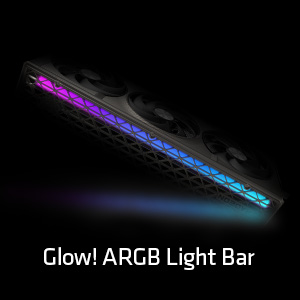
Figure 4: Customizable ARGB Light Bar
7. నిర్వహణ
Proper maintenance helps extend the lifespan and maintain the performance of your graphics card.
- దుమ్ము తొలగింపు: Periodically clean dust from the heatsink fins and fan blades using compressed air. Ensure the fans are held stationary during cleaning to prevent damage.
- Fan Care: The Sapphire Nitro+ series features Quick Connect Fans, allowing for easy removal and cleaning. Refer to the manufacturer's guidelines for specific fan removal instructions.
- థర్మల్ పేస్ట్: Replacing thermal paste is generally not recommended for end-users and should only be performed by qualified technicians if necessary.

Figure 5: Graphics Card Cooling Fans
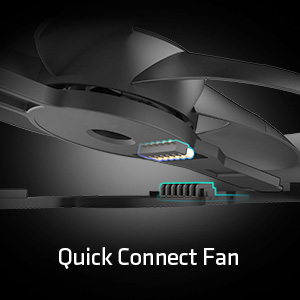
Figure 6: Quick Connect Fan Feature
8. ట్రబుల్షూటింగ్
If you encounter issues with your graphics card, consider the following common solutions:
- డిస్ప్లే అవుట్పుట్ లేదు:
- డిస్ప్లే కేబుల్ గ్రాఫిక్స్ కార్డ్ మరియు మానిటర్ రెండింటికీ సురక్షితంగా కనెక్ట్ చేయబడిందని నిర్ధారించుకోండి.
- Verify that the PCIe power cables are correctly connected to the graphics card.
- Check if the graphics card is fully seated in the PCIe slot.
- వీలైతే వేరే డిస్ప్లే కేబుల్ లేదా మానిటర్తో పరీక్షించండి.
- సిస్టమ్ అస్థిరత/క్రాష్లు:
- మీ గ్రాఫిక్స్ డ్రైవర్లు తాజాగా ఉన్నాయని నిర్ధారించుకోండి.
- Check your power supply unit (PSU) to ensure it meets the recommended wattage.
- Monitor GPU temperatures using software like AMD Radeon software. Excessive heat can cause instability.
- ఆటలు/అప్లికేషన్లలో పేలవమైన పనితీరు:
- మీ గ్రాఫిక్స్ డ్రైవర్లు తాజాగా ఉన్నాయని నిర్ధారించుకోండి.
- Check in-game settings; reduce resolution or graphics quality if necessary.
- Verify that your system meets the recommended specifications for the application.
9. స్పెసిఫికేషన్లు
| ఫీచర్ | స్పెసిఫికేషన్ |
|---|---|
| మోడల్ సంఖ్య | 11349-01-20G |
| గ్రాఫిక్స్ కోప్రాసెసర్ | AMD రేడియన్ RX 9070 |
| చిప్సెట్ బ్రాండ్ | AMD |
| గ్రాఫిక్స్ కార్డ్ RAM పరిమాణం | 16 GB GDDR6 |
| మెమరీ ఇంటర్ఫేస్ | 256-బిట్ |
| మెమరీ వేగం | 20 GHz |
| GPU క్లాక్ స్పీడ్ | 2700 MHz (బూస్ట్) |
| గరిష్ట స్క్రీన్ రిజల్యూషన్ | 3840x2160 |
| వీడియో అవుట్పుట్ ఇంటర్ఫేస్ | 2 x HDMI, 2 x డిస్ప్లేపోర్ట్ |
| ఉత్పత్తి కొలతలు (LxWxH) | 13.02 x 5.06 x 0.04 అంగుళాలు |
| వస్తువు బరువు | 5.99 పౌండ్లు |
10. వారంటీ మరియు మద్దతు
For warranty information and technical support, please refer to the documentation included with your product or visit the official Sapphire webసైట్. వారంటీ నిబంధనలు మరియు షరతులు ప్రాంతం మరియు రిటైలర్ను బట్టి మారవచ్చు.
ఆన్లైన్ వనరులు:
- Sapphire Official Webసైట్: www.sapphiretech.com
- AMD మద్దతు: www.amd.com/en/support


