పరిచయం
Welcome to the user manual for your new DigiLand 2025 Tablet R10 Pro. This guide provides essential information for setting up, operating, maintaining, and troubleshooting your device. Please read this manual thoroughly to ensure optimal performance and longevity of your tablet.
The DigiLand R10 Pro is a 10.1-inch Android 14 tablet designed for versatile use, featuring a MediaTek Helio G80 octa-core processor, 12GB RAM, and 128GB storage. It comes with a 6000mAh battery and supports Wi-Fi 6 and BT 5.0 connectivity, making it suitable for work, study, and entertainment.
పెట్టెలో ఏముంది
- R10 PRO Tablet
- R10 PRO Stand Case
- ఛార్జర్
- ఛార్జింగ్ కేబుల్
- వినియోగదారు మాన్యువల్

Image: The DigiLand R10 Pro tablet, its stand case, charger, charging cable, and user manual are included in the box.

చిత్రం: వివరణాత్మక view of the tablet, case, charger, charging cable, and quick start guide as packaged.
ఉత్పత్తి ముగిసిందిview
కీ ఫీచర్లు
- Vibrant 10.1" HD Incell Display: Enjoy stunning visuals on the 10.1-inch HD Incell display with a resolution of 1280x800. The slim and portable design ensures easy mobility, making it ideal for watching movies, working on projects, or gaming on the go. The display’s vibrant colors and sharp details provide an immersive experience wherever you are.
- Powerful Performance & Incredible Value: The DigiLand Tab R10 PRO delivers an exceptional combination of performance and value. Powered by the MediaTek Helio G80 octa-core processor, 10GB of RAM, and 128GB of storage (expandable up to 256GB), this tablet ensures top-tier performance for all your digital needs without breaking the bank, making it a cost-effective solution for work, study, and entertainment.
- Reliable Battery Life: Featuring a 6000mAh battery with 18W fast charging, the DigiLand Tab R10 PRO keeps you powered throughout the day. Whether you're working, studying, or enjoying videos and e-books, you can trust this tablet to stay charged and ready for all your activities.
- Convenient Stand Case for Hands-Free Viewing: The DigiLand Tab R10 PRO includes a durable stand case for effortless hands-free viewing, perfect for watching videos or video calls. The 8MP front camera and 13MP rear camera ensure crystal-clear photos and video calls, making this tablet a great companion for both work and play.

చిత్రం: ఒక ఓవర్view of the tablet's core features and specifications.

Image: Visual representation of the tablet's operating system, memory, storage, battery, and display.
స్పెసిఫికేషన్లు
| ఫీచర్ | స్పెసిఫికేషన్ |
|---|---|
| స్క్రీన్ ప్రదర్శన పరిమాణం | 10.1 అంగుళాలు |
| స్క్రీన్ రిజల్యూషన్ | 1280x800 |
| గరిష్ట స్క్రీన్ రిజల్యూషన్ | 800 x 1280 |
| ప్రాసెసర్ | 2 GHz |
| RAM | 128 GB |
| చిప్సెట్ బ్రాండ్ | ARM |
| కార్డ్ వివరణ | ఇంటిగ్రేటెడ్ |
| వైర్లెస్ రకం | 802.11ఎ, 802.11ఎసి, 802.11బి, 802.11గ్రా, 802.11ఎన్ |
| సగటు బ్యాటరీ లైఫ్ (గంటల్లో) | 12 గంటలు |
| ఆపరేటింగ్ సిస్టమ్ | ఆండ్రాయిడ్ |
| వస్తువు బరువు | 1.07 పౌండ్లు |
| ఉత్పత్తి కొలతలు | 9.54 x 6.35 x 0.31 అంగుళాలు |
| రంగు | బూడిద రంగు |
| వెనుక Webకెమెరా రిజల్యూషన్ | 13 ఎంపీ |
| ప్రాసెసర్ బ్రాండ్ | మీడియాటెక్ |
| కంప్యూటర్ మెమరీ రకం | DDR4 SDRAM |
| ఫ్లాష్ మెమరీ పరిమాణం | 16 GB |
| బ్యాటరీలు | 1 లిథియం పాలిమర్ బ్యాటరీలు అవసరం. (చేర్చబడి) |
సెటప్
ప్రారంభ పవర్ ఆన్
To power on your DigiLand R10 Pro tablet for the first time, press and hold the power button located on the top left side (when held in landscape orientation) until the DigiLand logo appears on the screen. Follow the on-screen prompts to complete the initial setup, including language selection and basic settings.
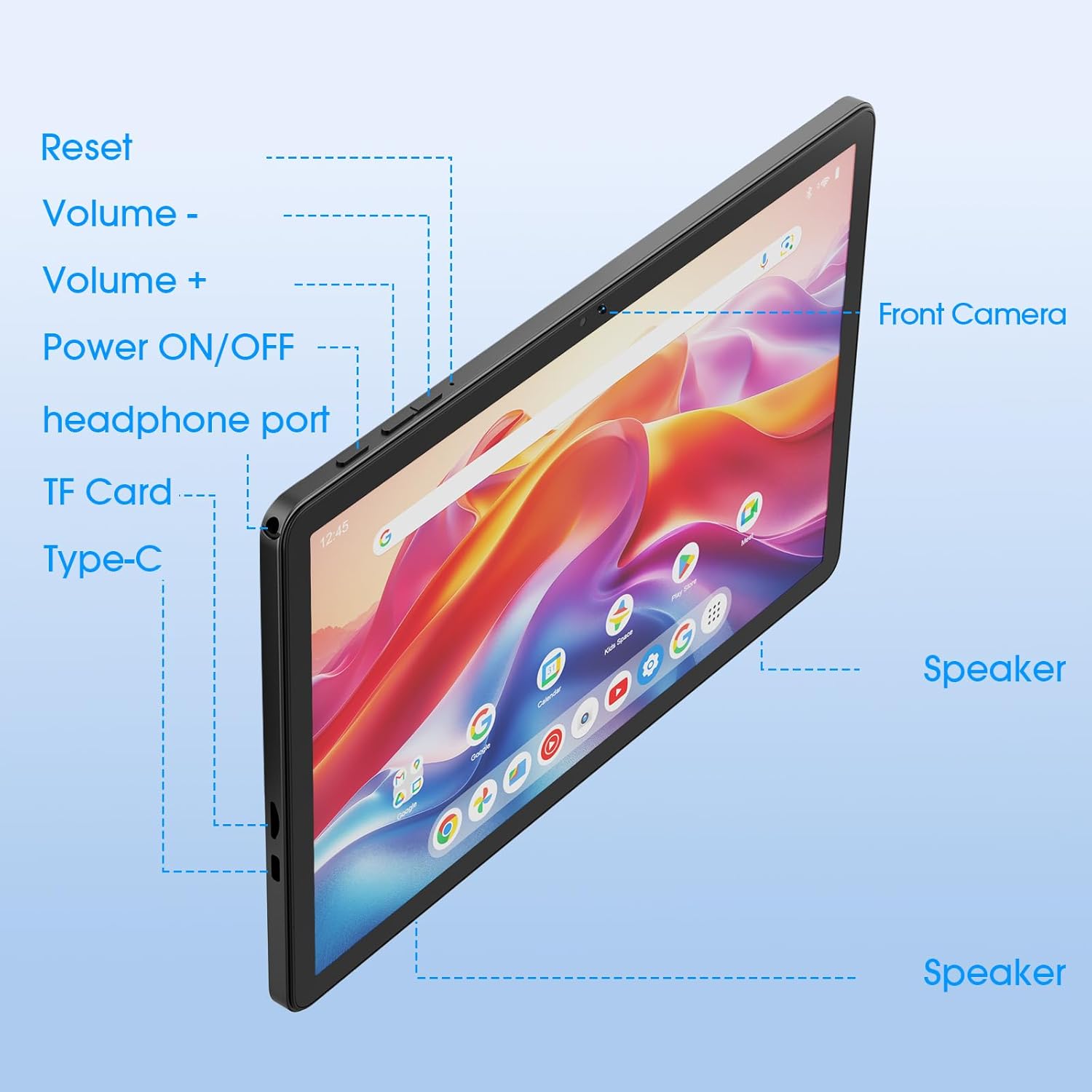
Image: The side of the tablet highlighting the location of the power button and various ports.
Wi-Fiకి కనెక్ట్ చేస్తోంది
During the initial setup, you will be prompted to connect to a Wi-Fi network. Select your desired network from the list and enter the password if required. A stable Wi-Fi connection is essential for downloading apps, updates, and accessing online content.
Memory Expansion (Fusion Memory)
The DigiLand R10 Pro tablet features a memory expansion option, also known as Fusion Memory, which allows you to use a portion of your internal storage as additional RAM. By default, the tablet uses 4GB of RAM, but you can expand it up to 12GB (4GB physical RAM + 8GB virtual RAM from storage).
To enable or adjust memory expansion:
- వెళ్ళండి సెట్టింగ్లు.
- Scroll down and tap on టాబ్లెట్ గురించి.
- గుర్తించండి మెమరీ విస్తరణ option (often listed as 4GB+8GB(Fusion Memory)).
- Toggle the switch to enable memory expansion and adjust the size if desired.
- Restart the device for changes to take effect.
While this feature can improve multitasking, note that using internal storage as RAM may result in slightly slower performance compared to physical RAM.
ఆపరేటింగ్
ప్రాథమిక నావిగేషన్
The tablet operates on Android 14, providing an intuitive user interface. Navigate by tapping, swiping, and pinching on the touchscreen. The home screen provides quick access to your most used apps and widgets. Swipe down from the top for quick settings and notifications.

Image: The tablet being used for online education, reading news, watching videos, and reading e-books.
కెమెరాలను ఉపయోగించడం
The tablet is equipped with an 8MP front camera and a 13MP rear camera. Open the Camera app to capture photos and videos. You can switch between front and rear cameras, apply filters, and adjust settings within the app.

Image: Close-up of the tablet's cameras and sample photos taken with them.
బ్యాటరీ లైఫ్
The 6000mAh battery provides extended usage times. Expect approximately 9 hours for video playback, 11 hours for e-books, 14 hours for music, and 7 hours for gaming. Actual battery life may vary based on usage patterns and settings.

Image: Visual representation of the tablet's long battery life with usage estimates.
Media Consumption
The 10.1-inch HD IPS display and dual-channel speakers enhance your media experience. Enjoy movies, music, and e-books with vibrant colors and clear audio. The Widevine L1 certification ensures high-quality streaming from supported platforms.

Image: A user holding the tablet, with sound waves emanating from the dual speakers, indicating an immersive audio experience.
గేమింగ్
The MediaTek Helio G80 octa-core processor and 12GB RAM provide sufficient power for casual gaming and some more demanding titles. While the 1280x800 resolution is not Full HD, it helps the GPU maintain smoother frame rates. For optimal gaming, ensure your tablet is charged and close unnecessary background applications.

Image: A close-up of the MediaTek Helio G80 processor chip, emphasizing its 8-core architecture and performance capabilities.
నిర్వహణ
ఛార్జింగ్
Use the provided charger and USB-C cable to charge your tablet. The tablet supports 18W fast charging. Ensure the charging port is clean and free of debris before connecting the cable.
క్లీనింగ్
To clean the screen, use a soft, lint-free cloth. For the tablet body, a slightly damp cloth can be used. Avoid using harsh chemicals or abrasive materials that could damage the finish.
సాఫ్ట్వేర్ నవీకరణలు
Periodically check for software updates in సెట్టింగ్లు > సిస్టమ్ > సిస్టమ్ అప్డేట్. Keeping your tablet's software up to date ensures you have the latest features, security patches, and performance improvements.
ట్రబుల్షూటింగ్
సాధారణ సమస్యలు మరియు పరిష్కారాలు
- టాబ్లెట్ ఆన్ కావడం లేదు: Ensure the battery is charged. Connect the charger and wait a few minutes before attempting to power on again. If unresponsive, press and hold the power button for 10-15 seconds to perform a forced restart.
- యాప్లు క్రాష్ అవుతున్నాయి లేదా స్తంభించిపోతున్నాయి: Close background applications. Clear the cache and data of the problematic app in సెట్టింగ్లు > యాప్లు > [యాప్ పేరు] > నిల్వ. If the issue persists, uninstall and reinstall the app.
- Wi-Fi కనెక్టివిటీ సమస్యలు: Restart your Wi-Fi router and the tablet. Forget the network in సెట్టింగ్లు > నెట్వర్క్ & ఇంటర్నెట్ > Wi-Fi and reconnect. Ensure you are within range of the Wi-Fi signal.
- నెమ్మది పనితీరు: Close unused apps. Clear cached data regularly. Consider enabling memory expansion if not already active. If performance remains slow, a factory reset (after backing up data) might be necessary.
- స్క్రీన్ స్పందించడం లేదు: Try restarting the tablet. If the screen remains unresponsive, contact customer support.
వారంటీ & మద్దతు
For warranty information, technical support, or service inquiries, please refer to the warranty card included in your product packaging or visit the official DigiLand webవారంటీ క్లెయిమ్ల కోసం మీ కొనుగోలు రుజువును ఉంచండి.
DigiLand is committed to providing advanced, smooth, and cost-effective electronic products. For any issues before or after purchase, feel free to contact us for assistance.


