1. పరిచయం
This manual provides instructions for the Belkin Everyday Keyboard Case with Cradle, designed to enhance the functionality and protection of your iPad 10th Generation 10.9". This accessory integrates a backlit Bluetooth keyboard, a multi-gesture trackpad, and a protective case with magnetic Apple Pencil storage, transforming your iPad into a versatile workstation.
2. ఉత్పత్తి ముగిసిందిview
కీ ఫీచర్లు
- బ్యాక్లిట్ బ్లూటూత్ కీబోర్డ్: Enhances productivity in low-light conditions.
- Multi-Gesture Controls: Large, click-anywhere trackpad supports gestures for scrolling, navigating, and zooming.
- మాగ్నెటిక్ ఆపిల్ పెన్సిల్ నిల్వ: Integrated design ensures secure storage without obstructing the iPad's magnetic charging area.
- మల్టీమీడియా కీలు: Dedicated keys for quick access to common functions.
- రక్షణ కేసు: Premium faux leather exterior and soft anti-slip interior protect your device.
ప్యాకేజీ విషయాలు
- 1 x Belkin Everyday Keyboard Case with Cradle for iPad 10th Generation 10.9"
- 1 x USB-C Charging Cable (for keyboard)
3. సెటప్
3.1 Check iPad Compatibility
Ensure your iPad is compatible with this keyboard case. This product is designed for the iPad 10th Generation 10.9".

Image: Compatible iPad models. This case is specifically for iPad 10th Gen (A2696/A2757).
To find your iPad model number:
- ఎంపిక 1: Look on the back of your iPad for the model number.
- ఎంపిక 2: Open Settings > General > About. Tap the part number to reveal the model number.
3.2 Attaching the iPad
The case features a magnetic snap-on attachment for easy and secure installation of your iPad.
- Align your iPad with the protective cradle portion of the case.
- The iPad will magnetically snap into place, securing it within the case.

Image: Magnetic snap-on attachment for the iPad.
3.3 బ్లూటూత్ జత చేయడం
The keyboard connects to your iPad via Bluetooth. It needs to be paired independently.
- Ensure the keyboard is charged (see section 3.4).
- Turn on the keyboard (if applicable, usually by opening the case or a dedicated power button).
- మీ ఐప్యాడ్లో, ఇక్కడికి వెళ్లండి సెట్టింగ్లు > బ్లూటూత్.
- Look for "Belkin Keyboard" or a similar name in the list of available devices and tap to connect.
- జత చేసే ప్రక్రియను పూర్తి చేయడానికి ఏదైనా ఆన్-స్క్రీన్ ప్రాంప్ట్లను అనుసరించండి.
3.4 కీబోర్డ్ను ఛార్జ్ చేయడం
The keyboard has an internal rechargeable battery and must be charged separately from your iPad.
- కీబోర్డ్లో USB-C ఛార్జింగ్ పోర్ట్ను గుర్తించండి.
- Connect the provided USB-C cable to the keyboard and a compatible USB power adapter (not included).
- ఛార్జింగ్ ఇండికేటర్ లైట్ ఛార్జింగ్ స్థితిని చూపుతుంది.

Image: The keyboard features a 450mAh battery for long-lasting power.
4. ఆపరేటింగ్ సూచనలు
4.1 కీబోర్డ్ వాడకం
The keyboard provides a tactile typing experience with several useful features.
- బ్యాక్లిట్ కీలు: Press the dedicated backlight key (often represented by a sun icon) to cycle through brightness levels or turn the backlight off to conserve battery.
- మల్టీమీడియా కీలు: Use the dedicated function keys for quick access to media playback controls, volume adjustment, and other system functions.

Image: Backlit Bluetooth Keyboard and Multimedia Keys in use.
4.2 Trackpad Usage
The large, click-anywhere trackpad supports multi-gesture controls for intuitive navigation on your iPad.
- స్క్రోలింగ్: పైకి లేదా క్రిందికి స్క్రోల్ చేయడానికి రెండు వేళ్లను ఉపయోగించండి.
- నావిగేట్ చేస్తోంది: Swipe with three fingers to switch between open applications.
- జూమ్ చేయడం: Pinch with two fingers to zoom in or out on content.
- క్లిక్ చేయడం: Press down on any part of the trackpad for a click action.

Image: Multi-Gesture Controls on Touchpad.
4.3 Stand Functionality
The integrated cradle and kickstand allow for adjustable viewing కోణాలు.
- Open the case and position the iPad in the cradle.
- Adjust the kickstand at the back of the keyboard portion to achieve your desired viewing కోణం.
4.4 Apple Pencil Storage
The case is designed with compatibility for Apple Pencil storage.
- Place your Apple Pencil on the designated magnetic strip on the side of the iPad.
- The case ensures the Apple Pencil remains securely attached and accessible.
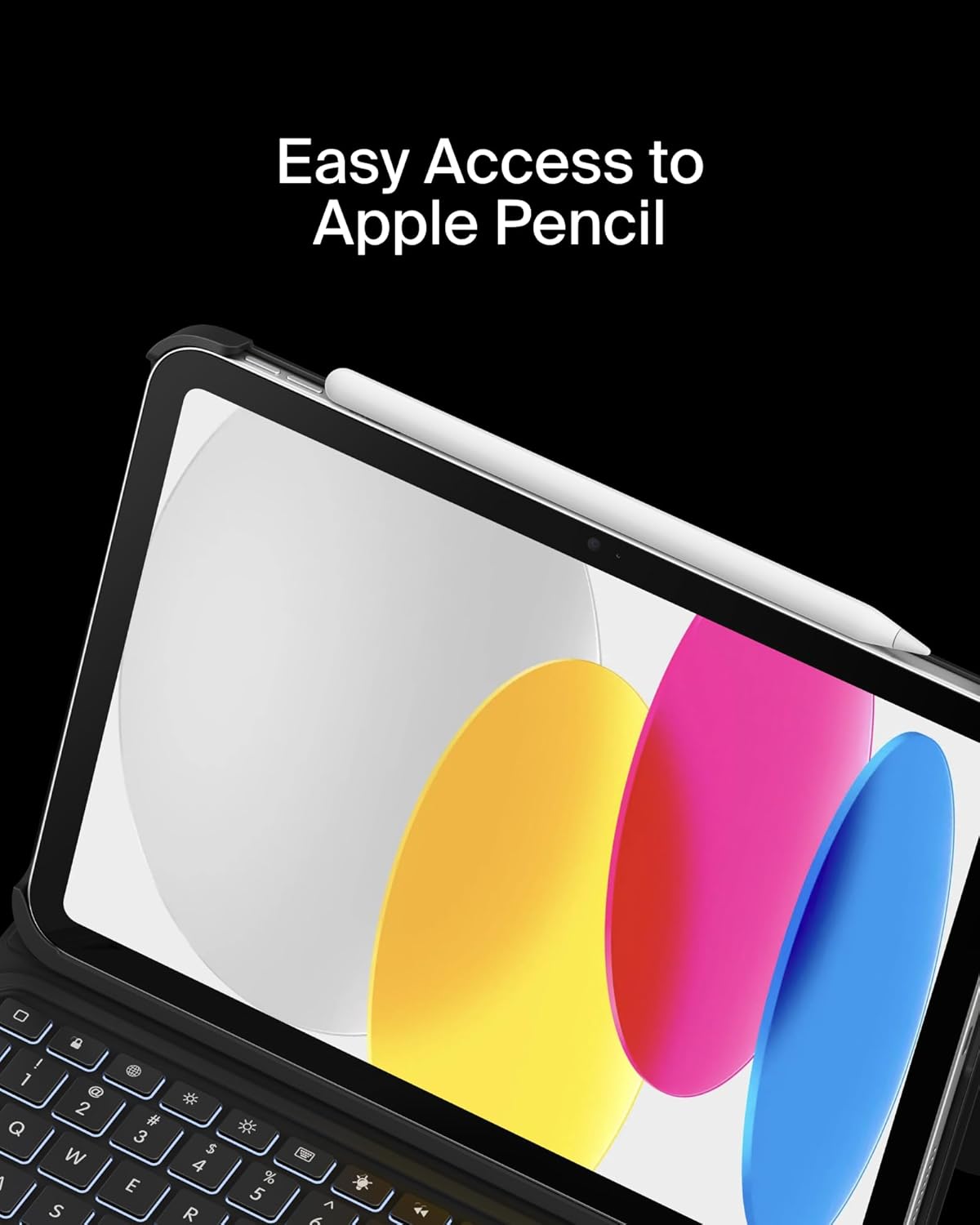
Image: Easy Access to Apple Pencil.
5. నిర్వహణ
5.1 శుభ్రపరచడం
To maintain the appearance and functionality of your keyboard case:
- ఒక మృదువైన, d తో బాహ్య తుడవడంamp గుడ్డ. కఠినమైన రసాయనాలను నివారించండి.
- For the keyboard keys and trackpad, use a soft, dry cloth or a gentle brush to remove dust and debris.
5.2 బ్యాటరీ సంరక్షణ
కీబోర్డ్ 450mAh లిథియం బ్యాటరీతో అమర్చబడి ఉంటుంది.
- మొదటిసారి ఉపయోగించే ముందు కీబోర్డ్ను పూర్తిగా ఛార్జ్ చేయండి.
- Recharge the keyboard when the battery indicator shows low power.
- ఉత్తమ బ్యాటరీ జీవితకాలం కోసం, తరచుగా బ్యాటరీని పూర్తిగా ఖాళీ చేయడాన్ని నివారించండి.
- If not in use for an extended period, charge the keyboard every few months to prevent deep discharge.
6. ట్రబుల్షూటింగ్
6.1 కీబోర్డ్ స్పందించడం లేదు
- బ్యాటరీని తనిఖీ చేయండి: కీబోర్డ్ తగినంతగా ఛార్జ్ చేయబడిందని నిర్ధారించుకోండి.
- బ్లూటూత్ను తిరిగి జత చేయండి: Go to iPad Settings > Bluetooth, forget the device, and re-pair the keyboard.
- పరికరాలను పునఃప్రారంభించండి: మీ ఐప్యాడ్ మరియు కీబోర్డ్ రెండింటినీ పునఃప్రారంభించండి.
6.2 Trackpad Not Working
- బ్లూటూత్ కనెక్షన్ని తనిఖీ చేయండి: Ensure the keyboard is properly paired via Bluetooth.
- క్లీన్ ట్రాక్ప్యాడ్: Ensure the trackpad surface is clean and free of obstructions.
- ఐప్యాడ్ సెట్టింగ్లు: Verify trackpad settings in iPadOS are enabled and configured as desired.
6.3 Backlight Not Functioning
- బ్యాటరీని తనిఖీ చేయండి: Backlight consumes power; ensure the keyboard has enough charge.
- ప్రకాశం సర్దుబాటు: Use the dedicated backlight key to increase brightness.
7. స్పెసిఫికేషన్లు
| బ్రాండ్ | బెల్కిన్ |
| మోడల్ సంఖ్య | BBZ001tt-V3 |
| అనుకూల పరికరాలు | iPad 10th Generation 10.9" |
| కనెక్టివిటీ టెక్నాలజీ | బ్లూటూత్ |
| కీబోర్డ్ వివరణ | మల్టీమీడియా |
| ప్రత్యేక లక్షణాలు | Apple Pencil Storage, Backlit, Multimedia Keys, Trackpad |
| రంగు | నలుపు |
| కీబోర్డ్ బ్యాక్లైటింగ్ కలర్ సపోర్ట్ | ఒకే రంగు |
| శైలి | Case w/ Cradle |
| మెటీరియల్ | Faux Leather (Exterior), Soft Non-Slip Material (Interior) |
| వస్తువు బరువు | 1.6 పౌండ్లు |
| ఉత్పత్తి కొలతలు (LxWxH) | 10.9 x 7.7 x 0.9 అంగుళాలు |
| శక్తి మూలం | బ్యాటరీ ఆధారితమైనది |
| బ్యాటరీ | 450mAh lithium battery (standby time: 365 days) |

Image: Slim, Portable Design with approximate dimensions and weight.
8. వారంటీ & సపోర్ట్
8.1 పరిమిత వారంటీ
This Belkin Everyday Keyboard Case with Cradle comes with a 2-సంవత్సరం పరిమిత వారంటీ. ఈ వారంటీ సాధారణ ఉపయోగంలో పదార్థాలు మరియు పనితనంలో లోపాలను కవర్ చేస్తుంది.

Image: Belkin Product Protection - 2 Year Coverage.
8.2 కస్టమర్ మద్దతు
For technical assistance, warranty claims, or further information, please visit the official Belkin support webసైట్ లేదా వారి కస్టమర్ సేవను సంప్రదించండి.
బెల్కిన్ మద్దతు: www.belkin.com/support/


