1. పరిచయం
Thank you for choosing the TATTMUSE A281M Portable Thermal Printer. This compact and versatile device offers a convenient, inkless printing solution for various needs, from office documents to school notes and travel essentials. This manual provides detailed instructions to help you set up, operate, and maintain your printer for optimal performance.
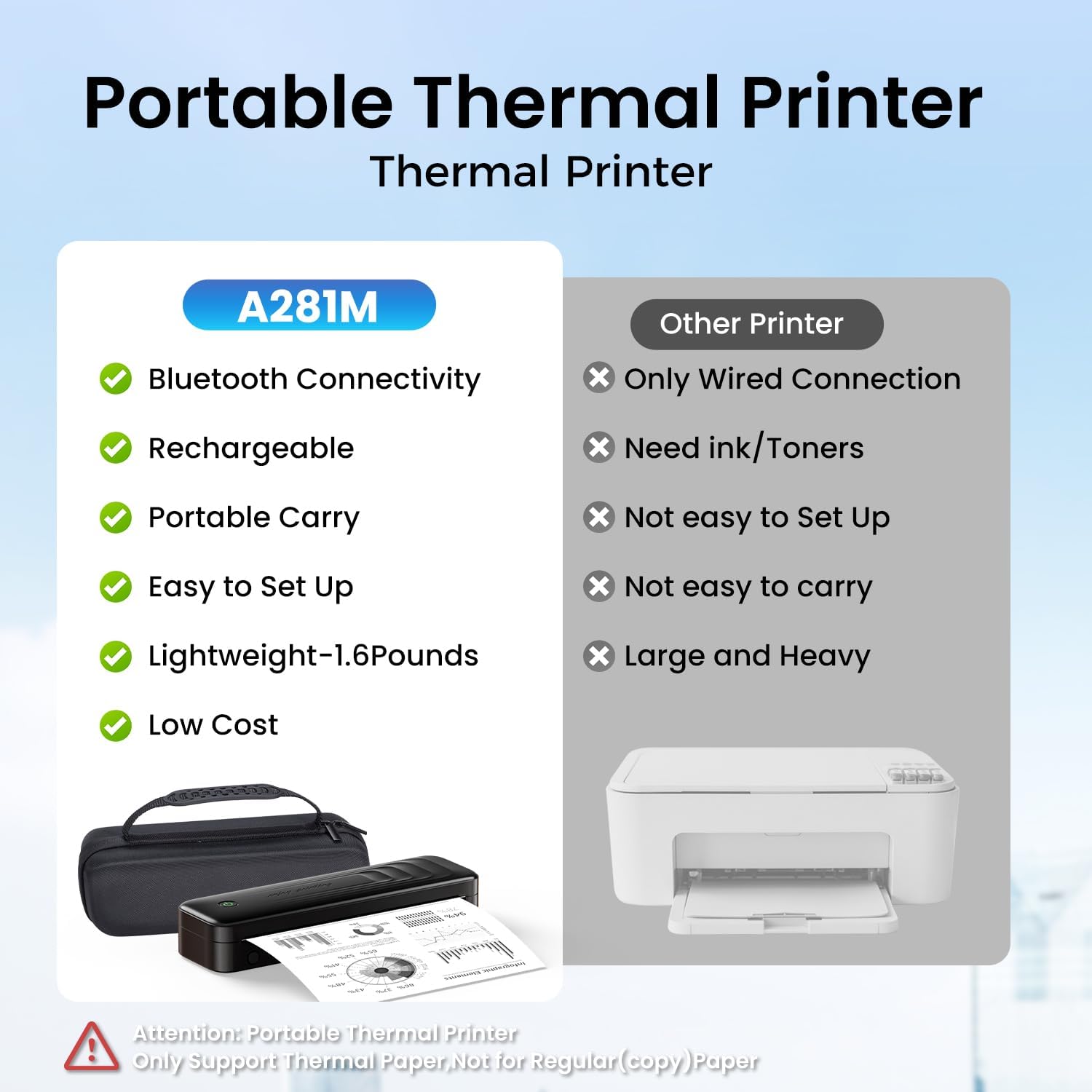
Figure 1.1: The TATTMUSE A281M Portable Thermal Printer offers superior portability and convenience compared to traditional printers, featuring Bluetooth connectivity, a rechargeable battery, and an inkless design.
2. పెట్టెలో ఏముంది
క్రింద జాబితా చేయబడిన అన్ని వస్తువులు మీ ప్యాకేజీలో చేర్చబడ్డాయని దయచేసి ధృవీకరించండి:
- 1 x Portable Thermal Printer (Model A281M)
- 1 x Portable Printer Carry Case
- 1 Roll 8.5" Thermal Paper
- 1 Roll 4.33" Thermal Paper
- 1 Roll 3.14" Thermal Paper
- 1 Roll 2.08" Thermal Paper
- 1 x USB-C నుండి USB అడాప్టర్
- 1 x USB-C కేబుల్
- 1 x క్విక్ స్టార్ట్ గైడ్

చిత్రం 2.1: చిత్రించబడింది view of all components included with your TATTMUSE A281M Portable Thermal Printer.
3. సెటప్ గైడ్
3.1 ప్రింటర్ను ఛార్జ్ చేయడం
Before first use, ensure the printer is fully charged. Connect the provided USB-C cable to the printer and a compatible USB power source (e.g., wall adapter, computer USB port). The indicator light will show charging status.
3.2 థర్మల్ పేపర్ను లోడ్ చేస్తోంది
The TATTMUSE A281M supports various thermal paper sizes and types. To load paper:
- పేపర్ కంపార్ట్మెంట్ కవర్ తెరవండి.
- Insert the thermal paper roll or single sheet, ensuring the printable side (usually smoother) faces the print head.
- కాగితం వెడల్పుకు సరిపోయేలా పేపర్ గైడ్లను సర్దుబాటు చేయండి.
- Close the paper compartment cover securely.

Figure 3.1: The printer supports various thermal paper formats, including continuous folding, single sheets, inner rolls, and stickers, in sizes such as US Letter, A4, 4.33'', 3.14'', and 2.08''.
3.3 Connecting to a Smartphone (Bluetooth)
- Download the official TATTMUSE printer application from your device's app store (available for Android and iOS).
- మీ స్మార్ట్ఫోన్లో బ్లూటూత్ ప్రారంభించబడిందని నిర్ధారించుకోండి.
- Open the TATTMUSE app and follow the in-app instructions to connect to your printer. The printer should appear as 'A281M' or similar in the device list.
- Once connected, you can select files or pictures within the app to print.

Figure 3.2: Simple three-step process for smartphone printing: Download the app, connect via Bluetooth within the app, and select your file ముద్రించడానికి.
3.4 Connecting to a PC/Laptop (USB)
- Download the necessary printer drivers from the official webసైట్: a281m.labelife.cc ద్వారా మరిన్ని. Drivers are available for Windows 10/11, Linux, ChromeOS, and macOS.
- Use the provided USB-C cable to connect the A281M printer to your computer.
- Once the driver is installed and the printer is connected, open your document or image and select 'A281M' from the printer list in your application's print dialogue.

Figure 3.3: Connect your printer to a laptop or PC via USB after downloading the appropriate drivers from the provided webసైట్.
4. ఆపరేటింగ్ సూచనలు
4.1 ప్రాథమిక ముద్రణ
After connecting your printer via Bluetooth or USB, you can initiate printing from your chosen device. Ensure your document or image is properly formatted for the thermal paper size you are using. The printer will automatically feed the paper and produce the printout.

Figure 4.1: Experience exceptional print clarity with high-definition output, ensuring sharp and clear text and graphics.
4.2 Supported Paper Types and Sizes
The A281M printer is designed exclusively for thermal paper. It does not support regular copy paper. It is compatible with five different paper sizes and three types:
- పరిమాణాలు: US Letter (8.5'' x 11''), A4, 4.33'', 3.14'', 2.08''
- రకాలు: Roll thermal paper, Fold thermal paper, Ordinary thermal paper
Always use high-quality thermal paper to ensure optimal print results and printer longevity.
5. నిర్వహణ
5.1 Inkless Technology
This printer utilizes thermal technology, eliminating the need for ink cartridges, toner, or ribbons. This design prevents common ink-related issues such as clogs and messy clean-ups.
5.2 శుభ్రపరచడం
To maintain print quality and extend the life of your printer, periodically clean the print head and paper path. Use a soft, lint-free cloth lightly dampened with isopropyl alcohol. Ensure the printer is turned off and disconnected from power before cleaning.
5.3 Thermal Paper Care
Thermal paper can be sensitive to heat, light, and certain chemicals. Store thermal paper in a cool, dry place away from direct sunlight and heat sources to prevent fading and maintain print quality over time.
6. ట్రబుల్షూటింగ్
If you encounter issues with your TATTMUSE A281M printer, please refer to the following common problems and solutions:
| సమస్య | సాధ్యమైన కారణం | పరిష్కారం |
|---|---|---|
| ప్రింటర్ బ్లూటూత్ ద్వారా కనెక్ట్ కావడం లేదు | Bluetooth off, app not open, printer not discoverable. | Ensure Bluetooth is on, open the app, restart printer, try pairing again. |
| Printer not recognized by PC/Laptop | Driver not installed, incorrect USB cable, loose connection. | Install/reinstall drivers from a281m.labelife.cc ద్వారా మరిన్ని, use original USB-C cable, ensure secure connection. |
| Poor print quality (faint, blurry) | Low battery, poor quality thermal paper, dirty print head. | Charge printer fully, use recommended thermal paper, clean print head. |
| Paper jams or tears | Improper paper loading, damaged paper, foreign object in paper path. | Reload paper correctly, inspect paper for damage, carefully remove any obstructions. |
| ప్రింటర్ ఆన్ కావడం లేదు | Battery depleted, power button issue. | Charge the printer for at least 30 minutes, press and hold the power button. |
7. స్పెసిఫికేషన్లు
| ఫీచర్ | వివరాలు |
|---|---|
| మోడల్ పేరు | A281M |
| ప్రింటింగ్ టెక్నాలజీ | పోర్టబుల్ థర్మల్ ప్రింటర్ |
| కనెక్టివిటీ టెక్నాలజీ | బ్లూటూత్, USB టైప్ సి |
| ప్రింటర్ అవుట్పుట్ | మోనోక్రోమ్ |
| గరిష్ట ముద్రణ వేగం (మోనోక్రోమ్) | 15 ppm |
| Max Copy Resolution (B&W) | 300 dpi |
| గరిష్ట మీడియా పరిమాణం | 8.5'' x 11'' |
| Supported Sheet Sizes | 8.5'' x 11'', A4, 4.33'', 3.14'', 2.08'' Inches |
| ఇంక్ రకం | ఇంక్ లేదు (థర్మల్) |
| బ్యాటరీ | 2600mAh లిథియం పాలిమర్ (చేర్చబడింది) |
| ఉత్పత్తి కొలతలు | 10.24 x 3.07 x 1.77 అంగుళాలు |
| వస్తువు బరువు | 2.79 పౌండ్లు |
| అనుకూల పరికరాలు | Laptops, PC, Smartphones, Tablets (Android, iOS, Windows 10/11, Linux, ChromeOS, macOS) |
8. వారంటీ మరియు మద్దతు
8.1 వారంటీ సమాచారం
Your TATTMUSE A281M Portable Thermal Printer comes with a పరిమిత వారంటీ. Please refer to the warranty card included in your package for specific terms and conditions, including coverage duration and claim procedures.
8.2 కస్టమర్ మద్దతు
For technical assistance, troubleshooting, or any inquiries regarding your product, please visit the official TATTMUSE store or contact customer support through the details provided in your product documentation. You can also find more information and resources on the TATTMUSE Store on Amazon.


