పరిచయం
This manual provides comprehensive instructions for the setup, operation, maintenance, and troubleshooting of your Trueque KC213 Wireless Ergonomic Keyboard and Mouse Combo. Please read this guide thoroughly to ensure optimal performance and longevity of your device.
సెటప్ గైడ్
1. ప్యాకేజీ విషయాలు
మీరు ప్రారంభించడానికి ముందు, అన్ని అంశాలు ప్యాకేజీలో ఉన్నాయని నిర్ధారించుకోండి:
- వైర్లెస్ కీబోర్డ్
- వైర్లెస్ మౌస్
- USB రిసీవర్ (మౌస్ లోపల నిల్వ చేయబడుతుంది)
- వినియోగదారు మాన్యువల్

చిత్రం: వెనుక view of the keyboard and mouse, highlighting the battery compartments and the USB receiver storage.
2. బ్యాటరీ ఇన్స్టాలేషన్
- కీబోర్డ్ కోసం: Locate the battery compartment on the underside of the keyboard. Open the cover and insert two (2) AAA batteries (not included), ensuring correct polarity. Close the battery compartment cover.
- మౌస్ కోసం: Locate the battery compartment on the underside of the mouse. Open the cover and insert one (1) AA battery (not included), ensuring correct polarity. Close the battery compartment cover.

Image: Detailed diagram illustrating the insertion of AAA batteries into the keyboard and an AA battery into the mouse.
3. USB రిసీవర్ కనెక్షన్
- USB రిసీవర్ మౌస్ యొక్క బ్యాటరీ కంపార్ట్మెంట్లో నిల్వ చేయబడుతుంది. దానిని జాగ్రత్తగా తీసివేయండి.
- మీ కంప్యూటర్, ల్యాప్టాప్ లేదా అనుకూల పరికరంలో అందుబాటులో ఉన్న USB పోర్ట్లోకి USB రిసీవర్ను ప్లగ్ చేయండి.
- సిస్టమ్ అవసరమైన డ్రైవర్లను స్వయంచాలకంగా గుర్తించి ఇన్స్టాల్ చేస్తుంది. అదనపు సాఫ్ట్వేర్ ఇన్స్టాలేషన్ అవసరం లేదు.

Image: The compact USB receiver shown plugged into a laptop, enabling wireless connectivity for both devices.
4. పవర్ ఆన్
Ensure the power switch on both the keyboard and mouse is in the "ON" position. The devices are now ready for use.
ఆపరేటింగ్ సూచనలు
సౌకర్యం కోసం ఎర్గోనామిక్ డిజైన్
The keyboard features a generous palm rest and adjustable tilt legs to provide a comfortable typing position, reducing wrist strain during extended use. The mouse is contoured to fit the hand naturally, offering a comfortable grip.

Image: A user's hands positioned on the keyboard, demonstrating the comfort provided by the integrated wrist rest.
ఇంటిగ్రేటెడ్ ఫోన్/టాబ్లెట్ హోల్డర్
A built-in cradle on the keyboard allows you to prop up your smartphone or tablet (under 11.9 inches) at an optimal viewing angle. This feature helps keep your devices visible for notifications or media consumption while working.
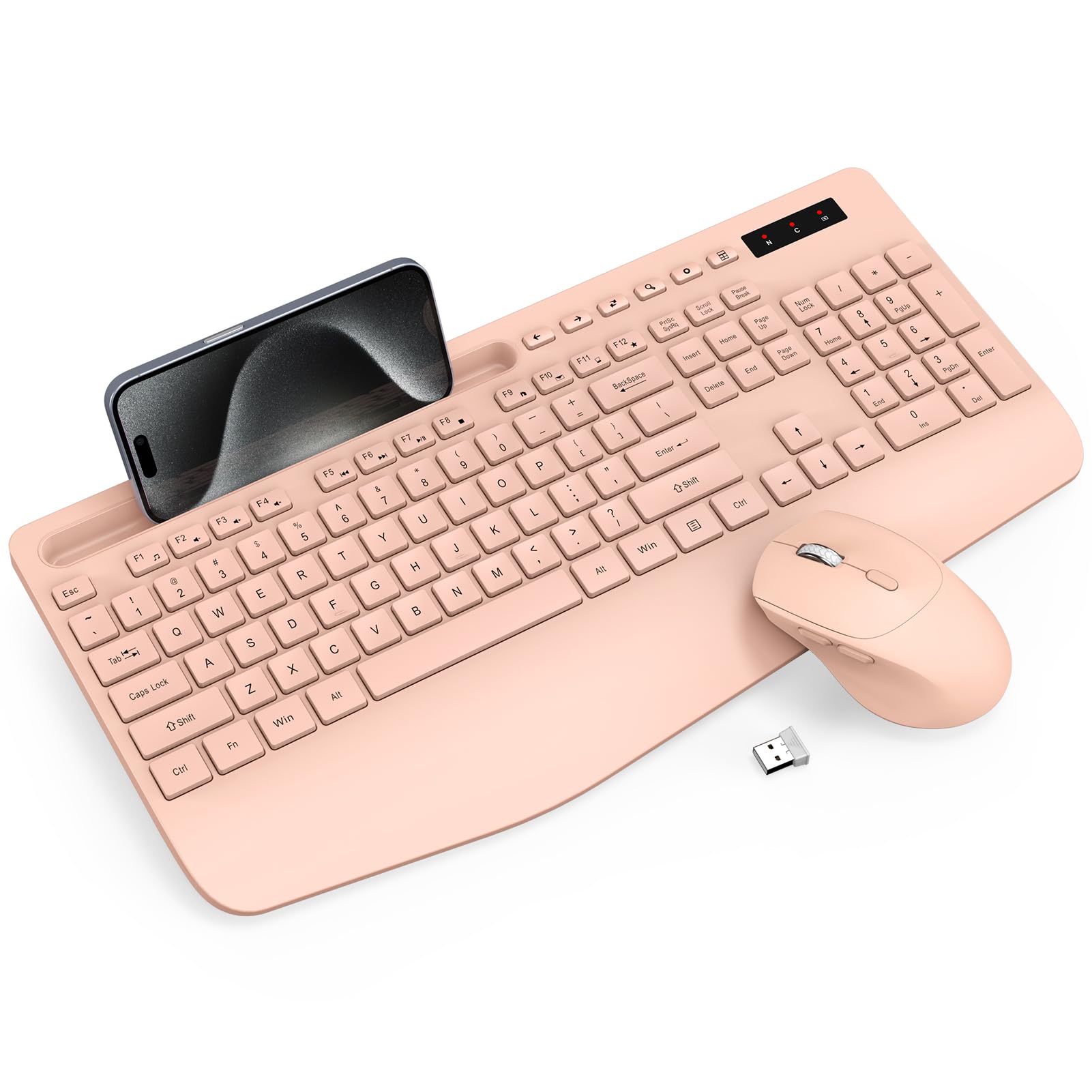
Image: A smartphone securely positioned in the keyboard's integrated holder, illustrating its practical use.
మల్టీమీడియా మరియు షార్ట్కట్ కీలు
The keyboard includes 6 commonly used hotkeys for quick access to functions like browsing web pages, opening the calculator, and media controls. The mouse features 6 buttons, including forward/backward functions, to enhance navigation efficiency.

Image: An illustration detailing the various shortcut keys on the keyboard and the functional buttons on the mouse.
DPI సర్దుబాటు (మౌస్)
The mouse offers adjustable DPI settings (800, 1200, 1600) to customize cursor sensitivity. Press the DPI switch button located on the top of the mouse to cycle through the settings.

చిత్రం: క్లోజప్ view of the mouse, indicating the DPI switch and other functional buttons for enhanced control.
Quiet and Smooth Typing
The keyboard features soft membrane keys designed for quiet and smooth typing, minimizing noise. The mouse also operates with 95% less clicking noise, ensuring a peaceful work environment.

చిత్రం: ఒక మాగ్నిఫైడ్ view of the keyboard keys, illustrating the design for quiet and effortless typing.
స్మార్ట్ పవర్ మేనేజ్మెంట్
To conserve battery life, both the keyboard and mouse enter a smart sleep mode after periods of inactivity. The keyboard sleeps after 15 minutes of idle time, and the mouse after 10 minutes. Press any key or button to wake them up.

Image: An infographic detailing the smart sleep mode feature for both the keyboard and mouse, indicating idle times before sleep activation.
సూచిక లైట్లు
The keyboard features indicator lights for Num Lock, Caps Lock, and Power. The power light will blink to indicate low battery status.
అనుకూలత
The Trueque KC213 Wireless Ergonomic Keyboard and Mouse Combo is compatible with a wide range of operating systems, including Windows, Chrome OS, and Mac OS. It can be used with PCs, laptops, and other compatible devices.

Image: Visual representation of the product's broad compatibility across various devices and operating systems.
నిర్వహణ
క్లీనింగ్
To clean your keyboard and mouse, use a soft, damp cloth. Avoid using harsh chemicals or abrasive cleaners, as these may damage the surface. Ensure the devices are powered off before cleaning.
బ్యాటరీ భర్తీ
When the power indicator light on the keyboard blinks, or if the devices become unresponsive, it's time to replace the batteries. Follow the battery installation steps in the Setup Guide.
ట్రబుల్షూటింగ్
- No Connection/Unresponsive Devices:
- కీబోర్డ్ మరియు మౌస్ రెండూ ఆన్లో ఉన్నాయని నిర్ధారించుకోండి.
- Check that the USB receiver is securely plugged into a working USB port on your device.
- Replace the batteries in both the keyboard and mouse if they are low.
- USB రిసీవర్ని వేరే USB పోర్ట్కి ప్లగ్ చేసి ప్రయత్నించండి.
- పరికరాలు USB రిసీవర్ యొక్క 33 అడుగుల వైర్లెస్ పరిధిలో ఉన్నాయని నిర్ధారించుకోండి.
- Typing/Clicking Delays:
- Ensure there are no obstructions between the devices and the USB receiver.
- Move closer to the USB receiver to improve signal strength.
- Check for potential interference from other 2.4GHz wireless devices.
- మౌస్ కర్సర్ జంప్లు/అక్రమ కదలిక:
- మౌస్ కింద ఉన్న మౌస్ సెన్సార్ను శుభ్రం చేయండి.
- మౌస్ను శుభ్రమైన, ప్రతిబింబించని ఉపరితలంపై ఉపయోగించండి.
- Adjust the DPI setting of the mouse to a lower sensitivity if needed.
స్పెసిఫికేషన్లు
| ఫీచర్ | వివరాలు |
|---|---|
| మోడల్ సంఖ్య | KC213 |
| కనెక్టివిటీ టెక్నాలజీ | 2.4GHz USB వైర్లెస్ కనెక్షన్ |
| వైర్లెస్ రేంజ్ | 33 అడుగుల (10 మీటర్లు) వరకు |
| కీబోర్డ్ బ్యాటరీ | 2 x AAA (చేర్చబడలేదు) |
| మౌస్ బ్యాటరీ | 1 x AA (చేర్చబడలేదు) |
| కీబోర్డ్ కొలతలు | 16.85 x 8.46 x 1.57 అంగుళాలు |
| వస్తువు బరువు | 2.12 పౌండ్లు |
| అనుకూల పరికరాలు | Chromebook, Laptop, Personal Computer (Windows, Chrome OS, Mac OS) |
| ప్రత్యేక లక్షణాలు | Ergonomic Design, Wrist Rest, Phone Holder, Silent Keys, Smart Sleep Mode, Adjustable Mouse DPI |
వారంటీ మరియు మద్దతు
Your Trueque KC213 Wireless Ergonomic Keyboard and Mouse Combo comes with a 12 నెలల వారంటీ. For any product inquiries, technical support, or warranty claims, please contact Trueque customer service:
ఇమెయిల్: truequeservice@outlook.com
Trueque is committed to providing responsive customer support within 24 hours.
Image: Customer service details including email and warranty period.
