పరిచయం
This manual provides detailed instructions for setting up and using your Rapoo 9360M Wireless Keyboard and Mouse Combo. This combo offers versatile connectivity, supporting up to four devices across multiple operating systems, enhancing your productivity and workspace efficiency.

Image: The Rapoo 9360M wireless keyboard and mouse combo, featuring a sleek black design.
ప్యాకేజీ విషయాలు
- Rapoo 9360M Wireless Keyboard
- Rapoo M300G Silent Wireless Mouse
- USB 2.4GHz రిసీవర్
- 2 x AAA బ్యాటరీలు (కీబోర్డ్ కోసం)
- 1 x AA బ్యాటరీ (మౌస్ కోసం)
- త్వరిత ప్రారంభ గైడ్ (ఈ మాన్యువల్)
సెటప్ సూచనలు
1. బ్యాటరీ ఇన్స్టాలేషన్
- కీబోర్డ్: కీబోర్డ్ దిగువన ఉన్న బ్యాటరీ కంపార్ట్మెంట్ను తెరవండి. రెండు AAA బ్యాటరీలను చొప్పించండి, సరైన ధ్రువణతను (+/-) నిర్ధారించుకోండి. కంపార్ట్మెంట్ను మూసివేయండి.
- మౌస్: Open the battery compartment on the underside of the mouse. Insert one AA battery, ensuring correct polarity (+/-). Close the compartment. The USB 2.4GHz receiver is typically stored inside the mouse's battery compartment for convenience.
2. కనెక్టివిటీ ఎంపికలు
The Rapoo 9360M combo supports connection via a 2.4GHz USB receiver or Bluetooth 5.0/4.0, allowing connection to up to four devices simultaneously.
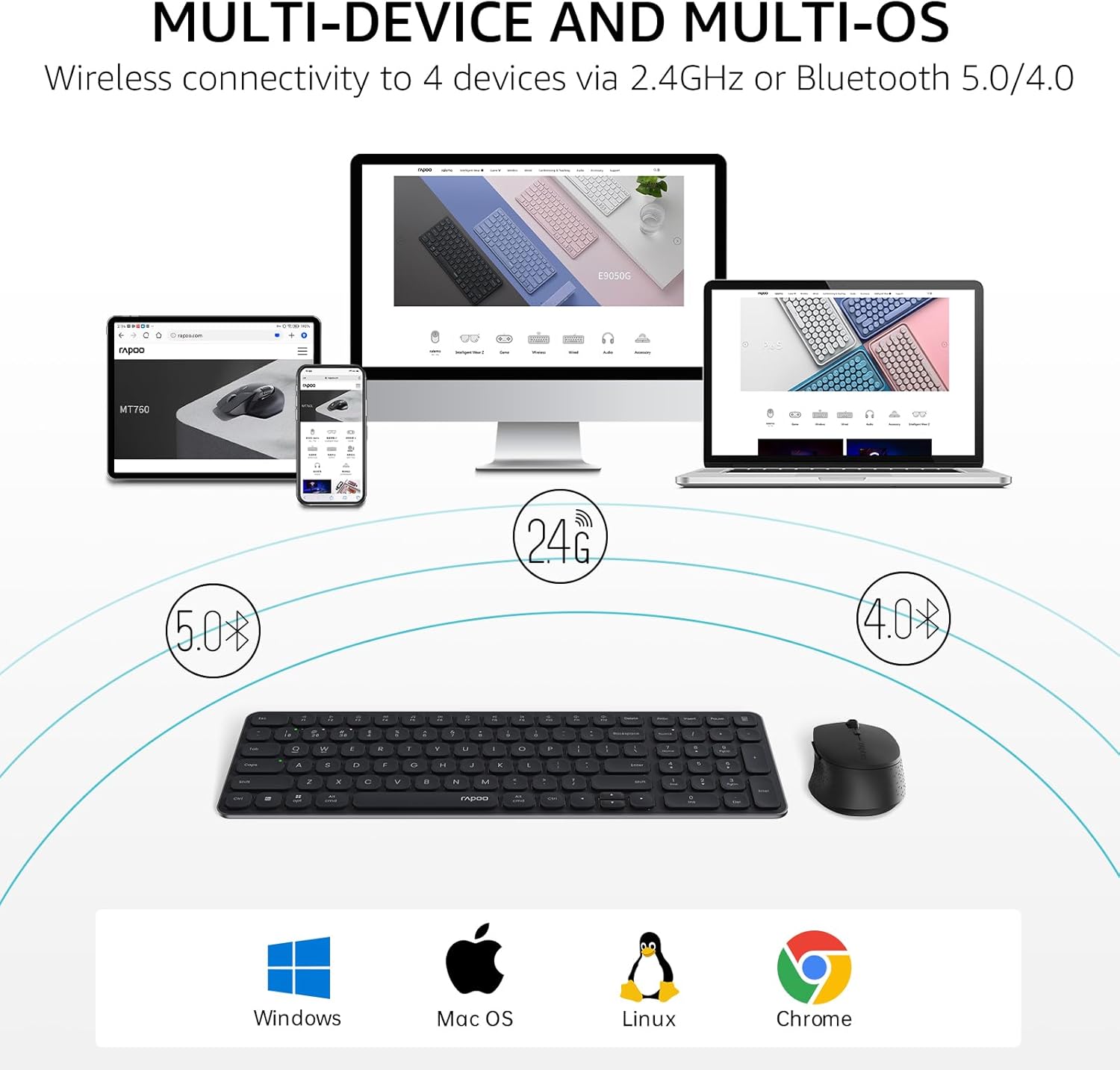
Image: Multi-device and multi-OS connectivity diagram for the Rapoo 9360M combo.
2.1. 2.4GHz USB రిసీవర్ కనెక్షన్
- Remove the USB 2.4GHz receiver from the mouse's battery compartment.
- మీ కంప్యూటర్లో అందుబాటులో ఉన్న USB పోర్ట్కి రిసీవర్ని ప్లగ్ చేయండి.
- The keyboard and mouse should automatically connect to your device.
2.2. బ్లూటూత్ పెయిరింగ్
The keyboard and mouse can each pair with up to three Bluetooth devices (BT1, BT2, BT3).
Keyboard Bluetooth Pairing:
- నొక్కండి మరియు పట్టుకోండి Fn + 1, Fn + 2, లేదా Fn + 3 key combination for 3 seconds to select a Bluetooth channel. The indicator light above the '1', '2', or '3' key will flash slowly.
- అదే నొక్కి పట్టుకోండి Fn + 1/2/3 key combination again for 3 seconds until the indicator light flashes rapidly. This indicates the keyboard is in pairing mode.
- మీ పరికరంలో (కంప్యూటర్, టాబ్లెట్, ఫోన్), బ్లూటూత్ సెట్టింగ్లకు వెళ్లి కొత్త పరికరాల కోసం శోధించండి.
- Select "Rapoo BT3.0 Keyboard" or "Rapoo BT5.0 Keyboard" from the list and follow the on-screen prompts to complete pairing.
Mouse Bluetooth Pairing:
- Press the Bluetooth button on the underside of the mouse to switch between BT1, BT2, or BT3 channels. The indicator light will flash slowly.
- Press and hold the Bluetooth button for 3 seconds until the indicator light flashes rapidly. This indicates the mouse is in pairing mode.
- మీ పరికరంలో, బ్లూటూత్ సెట్టింగ్లకు వెళ్లి కొత్త పరికరాల కోసం శోధించండి.
- Select "Rapoo BT3.0 Mouse" or "Rapoo BT5.0 Mouse" from the list and follow the on-screen prompts to complete pairing.
ఆపరేటింగ్ సూచనలు
1. బహుళ-పరికర మార్పిడి
The keyboard and mouse allow seamless switching between connected devices.
- కీబోర్డ్: నొక్కండి Fn + 1, Fn + 2, Fn + 3 to switch between Bluetooth devices, or Fn + 4 to switch to the 2.4GHz USB receiver connection. The corresponding indicator light will illuminate.
- మౌస్: Press the Bluetooth button on the underside of the mouse to cycle through BT1, BT2, BT3, and 2.4GHz connections. The indicator light will show the active channel.
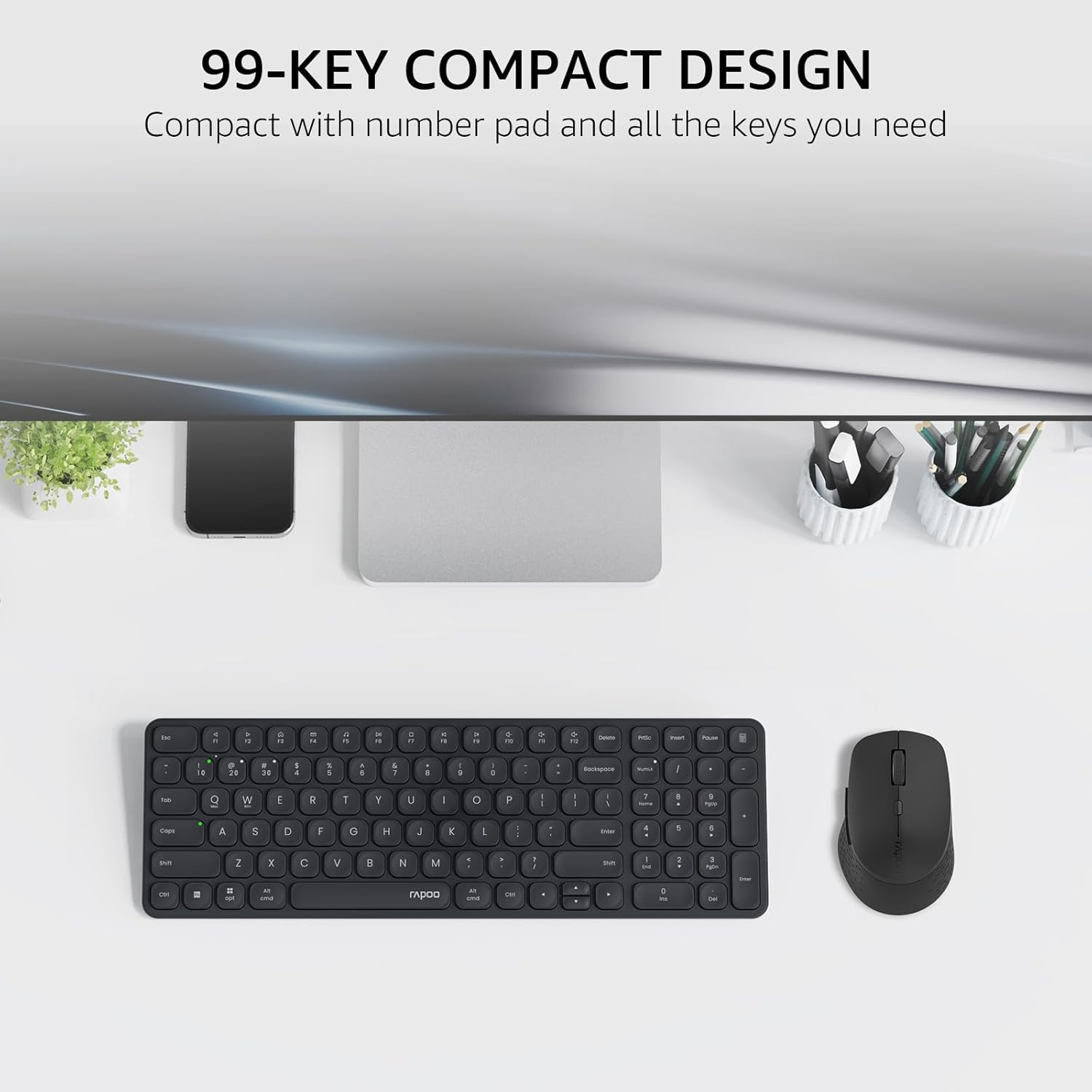
Image: The compact 99-key design of the Rapoo 9360M keyboard and mouse.
2. మల్టీమీడియా కీలు
The keyboard features dual-system multimedia keys for quick access to common functions.
- To use multimedia functions (e.g., play/pause, volume control), press the Fn key simultaneously with the desired F-key (F1-F12).
- The keyboard supports both Windows and Mac OS shortcuts.
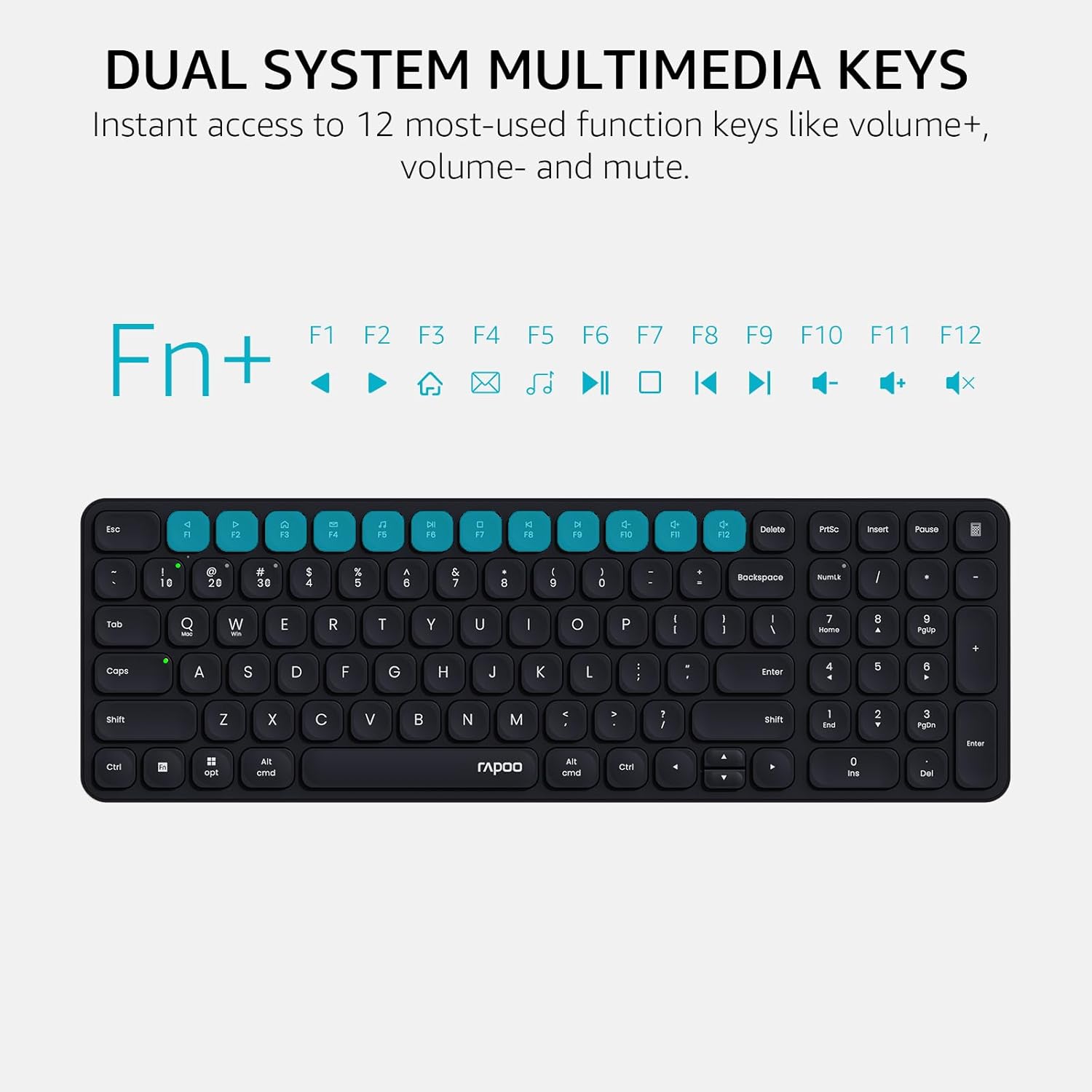
Image: Dual system multimedia keys on the Rapoo 9360M keyboard.
3. Mouse DPI Adjustment
The M300G mouse offers 5 adjustable DPI settings for precise cursor control.
- Press the DPI button located on the top of the mouse (usually behind the scroll wheel) to cycle through the preset DPI values: 800, 1000, 1200, 1600, and 2400.
- Select the DPI setting that best suits your preference and screen resolution.
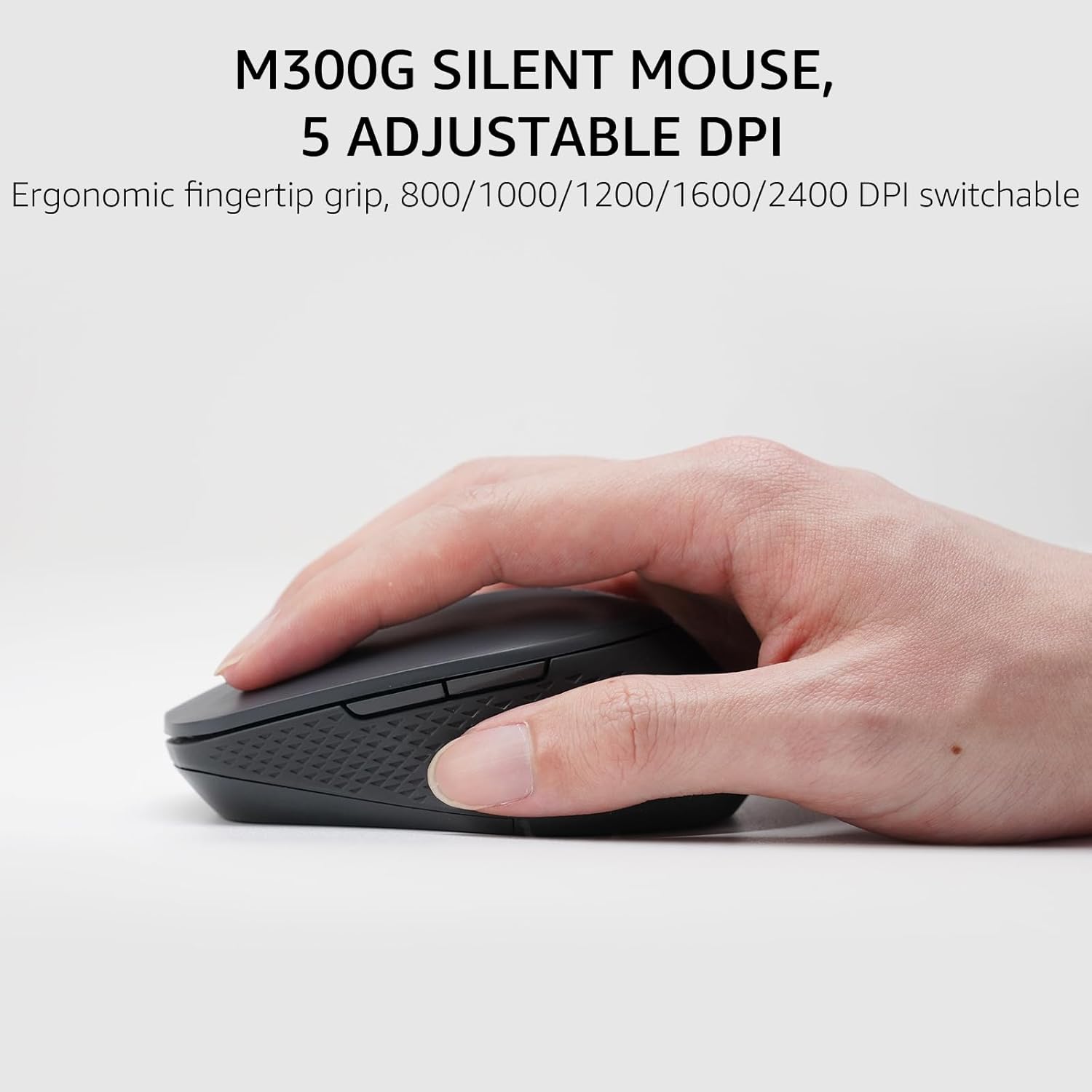
Image: The M300G Silent Mouse with 5 adjustable DPI settings.
4. సూచిక లైట్లు
The keyboard includes indicator lights for device connection and capitalization status.
- పరికర సూచిక: Located above the '1', '2', '3', and '4' keys, these lights indicate which device channel is currently active.
- క్యాప్స్ లాక్ ఇండికేటర్: A dedicated light indicates when Caps Lock is active.
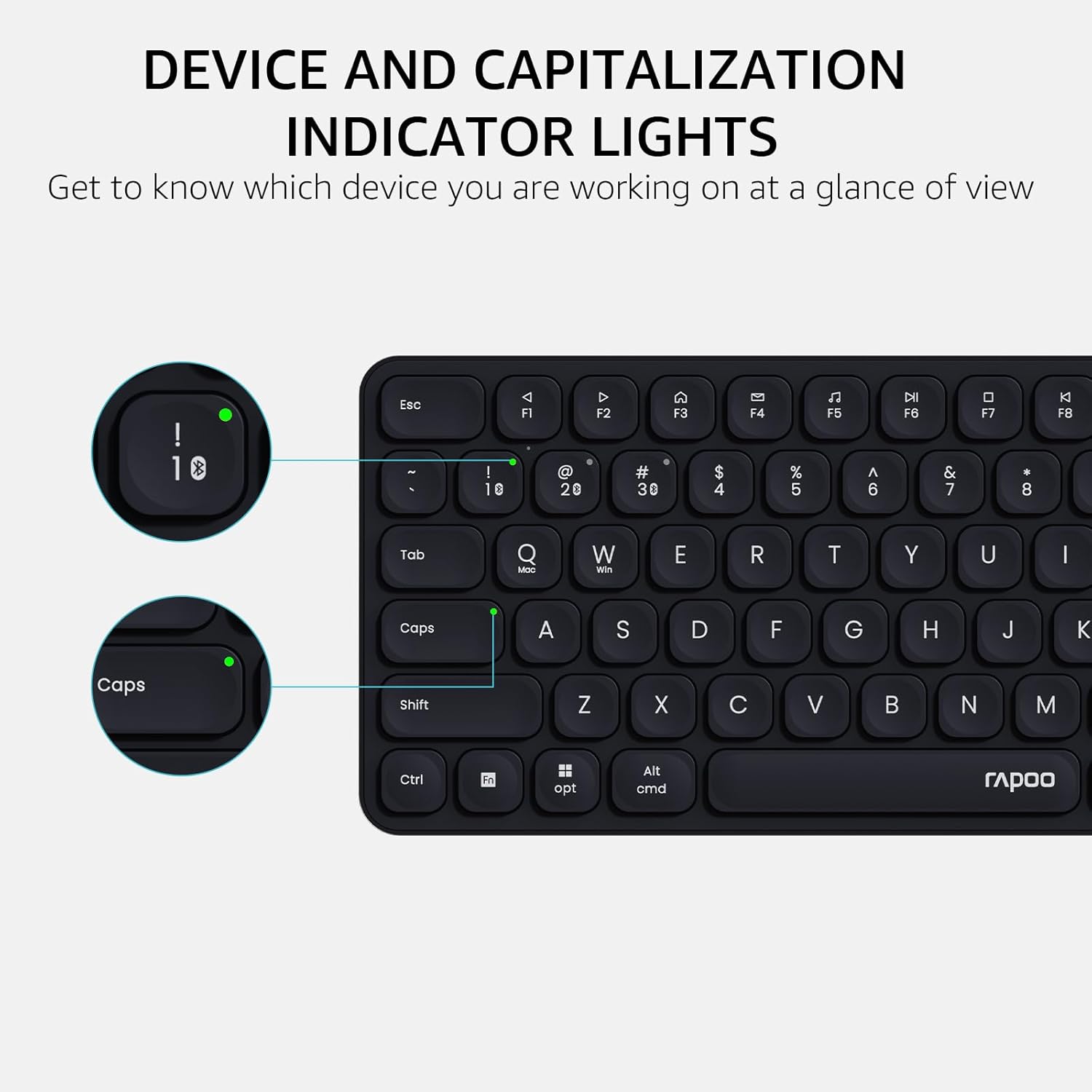
Image: Device and capitalization indicator lights on the keyboard.
నిర్వహణ
- శుభ్రపరచడం: కీబోర్డ్ మరియు మౌస్ను శుభ్రం చేయడానికి మృదువైన, పొడి వస్త్రాన్ని ఉపయోగించండి. మొండి ధూళి కోసం, కొద్దిగా damp తేలికపాటి సబ్బు ఉన్న వస్త్రాన్ని ఉపయోగించవచ్చు, తద్వారా పరికరాల్లోకి ద్రవం ప్రవేశించదు.
- బ్యాటరీ భర్తీ: Replace batteries when the low battery indicator appears or when performance degrades. Ensure to use the correct battery types (AAA for keyboard, AA for mouse) and dispose of old batteries responsibly.
- నిల్వ: When not in use for extended periods, remove batteries to prevent leakage. Store in a cool, dry place.
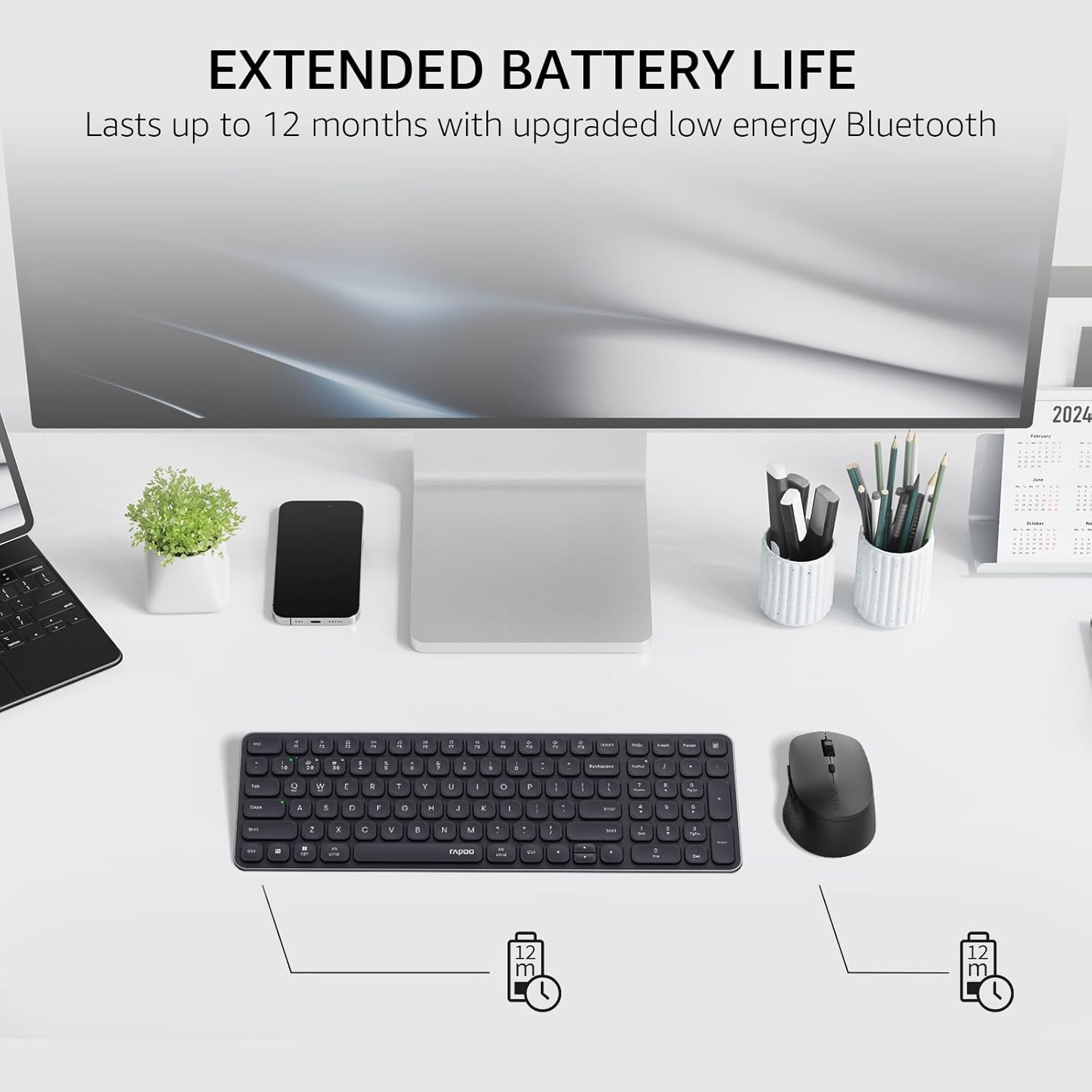
Image: Illustration of extended battery life for the keyboard and mouse.
ట్రబుల్షూటింగ్
- పరికరం కనెక్ట్ కావడం లేదు:
- బ్యాటరీలు సరిగ్గా ఇన్స్టాల్ చేయబడి ఉన్నాయని మరియు తగినంత ఛార్జ్ ఉందని నిర్ధారించుకోండి.
- For 2.4GHz connection, ensure the USB receiver is securely plugged into a working USB port.
- For Bluetooth connection, ensure Bluetooth is enabled on your device and the keyboard/mouse are in pairing mode. Try re-pairing the devices.
- Switch to a different channel (Fn + 1/2/3/4 for keyboard, button on mouse) to ensure you are on the correct connection mode.
- లాగ్ లేదా అడపాదడపా కనెక్షన్:
- Move the keyboard/mouse closer to the receiver or Bluetooth device.
- బలమైన జోక్య మూలాల దగ్గర (ఉదా. Wi-Fi రౌటర్లు, ఇతర వైర్లెస్ పరికరాలు) పరికరాలను ఉపయోగించకుండా ఉండండి.
- బ్యాటరీలు తక్కువగా ఉంటే వాటిని మార్చండి.
- Keys or mouse buttons unresponsive:
- బ్యాటరీ స్థాయిలను తనిఖీ చేయండి.
- Ensure the device is connected to the correct channel.
- మీ కంప్యూటర్ లేదా పరికరాన్ని పునఃప్రారంభించండి.
స్పెసిఫికేషన్లు
| ఫీచర్ | వివరాలు |
|---|---|
| మోడల్ సంఖ్య | 9360M |
| కీబోర్డ్ లేఅవుట్ | 99-key with number pad and arrow keys |
| మౌస్ మోడల్ | M300G Silent Mouse |
| కనెక్టివిటీ | Bluetooth 5.0/4.0, 2.4GHz Radio Frequency |
| బహుళ-పరికర మద్దతు | Up to 4 devices (1 x 2.4GHz, 3 x Bluetooth) |
| అనుకూలమైన ఆపరేటింగ్ సిస్టమ్స్ | Windows, Mac OS, Linux, Chrome |
| కీబోర్డ్ బ్యాటరీ | 2 x AAA బ్యాటరీలు (చేర్చబడినవి) |
| మౌస్ బ్యాటరీ | 1 x AA బ్యాటరీ (చేర్చబడింది) |
| మౌస్ DPI సెట్టింగ్లు | 800/1000/1200/1600/2400 (adjustable) |
| కీబోర్డ్ కొలతలు | 14.29 x 4.69 x 0.79 అంగుళాలు (36.3 x 11.9 x 2 సెం.మీ.) |
| మౌస్ కొలతలు | 4.09 x 2.57 x 1.47 అంగుళాలు (10.39 x 6.54 x 3.73 సెం.మీ.) |
| వస్తువు బరువు | 13.9 ounces (keyboard and mouse combined) |
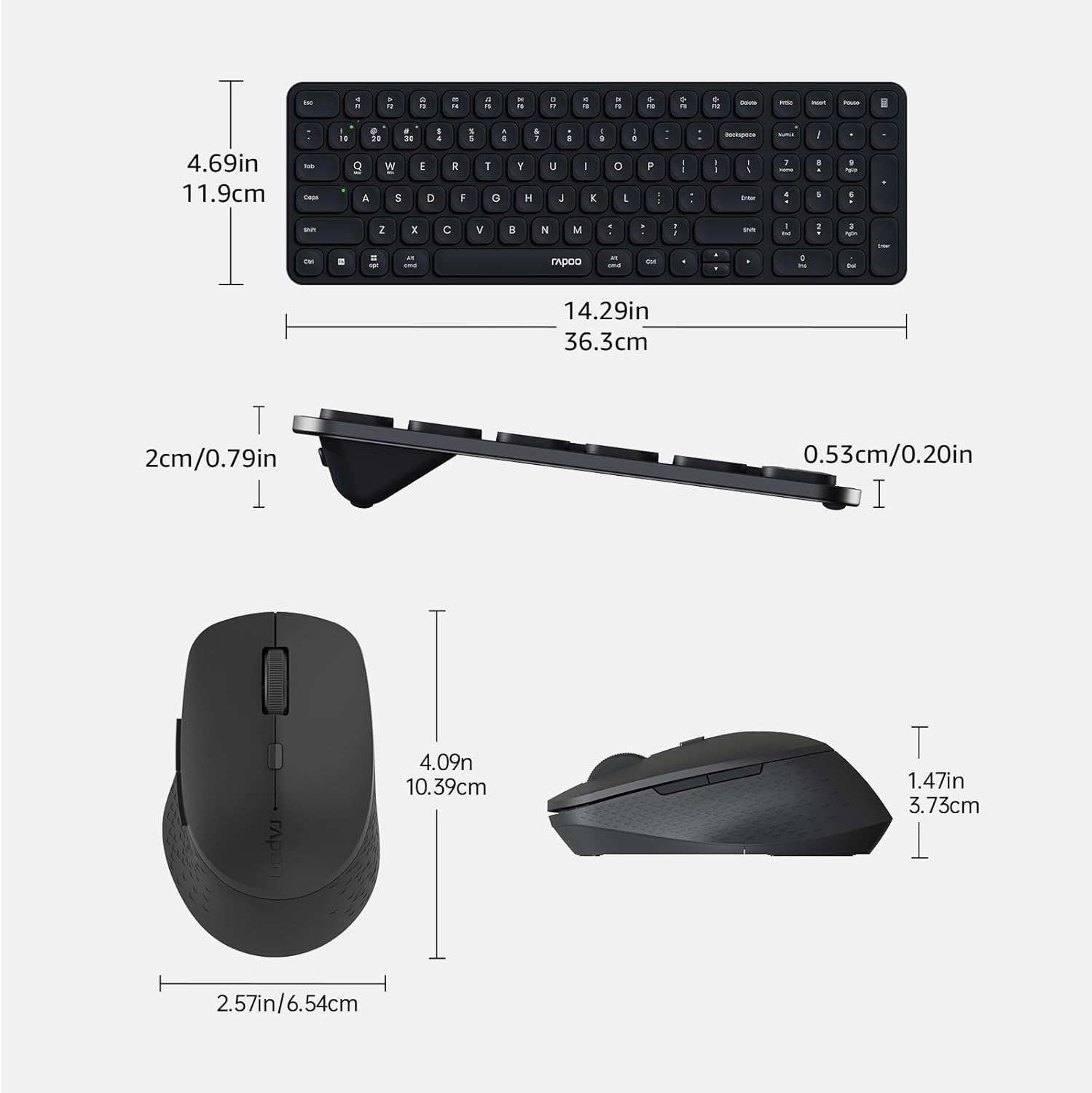
Image: Dimensions of the Rapoo 9360M keyboard and M300G mouse.
వారంటీ మరియు మద్దతు
వారంటీ సమాచారం మరియు సాంకేతిక మద్దతు కోసం, దయచేసి అధికారిక రాపూను చూడండి. webమీ స్థానిక రిటైలర్ను సైట్లో సంప్రదించండి లేదా సంప్రదించండి. వారంటీ క్లెయిమ్ల కోసం మీ కొనుగోలు రసీదును ఉంచండి.


