1. పరిచయం
This manual provides detailed instructions for the setup, operation, maintenance, and troubleshooting of your NIMO Mini PC Desktop, Model DNB1. Please read this manual thoroughly before using the device to ensure proper functionality and to maximize your user experience. Keep this manual for future reference.

Image 1.1: The NIMO Mini PC Desktop DNB1, a compact and powerful computing device.
2. పెట్టెలో ఏముంది
Carefully unpack your NIMO Mini PC Desktop and verify that all items listed below are included:
- NIMO Mini PC Desktop (DNB1)
- వినియోగదారు మాన్యువల్ (ఈ పత్రం)
- మౌంటు బ్రాకెట్
- పవర్ అడాప్టర్

Image 2.1: Contents of the NIMO Mini PC Desktop packaging, including the Mini PC, user manual, VESA mount, and power adapter.
3. ఉత్పత్తి ముగిసిందిview
The NIMO Mini PC Desktop DNB1 is designed for versatility and performance. Familiarize yourself with its various ports and features.
3.1. Front and Rear Panel Interfaces

చిత్రం 3.1: వివరణాత్మకమైనది view of the NIMO Mini PC Desktop DNB1's interfaces, including USB, HDMI, LAN, Type-C, and power ports.
- DC-IN పోర్ట్: పవర్ అడాప్టర్కు కనెక్ట్ చేస్తుంది.
- USB 3.2 టైప్-ఎ పోర్ట్లు (x3): For connecting peripherals such as keyboards, mice, and external storage devices.
- HDMI 2.0 పోర్ట్లు (x2): For connecting to displays, supporting up to 4K resolution.
- LAN Port (Gigabit Ethernet): వైర్డు నెట్వర్క్ కనెక్షన్ కోసం.
- ఆడియో పోర్ట్: హెడ్ఫోన్లు లేదా బాహ్య స్పీకర్లను కనెక్ట్ చేయడానికి.
- టైప్-సి పోర్ట్ (మల్టీఫంక్షన్): Supports data transfer and display output.
- SD కార్డ్ రీడర్: SD మెమరీ కార్డ్లను చదవడం మరియు వ్రాయడం కోసం.
- పవర్ బటన్: పరికరాన్ని ఆన్ లేదా ఆఫ్ చేయడానికి.
- రీసెట్ బటన్: పరికరాన్ని పునఃప్రారంభించడానికి.
4. సెటప్ గైడ్
Follow these steps to set up your NIMO Mini PC Desktop.
4.1. ప్రారంభ కనెక్షన్
- పెరిఫెరల్స్ కనెక్ట్ చేయండి: Connect your keyboard, mouse, and any other USB devices to the available USB 3.2 ports.
- డిస్ప్లే(లు) కనెక్ట్ చేయండి: Connect your monitor(s) to the HDMI 2.0 ports. The Mini PC supports up to three 4K displays simultaneously.
- నెట్వర్క్ను కనెక్ట్ చేయండి (ఐచ్ఛికం): For a wired internet connection, connect an Ethernet cable to the LAN port. For wireless, ensure your WiFi network is available during initial setup.
- పవర్ కనెక్ట్ చేయండి: పవర్ అడాప్టర్ను మినీ PCలోని DC-IN పోర్ట్లోకి ప్లగ్ చేయండి, ఆపై అడాప్టర్ను పవర్ అవుట్లెట్లోకి ప్లగ్ చేయండి.
4.2. VESA Mount Installation
The included VESA mount allows you to attach the Mini PC to the back of a compatible monitor or to a wall, saving desk space.
- Attach the VESA bracket to the back of your monitor using the provided screws. Ensure the monitor has VESA mounting holes (typically 75x75mm or 100x100mm).
- Slide the NIMO Mini PC Desktop onto the mounted bracket until it clicks securely into place.
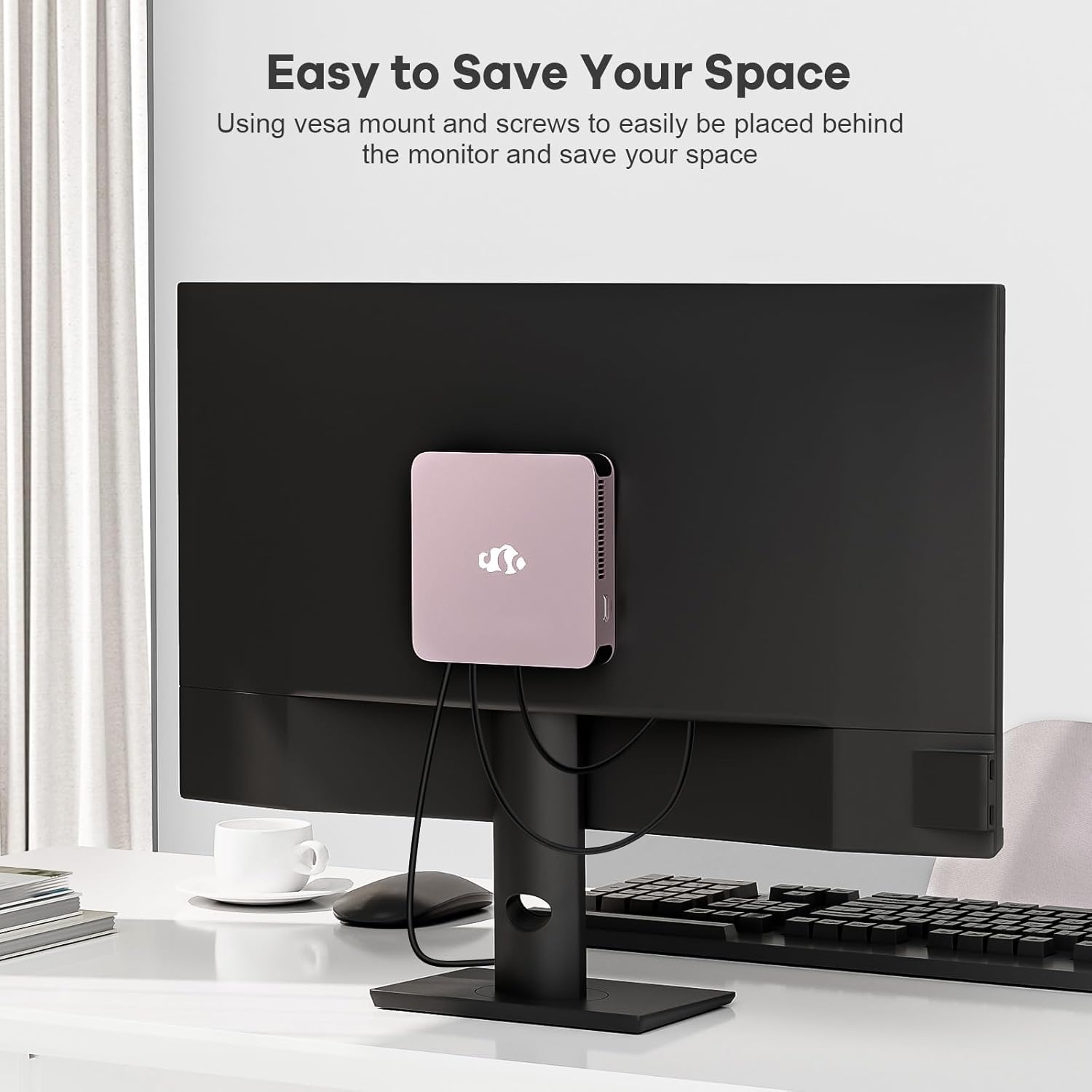
Image 4.1: The NIMO Mini PC Desktop DNB1 mounted on the back of a monitor using the VESA bracket, demonstrating space-saving placement.
5. ఆపరేటింగ్ సూచనలు
5.1. పవర్ చేయడం ఆన్/ఆఫ్
- పవర్ ఆన్ చేయడానికి: Press the Power Button once. The power indicator light will illuminate.
- పవర్ ఆఫ్ చేయడానికి: From the operating system, select 'Shut Down'. Alternatively, press and hold the Power Button for 5-7 seconds to force a shutdown (use only when necessary).
5.2. Initial Boot and Windows 11 Setup
Upon first power-on, the system will guide you through the Windows 11 setup process. Follow the on-screen prompts to configure language, region, network, and user accounts.
5.3. నెట్వర్క్లకు కనెక్ట్ చేస్తోంది
- వైర్డు కనెక్షన్: If an Ethernet cable is connected to the LAN port, the system will automatically detect and connect to the wired network.
- Wireless Connection (WiFi 6): Access the network settings in Windows 11, select your desired WiFi network, and enter the password.
- Bluetooth Connection (Bluetooth 5.2): Enable Bluetooth in Windows 11 settings, search for devices, and pair with your Bluetooth peripherals.
5.4. Using Multiple Displays
The NIMO Mini PC supports up to three 4K displays. Connect your monitors to the available HDMI and Type-C ports. Windows 11 display settings allow you to extend, duplicate, or show only on one display.

Image 5.1: The NIMO Mini PC Desktop DNB1 supporting a triple monitor 4K display setup, enhancing productivity and multimedia experiences.
6. నిర్వహణ
సరైన నిర్వహణ మీ మినీ PC యొక్క దీర్ఘాయువు మరియు సరైన పనితీరును నిర్ధారిస్తుంది.
- శుభ్రపరచడం: Use a soft, dry cloth to clean the exterior of the Mini PC. For dust in vents, use compressed air. Do not use liquid cleaners directly on the device.
- వెంటిలేషన్: Ensure the ventilation openings are not blocked to prevent overheating. Operate the device in a well-ventilated area.
- సాఫ్ట్వేర్ అప్డేట్లు: భద్రత మరియు పనితీరును నిర్వహించడానికి మీ Windows ఆపరేటింగ్ సిస్టమ్ మరియు డ్రైవర్లను క్రమం తప్పకుండా నవీకరించండి.
- డేటా బ్యాకప్: ముఖ్యమైన డేటాను కాలానుగుణంగా బాహ్య డ్రైవ్ లేదా క్లౌడ్ నిల్వకు బ్యాకప్ చేయండి.
7. ట్రబుల్షూటింగ్
ఈ విభాగం మీరు ఎదుర్కొనే సాధారణ సమస్యలను పరిష్కరిస్తుంది.
7.1. పవర్ లేదు
- పవర్ అడాప్టర్ మినీ పిసి మరియు పనిచేసే పవర్ అవుట్లెట్ రెండింటికీ సురక్షితంగా కనెక్ట్ చేయబడిందని నిర్ధారించుకోండి.
- మరొక పరికరాన్ని ప్లగ్ చేయడం ద్వారా పవర్ అవుట్లెట్ పనిచేస్తుందో లేదో ధృవీకరించండి.
- కనిపించే ఏదైనా నష్టం కోసం పవర్ అడాప్టర్ను తనిఖీ చేయండి.
7.2. డిస్ప్లే అవుట్పుట్ లేదు
- Confirm that the monitor is powered on and set to the correct input source (HDMI, Type-C).
- Check that the HDMI or Type-C cable is securely connected to both the Mini PC and the monitor.
- అందుబాటులో ఉంటే వేరే డిస్ప్లే కేబుల్ లేదా మానిటర్ ప్రయత్నించండి.
7.3. ఇంటర్నెట్ కనెక్షన్ లేదు
- వైర్డ్: Ensure the Ethernet cable is properly connected and your router/modem is working.
- వైర్లెస్: Check WiFi settings in Windows 11, ensure WiFi is enabled, and you are connected to the correct network with the correct password. Restart your router/modem if necessary.
7.4. Peripherals Not Responding
- పరిధీయ పరికరాన్ని వేరే USB పోర్ట్కి కనెక్ట్ చేయడానికి ప్రయత్నించండి.
- పరిధీయ పరికరం యొక్క డ్రైవర్లు ఇన్స్టాల్ చేయబడి, తాజాగా ఉన్నాయని నిర్ధారించుకోండి.
- Test the peripheral on another computer if possible.
8. స్పెసిఫికేషన్లు
Detailed technical specifications for the NIMO Mini PC Desktop DNB1.
| ఫీచర్ | స్పెసిఫికేషన్ |
|---|---|
| మోడల్ | DNB1 |
| ప్రాసెసర్ | Intel 12th Gen N100 (up to 3.4 GHz) |
| కోర్లు/థ్రెడ్లు | 4 కోర్లు / 4 థ్రెడ్లు |
| గ్రాఫిక్స్ | ఇంటెల్ UHD గ్రాఫిక్స్ |
| RAM | 16 GB DDR5 |
| నిల్వ | 512 GB PCIe SSD |
| గరిష్ట స్క్రీన్ రిజల్యూషన్ | 3840x2160 పిక్సెల్స్ (4K) |
| ప్రదర్శన అవుట్పుట్ | 2x HDMI 2.0, 1x Type-C (supports triple display) |
| USB పోర్ట్లు | 3x USB 3.2 Type-A, 1x USB Type-C |
| నెట్వర్క్ | Gigabit Ethernet (LAN), WiFi 6 |
| బ్లూటూత్ | బ్లూటూత్ 5.2 |
| ఆపరేటింగ్ సిస్టమ్ | Windows 11 |
| వస్తువు బరువు | 1.76 పౌండ్లు |
| శక్తి మూలం | DC |

Image 8.1: Summary of key features including Intel 12th Gen N100 processor, 4K Ultra HD support, Bluetooth 5.2, LPDDR5, WiFi 6, and PCIe SSD.
9. వారంటీ మరియు మద్దతు
NIMO is committed to providing excellent customer service and product reliability.
- రిటర్న్ పాలసీ: You may request a return or exchange within 90 days of purchase.
- సాంకేతిక మద్దతు: The NIMO Mini PC Desktop comes with 2 years of technical support. If you encounter any issues, please contact our dedicated customer support team for assistance.
For support, please refer to the contact information provided with your purchase or visit the official NIMO webసైట్.


