1. పరిచయం
This manual provides detailed instructions for the setup, operation, and maintenance of your Doohoeek Bluetooth Keyboard Folio. This accessory is designed to enhance the functionality of your Samsung Galaxy tablet, offering a comfortable typing experience and comprehensive protection.
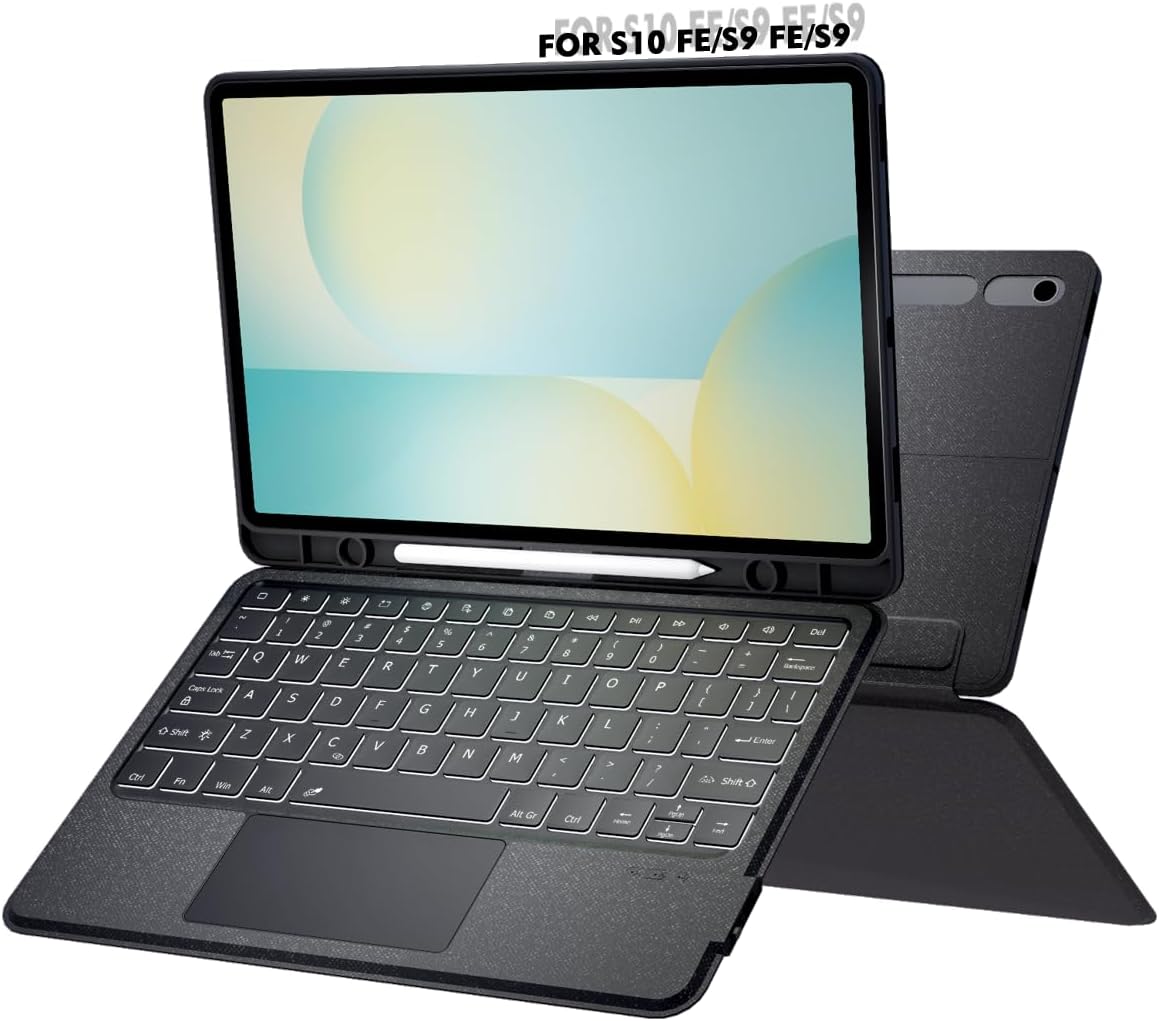
Image 1.1: The Doohoeek Keyboard Folio with a tablet in an upright position, showcasing the integrated keyboard and kickstand.
2. ఉత్పత్తి అనుకూలత
The Doohoeek Keyboard Folio is compatible with the following Samsung Galaxy tablet models:
- Samsung Galaxy Tab S10 FE 10.9" 2025 (Models: SM-X520, SM-X526, SM-X526B)
- Samsung Galaxy Tab S9 FE 10.9" (Models: SM-X510, SM-X516B)
- Samsung Galaxy Tab S9 11" (Models: SM-X710, SM-X716B)
To verify your tablet model, navigate to Settings > About Tablet మీ పరికరంలో.
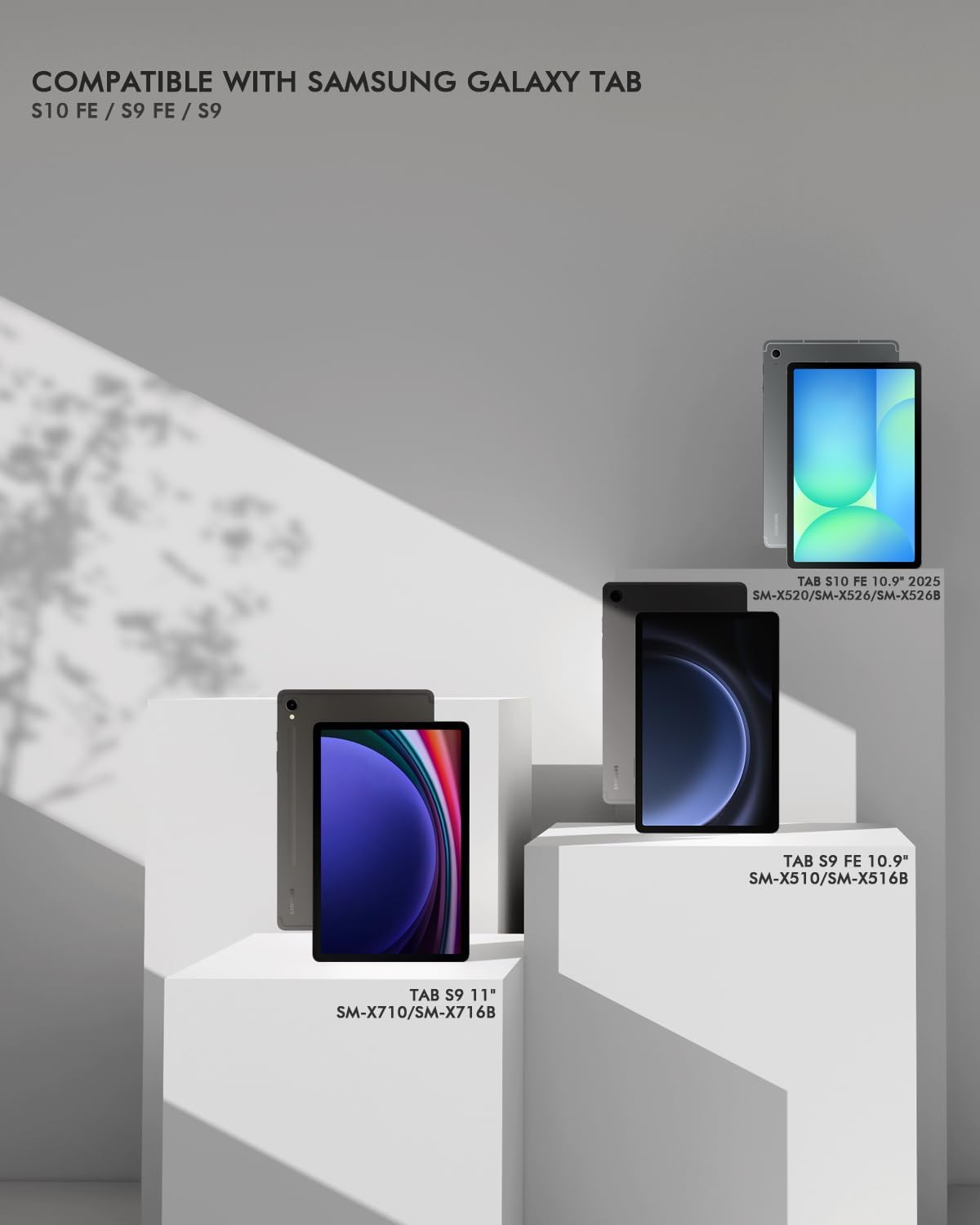
Image 2.1: Visual representation of the compatible Samsung Galaxy tablet models.
3. ప్యాకేజీ విషయాలు
దయచేసి ఈ క్రింది అంశాల కోసం ప్యాకేజీని తనిఖీ చేయండి:
- Doohoeek Bluetooth Keyboard Folio Case
- USB ఛార్జింగ్ కేబుల్
- వినియోగదారు మాన్యువల్ (ఈ పత్రం)
4. సెటప్ సూచనలు
4.1. Inserting Your Tablet
- Gently align your Samsung Galaxy tablet with the case frame.
- Press the tablet firmly into the case until it is securely seated. Ensure all corners and edges are protected.

Image 4.1: Illustration of the tablet being inserted into the case, demonstrating a secure and tight fit.
4.2. బ్లూటూత్ పెయిరింగ్
Follow these steps to connect your keyboard to your tablet via Bluetooth:
- Ensure the keyboard is charged (refer to Section 5).
- పవర్ స్విచ్ ఉపయోగించి కీబోర్డ్ను ఆన్ చేయండి.
- మీ టాబ్లెట్లో, ఇక్కడికి వెళ్లండి సెట్టింగ్లు > కనెక్ట్ చేయబడిన పరికరాలు > బ్లూటూత్ మరియు బ్లూటూత్ను ఆన్ చేయండి.
- కీబోర్డ్లో, నొక్కండి Fn + C keys simultaneously to enter pairing mode. The Bluetooth indicator light on the keyboard will flash.
- On your tablet, select the detected Bluetooth keyboard (e.g., "Bluetooth Keyboard") from the list of available devices.
- జత చేసే ప్రక్రియను పూర్తి చేయడానికి స్క్రీన్పై ఉన్న ఏవైనా ప్రాంప్ట్లను అనుసరించండి. విజయవంతంగా జత చేసిన తర్వాత కీబోర్డ్లోని ఇండికేటర్ లైట్ మెరుస్తూ ఆగిపోతుంది.
5. ఆపరేటింగ్ సూచనలు
5.1. కీబోర్డ్ లక్షణాలు
- బ్యాక్లిట్ కీలు: The keyboard features 7-color backlighting with 3 adjustable brightness levels. Use the dedicated backlight key (often depicted as a lightbulb icon) to cycle through colors and brightness settings.
- Integrated Trackpad: The trackpad supports multi-touch gestures for navigation, scrolling, and zooming. Refer to your tablet's operating system for specific gesture controls.
- అరచేతి తిరస్కరణ: The trackpad is designed with palm rejection technology to prevent accidental touches while typing.
- Trackpad Lock: To temporarily disable the trackpad, press and hold the Fn key and then tap the స్పేస్బార్. Repeat this action to re-enable the trackpad.
- షార్ట్కట్ కీలు: The top row of the keyboard features dedicated shortcut keys for quick access to various functions such as media control, volume adjustment, and screen lock.

Image 5.1: The keyboard displaying its adjustable 7-color backlighting and brightness levels.

Image 5.2: A hand interacting with the multi-touch trackpad, highlighting its functionality.

Image 5.3: Depiction of palm rejection in action, showing hands typing without accidental trackpad activation.

చిత్రం 5.4: వివరణాత్మక view of the keyboard's shortcut keys, designed for one-tap control.
5.2. సర్దుబాటు Viewకోణాలు
The folio features an any-angle kickstand, allowing you to smoothly adjust your tablet's viewing angle for various activities, from video calls to watching movies or reading e-books. The case also supports vertical orientation for specific uses like recipes or document viewing.
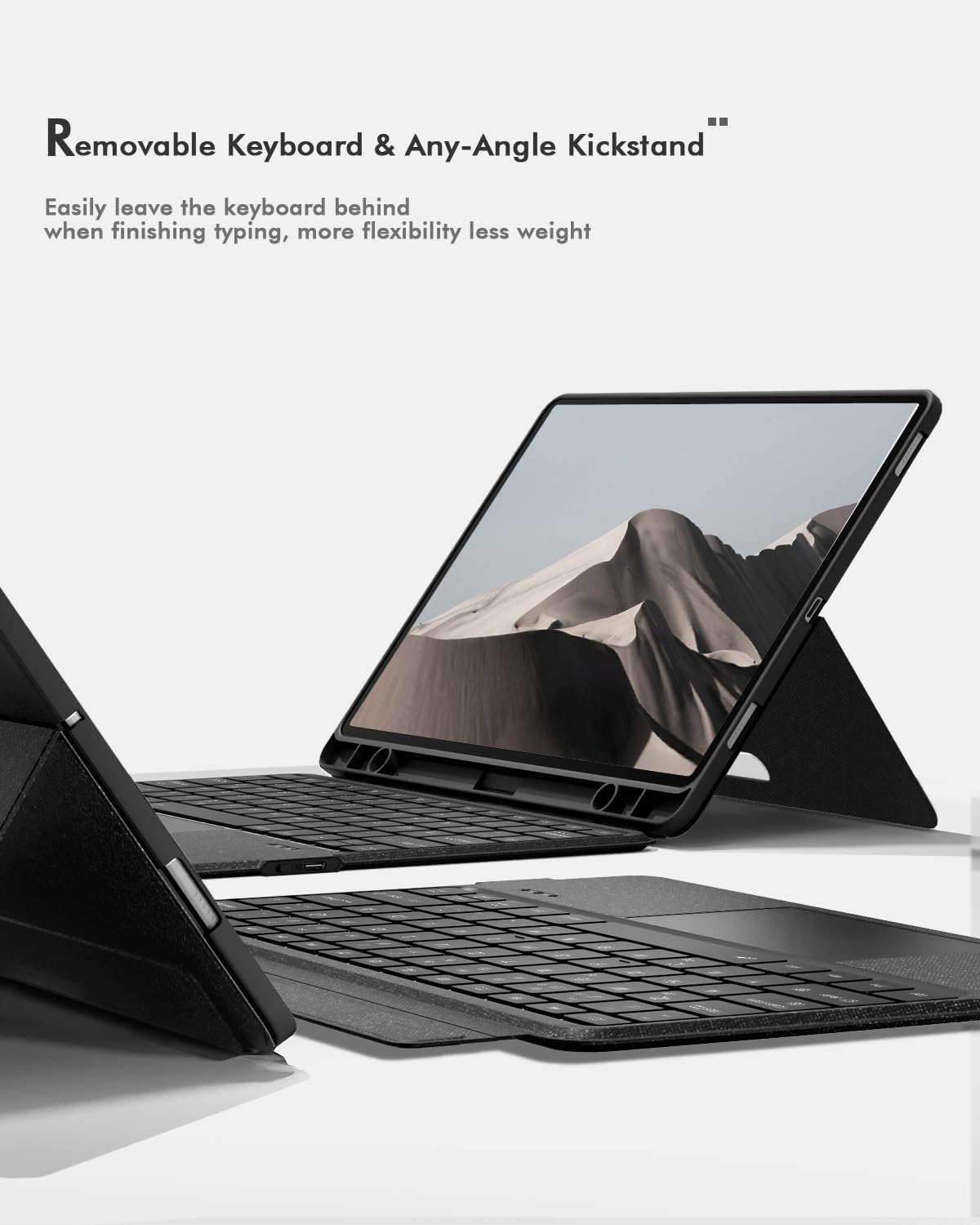
Image 5.5: The keyboard folio with the tablet propped up by its adjustable kickstand, demonstrating flexible viewing కోణాలు.
5.3. Removable Keyboard
The keyboard is magnetically attached to the folio, allowing for easy removal. This provides flexibility to use the tablet independently or reduce weight when typing is not required. The keyboard securely snaps back into place when needed.

Image 5.6: Different configurations of the keyboard folio, illustrating the removable keyboard and the versatility of the kickstand.
6. ఛార్జింగ్ మరియు బ్యాటరీ
The keyboard is powered by a built-in rechargeable battery. To charge the keyboard:
- Connect the provided USB charging cable to the charging port on the keyboard.
- కేబుల్ యొక్క మరొక చివరను USB పవర్ అడాప్టర్ (చేర్చబడలేదు) లేదా కంప్యూటర్ యొక్క USB పోర్ట్కు కనెక్ట్ చేయండి.
- ఛార్జింగ్ సమయంలో ఛార్జింగ్ ఇండికేటర్ లైట్ వెలుగుతుంది మరియు పూర్తిగా ఛార్జ్ అయిన తర్వాత ఆపివేయబడుతుంది.
A full charge typically takes 2-3 hours and provides approximately 300 hours of working time without backlight usage.

Image 6.1: The keyboard folio being charged, with icons indicating battery capacity (650mAh), charging time (2-3 hours), and working time (300 hours without backlight).
7. నిర్వహణ
- శుభ్రపరచడం: ఒక మృదువైన ఉపయోగించండి, డిamp cloth to wipe the exterior of the case and keyboard. Avoid harsh chemicals or abrasive materials.
- నిల్వ: When not in use for extended periods, store the keyboard folio in a cool, dry place. Ensure the keyboard is turned off to conserve battery life.
- రక్షణ: The premium twill shell is designed to resist scratches and stains and absorb minor impacts. However, avoid dropping the device from significant heights.
8. ట్రబుల్షూటింగ్
8.1. కీబోర్డ్ బ్లూటూత్ ద్వారా కనెక్ట్ కావడం లేదు
మీరు బ్లూటూత్ కనెక్టివిటీతో సమస్యలను ఎదుర్కొంటే:
- కీబోర్డ్ని రీసెట్ చేయండి: Press and hold the first and last keys on the top row of the keyboard simultaneously until all indicator lights flash. This will reset the keyboard's Bluetooth module.
- తిరిగి కనెక్ట్ చేయండి: After resetting, repeat the Bluetooth pairing steps outlined in Section 4.2.
- బ్యాటరీని తనిఖీ చేయండి: కీబోర్డ్ తగినంత బ్యాటరీ ఛార్జ్ కలిగి ఉందని నిర్ధారించుకోండి.
- పరికరాలను పునఃప్రారంభించండి: Try restarting both your tablet and the keyboard.
- పరికరాన్ని మర్చిపో: On your tablet, go to Bluetooth settings, find the keyboard in the list of paired devices, and select "Forget" or "Unpair." Then, attempt to pair again.
8.2. కీలు స్పందించడం లేదు
- Ensure the keyboard is turned on and properly connected via Bluetooth.
- బ్యాటరీ స్థాయిని తనిఖీ చేయండి మరియు అవసరమైతే ఛార్జ్ చేయండి.
- Restart the keyboard and tablet.
8.3. Trackpad Not Responding
- Ensure the trackpad is not locked (press Fn + spacebar to toggle).
- బ్లూటూత్ కనెక్షన్ మరియు బ్యాటరీ స్థాయిని తనిఖీ చేయండి.
- Restart the keyboard and tablet.
9. స్పెసిఫికేషన్లు
| బ్రాండ్ | డూహోయీక్ |
| అనుకూల పరికరాలు | Samsung Galaxy Tab S10 FE 10.9" (2025), S9 FE 10.9", S9 11" |
| కనెక్టివిటీ టెక్నాలజీ | బ్లూటూత్ |
| కీబోర్డ్ లేఅవుట్ | QWERTY |
| ప్రత్యేక లక్షణాలు | Backlit (7 colors, 3 brightness), Integrated Stand, Rechargeable, Trackpad, Removable Keyboard |
| మెటీరియల్ | Twill |
| బ్యాటరీ కెపాసిటీ | 650mAh |
| ఛార్జింగ్ సమయం | 2-3 గంటలు |
| పని సమయం (బ్యాక్లైట్ లేకుండా) | 300 గంటలు |
| వస్తువు బరువు | 14 ఔన్సులు |
| ప్యాకేజీ కొలతలు | 11.34 x 8.23 x 1.3 అంగుళాలు |
10. వారంటీ మరియు మద్దతు
For warranty information and customer support, please refer to the documentation included with your purchase or contact Doohoeek customer service through their official webఉత్పత్తిని కొనుగోలు చేసిన సైట్ లేదా రిటైలర్. వారంటీ క్లెయిమ్ల కోసం దయచేసి మీ కొనుగోలు రుజువును ఉంచుకోండి.


