1. ఉత్పత్తి ముగిసిందిview
The Acer OMR270 is a versatile dual-mode wireless mouse designed for seamless connectivity and comfortable use. It supports both 2.4GHz wireless via a USB-A receiver and Bluetooth 5.2, allowing connection to up to three devices. Its symmetrical design accommodates both left and right-handed users, and adjustable DPI settings provide precision control for various tasks.
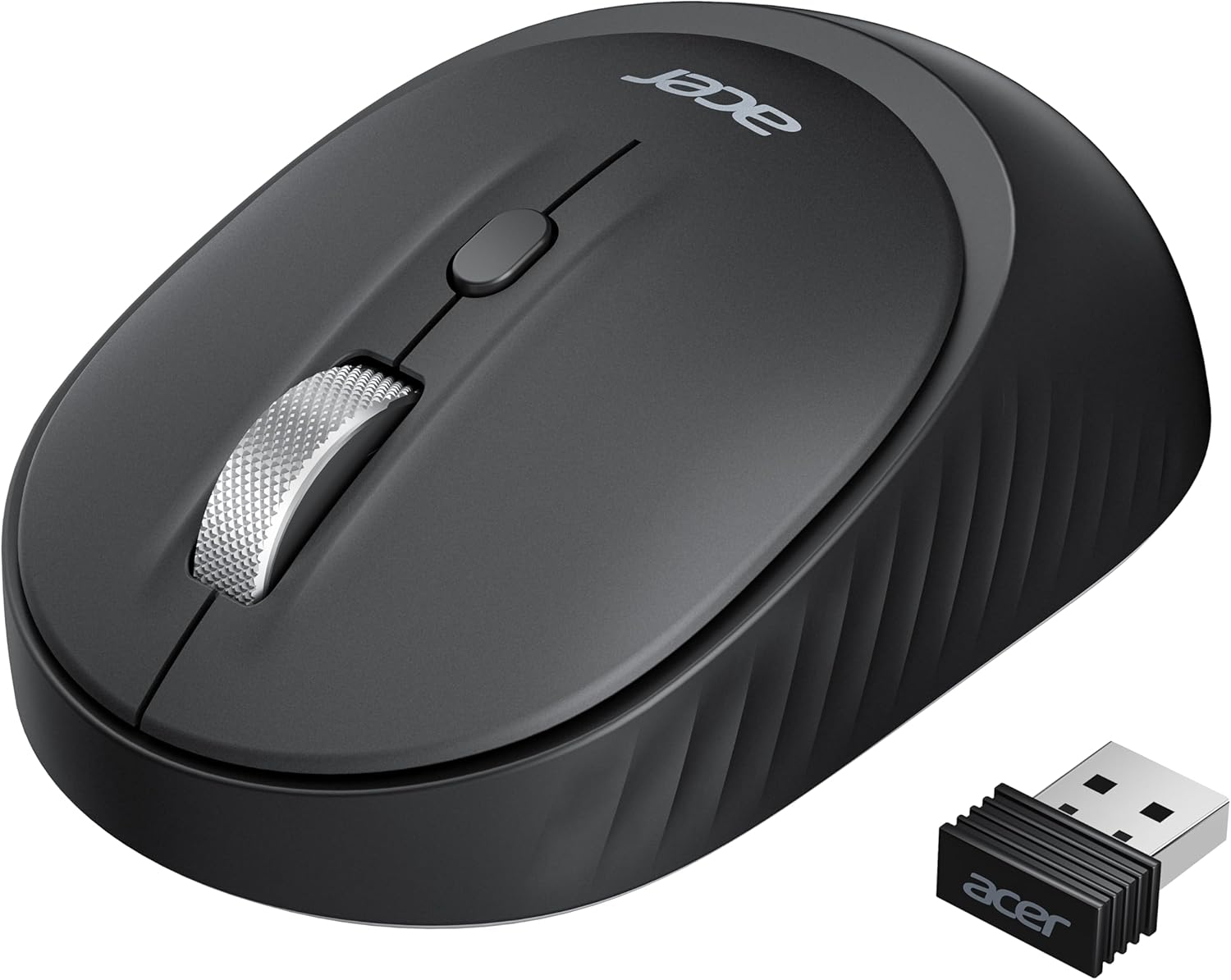
Image 1.1: Acer OMR270 Dual-Mode Wireless Mouse, showcasing its sleek black design and the included USB receiver.
2. సెటప్
2.1. బ్యాటరీ ఇన్స్టాలేషన్
- Gently remove the magnetic top cover of the mouse. The cover can be removed from the left or right side, or by pressing the front of the mouse button to lift it.
- Insert one AA battery into the battery compartment, ensuring correct polarity. (Note: AA battery is not included).
- Replace the magnetic top cover, ensuring it snaps securely into place.

చిత్రం 2.1: పేలింది view of the Acer OMR270 mouse showing the magnetic cover, battery compartment, and USB receiver storage.
2.2. 2.4GHz వైర్లెస్ కనెక్షన్
- Locate the USB-A receiver stored inside the battery compartment of the mouse.
- USB-A రిసీవర్ను మీ కంప్యూటర్లో అందుబాటులో ఉన్న USB-A పోర్ట్లోకి ప్లగ్ చేయండి.
- Turn on the mouse using the On/Off power switch located on the bottom.
- Press the connection mode switch button on the bottom of the mouse until the 2.4G indicator (red LED) flashes. The mouse should automatically connect to your device.

Image 2.2: Visual guide for connecting the mouse via 2.4GHz wireless, including battery insertion and receiver placement.
2.3. బ్లూటూత్ కనెక్షన్ (BT1 / BT2)
- Turn on the mouse using the On/Off power switch located on the bottom.
- Press the connection mode switch button on the bottom of the mouse to select either BT1 or BT2. The corresponding LED (green for BT1, orange for BT2) will flash.
- On your device (laptop, tablet, etc.), go to Bluetooth settings and enable Bluetooth.
- కోసం వెతకండి available devices and select "Acer Mouse BT-1" or "Acer Mouse BT-2" to pair.
- Once paired, the LED will stop flashing and remain solid for a few seconds, indicating a successful connection.

Image 2.3: Steps for establishing a Bluetooth connection with the Acer OMR270 mouse, showing the BT1 and BT2 indicators.
3. ఆపరేషన్
3.1. Mouse Components
- ఎడమ బటన్: ప్రామాణిక క్లిక్ ఫంక్షన్.
- కుడి బటన్: సందర్భ మెను ఫంక్షన్.
- స్క్రోల్ వీల్: పైకి/క్రిందికి స్క్రోల్ చేయండి, మధ్యలో క్లిక్ చేయండి.
- DPI బటన్: కర్సర్ సెన్సిటివిటీని సర్దుబాటు చేస్తుంది.
- USB రిసీవర్: For 2.4GHz wireless connection.
- ఆప్టికల్ సెన్సార్: మౌస్ కదలికను ట్రాక్ చేస్తుంది.
- Connection Mode Switch Button: Toggles between 2.4G, BT1, and BT2.
- పవర్ స్విచ్ ఆన్/ఆఫ్: మౌస్ను ఆన్ లేదా ఆఫ్ చేస్తుంది.

Image 3.1: Detailed diagram illustrating the various buttons and internal components of the Acer OMR270 mouse.
3.2. DPI సర్దుబాటు
The mouse offers three adjustable DPI settings (800, 1200, 1600) to customize cursor sensitivity. Press the DPI button, located near the scroll wheel, to cycle through the settings. Each press will switch to the next DPI level, allowing you to adapt to different tasks such as general web browsing, precise design work, or gaming.

Image 3.2: Illustration of the three adjustable DPI settings and their typical uses.
3.3. బహుళ-పరికర మార్పిడి
The Acer OMR270 mouse allows you to switch between three connected devices (one 2.4GHz, two Bluetooth) using the connection mode switch button on the bottom of the mouse. Simply press the button to toggle between 2.4G (red LED), BT1 (green LED), and BT2 (orange LED).

Image 3.3: Diagram showing the mouse connected to a desktop via 2.4GHz, a laptop via BT1, and a tablet via BT2, with corresponding LED indicators.
3.4. ఆటో స్లీప్ ఫంక్షన్
To conserve battery life, the mouse will enter an automatic sleep mode after 10 minutes of inactivity. To wake the mouse, simply click any button 2-3 times.

Image 3.4: Illustration of the mouse's auto-sleep feature, showing a laptop screen and the mouse on a desk.
3.5. Ergonomic Design and Compatibility
The Acer OMR270 features a symmetrical and slim design for a comfortable, natural grip for both right- and left-handed users. Its compact size makes it suitable for small to medium-sized hands and ideal for travel. The mouse is compatible with a wide range of operating systems including macOS, iPadOS, Linux, Android, Windows 11, and ChromeOS.

Image 3.5: Demonstrates the ambidextrous ergonomic design, showing both left and right-handed usage.

Image 3.6: Icons representing wide compatibility with macOS, iPadOS, Linux, Android, Windows 11, and ChromeOS devices.
4. నిర్వహణ
4.1. బ్యాటరీ భర్తీ
When the mouse's performance degrades or it stops responding, it may be time to replace the AA battery. Follow the steps outlined in Section 2.1 for battery installation.
4.2. శుభ్రపరచడం
To maintain optimal performance and hygiene, regularly clean your mouse. Use a soft, dry cloth to wipe the exterior. For stubborn dirt, a slightly damp cloth can be used, ensuring no moisture enters the internal components. Avoid using harsh chemicals or abrasive materials.
5. ట్రబుల్షూటింగ్
5.1. Mouse Cursor Gets Stuck or Experiences Delays
- The mouse has an automatic sleep function. If it has been inactive for 10 minutes, it will enter sleep mode. Press any button 2-3 times to wake it up.
- If you are using a USB hub, the video signal from the hub may interfere with the mouse's frequency band. Try connecting the USB receiver directly to a computer port.
- Avoid placing the USB receiver on the same line as a Bluetooth adapter, as this can cause interference and delays.

Image 5.1: Troubleshooting tips for mouse cursor issues, including auto-sleep and potential interference.
5.2. కనెక్షన్ సమస్యలు
- Ensure the mouse is turned on and the correct connection mode (2.4G, BT1, or BT2) is selected.
- For 2.4GHz, ensure the USB receiver is securely plugged into a working USB-A port.
- For Bluetooth, ensure Bluetooth is enabled on your device and the mouse is paired correctly. Try unpairing and re-pairing if issues persist.
- బ్యాటరీ స్థాయిని తనిఖీ చేయండి మరియు అవసరమైతే భర్తీ చేయండి.
6. స్పెసిఫికేషన్లు
| ఫీచర్ | స్పెసిఫికేషన్ |
|---|---|
| మోడల్ సంఖ్య | OMR270 ద్వారా మరిన్ని |
| కనెక్టివిటీ టెక్నాలజీ | Bluetooth 5.2, 2.4GHz Wireless (USB-A) |
| DPI సెట్టింగులు | 800, 1200, 1600 |
| బటన్లు | 4 (Left, Right, Scroll Wheel/Middle, DPI) + Connection Mode Switch, On/Off |
| శక్తి మూలం | 1 x AA బ్యాటరీ (చేర్చబడలేదు) |
| ఉత్పత్తి కొలతలు | 4.1 x 2.5 x 0.1 అంగుళాలు (105 x 63 x 39 మిమీ) |
| వస్తువు బరువు | 2 ఔన్సులు (సుమారు 57గ్రా) |
| రంగు | నలుపు |
| ప్రత్యేక లక్షణాలు | Dual-Mode, Ambidextrous Design, Silent Clicks, Auto Sleep, Magnetic Cover |
7. వారంటీ మరియు మద్దతు
వారంటీ సమాచారం మరియు సాంకేతిక మద్దతు కోసం, దయచేసి మీ ఉత్పత్తితో చేర్చబడిన డాక్యుమెంటేషన్ను చూడండి లేదా అధికారిక Acer మద్దతును సందర్శించండి. webసైట్. వారంటీ క్లెయిమ్ల కోసం మీ కొనుగోలు రసీదుని ఉంచండి.


