1. పరిచయం
This manual provides essential information for the setup, operation, and maintenance of your Blackview Tab 20WIFI 10-inch Android 15 Tablet. Please read this manual thoroughly to ensure proper use and to maximize the performance of your device.
ది బ్లాక్view Tab 20WIFI is a versatile 10-inch Android 15 tablet featuring a 1280x800 IPS touchscreen, a quad-core processor, 4GB RAM (expandable to 12GB virtual RAM), 64GB internal storage expandable up to 1TB, 5G WiFi, Bluetooth 5.0, dual cameras, and a 6600mAh battery. It is designed for various applications, from entertainment to productivity.
2. పెట్టెలో ఏముంది
ప్యాకేజీని తెరిచిన తర్వాత, అన్ని అంశాలు ఉన్నాయని నిర్ధారించుకోండి:
- నలుపుview Tab 20WIFI Tablet
- USB టైప్-సి కేబుల్
- పవర్ అడాప్టర్
3. పరికరం ముగిసిందిview
Familiarize yourself with the physical components of your Blackview Tab 20WIFI tablet.

చిత్రం: ముందు మరియు వెనుక view నల్లజాతికి చెందినview Tab 20WIFI tablet, showcasing డిస్ప్లే మరియు వెనుక కెమెరా మాడ్యూల్.
3.1. భౌతిక భాగాలు
- ప్రదర్శన: 10.1-inch HD+ IPS Touchscreen (1280x800 resolution).
- పవర్ బటన్: ప్రక్కన ఉంది, పరికరాన్ని ఆన్/ఆఫ్ చేయడానికి లేదా మేల్కొలపడానికి/నిద్రించడానికి ఉపయోగించబడుతుంది.
- వాల్యూమ్ బటన్లు: Located on the side, used to adjust audio volume.
- USB టైప్-సి పోర్ట్: ఛార్జింగ్ మరియు డేటా బదిలీ కోసం.
- హెడ్ఫోన్ జాక్: Standard 3.5mm audio output.
- ముందు కెమెరా: 5MP camera for video calls and selfies.
- వెనుక కెమెరా: 8MP camera for photos and videos.
- స్పీకర్: ఆడియో అవుట్పుట్.
- మైక్రో SD కార్డ్ స్లాట్: For expandable storage up to 1TB.
4. సెటప్
4.1. టాబ్లెట్ను ఛార్జ్ చేయడం
- Connect the USB Type-C cable to the tablet's charging port.
- కేబుల్ యొక్క మరొక చివరను పవర్ అడాప్టర్కు కనెక్ట్ చేయండి.
- పవర్ అడాప్టర్ను వాల్ అవుట్లెట్లోకి ప్లగ్ చేయండి.
- Allow the tablet to charge fully before initial use. The battery indicator on the screen will show charging status.
4.2. పవర్ చేయడం ఆన్/ఆఫ్
- పవర్ ఆన్ చేయడానికి: Press and hold the Power button until the Blackview లోగో కనిపిస్తుంది.
- పవర్ ఆఫ్ చేయడానికి: Press and hold the Power button until the power options appear on the screen, then select 'Power off'.
- పునఃప్రారంభించడానికి: Press and hold the Power button until the power options appear, then select 'Restart'.
4.3. ప్రారంభ సెటప్
The first time you power on your tablet, you will be guided through the initial setup process:
- భాష ఎంపిక: మీకు ఇష్టమైన భాషను ఎంచుకోండి.
- Wi-Fi కనెక్షన్: మీ Wi-Fi నెట్వర్క్ను ఎంచుకుని, ఇంటర్నెట్కు కనెక్ట్ అవ్వడానికి పాస్వర్డ్ను నమోదు చేయండి.
- Google ఖాతా: మీ Google ఖాతాతో సైన్ ఇన్ చేయండి లేదా కొత్తదాన్ని సృష్టించండి. Google Play Store నుండి యాప్లను డౌన్లోడ్ చేసుకోవడానికి మరియు Google సేవలను యాక్సెస్ చేయడానికి ఇది అవసరం.
- తేదీ & సమయం: Set the correct date and time or allow the network to set it automatically.
- భద్రత: Set up a screen lock (PIN, pattern, password, or Face Unlock).
- Follow any remaining on-screen prompts to complete the setup.
5. ఆపరేటింగ్ సూచనలు
5.1. ప్రాథమిక నావిగేషన్
- హోమ్ స్క్రీన్: మీ యాప్లు మరియు విడ్జెట్ల కోసం కేంద్ర కేంద్రం.
- యాప్ డ్రాయర్: ఇన్స్టాల్ చేయబడిన అన్ని అప్లికేషన్లను యాక్సెస్ చేయడానికి స్క్రీన్ దిగువ నుండి పైకి స్వైప్ చేయండి.
- నోటిఫికేషన్ ప్యానెల్: స్క్రీన్ పై నుండి క్రిందికి స్వైప్ చేయండి view నోటిఫికేషన్లు మరియు త్వరిత సెట్టింగ్లు.
- ఇటీవలి యాప్లు: Tap the square navigation button (or swipe up and hold from the bottom) to see recently used applications.
5.2. డిస్ప్లే మరియు విజువల్స్
The tablet features a 10.1-inch HD+ IPS display with a 1280x800 resolution, offering clear visuals. It supports 10-point multi-touch and a 120Hz sampling rate for responsive interactions. Brightness can be adjusted in Settings > Display.

Image: The Blackview tablet screen showing the Android interface with various applications like Facebook, TikTok, YouTube, and Netflix.
5.3. నిల్వ నిర్వహణ
Your tablet comes with 64GB of internal storage. You can expand this by inserting a MicroSD (TF) card up to 1TB into the dedicated slot.

Image: Visual representation of the tablet's storage capabilities, including 12GB RAM (virtual), 64GB ROM, and support for up to 1TB expandable storage via a MicroSD card.
5.4. కెమెరా వినియోగం
The tablet is equipped with an 8MP rear camera and a 5MP front camera. Open the Camera app to capture photos and videos. Tap the screen to focus and press the shutter button to take a picture.

చిత్రం: ఉదాamples of photos taken with the tablet's 8MP rear camera and 5MP front camera, highlighting their use for capturing moments.
5.5. ఫేస్ అన్లాక్
For convenient and secure access, you can set up Face Unlock. Go to Settings > Security > Face Unlock and follow the on-screen instructions to register your face. Once set up, you can unlock your tablet by simply looking at the front camera.

Image: A user demonstrating the Face Unlock feature on the Blackview tablet, with facial recognition lines visible.
5.6 కనెక్టివిటీ
The tablet supports 5G Wi-Fi for fast internet access and Bluetooth 5.0 for connecting wireless accessories like headphones or keyboards.
- Wi-Fi: అందుబాటులో ఉన్న నెట్వర్క్లకు కనెక్ట్ అవ్వడానికి సెట్టింగ్లు > నెట్వర్క్ & ఇంటర్నెట్ > Wi-Fi కి వెళ్లండి.
- బ్లూటూత్: బ్లూటూత్ పరికరాలతో జత చేయడానికి సెట్టింగ్లు > కనెక్ట్ చేయబడిన పరికరాలు > బ్లూటూత్కు వెళ్లండి.
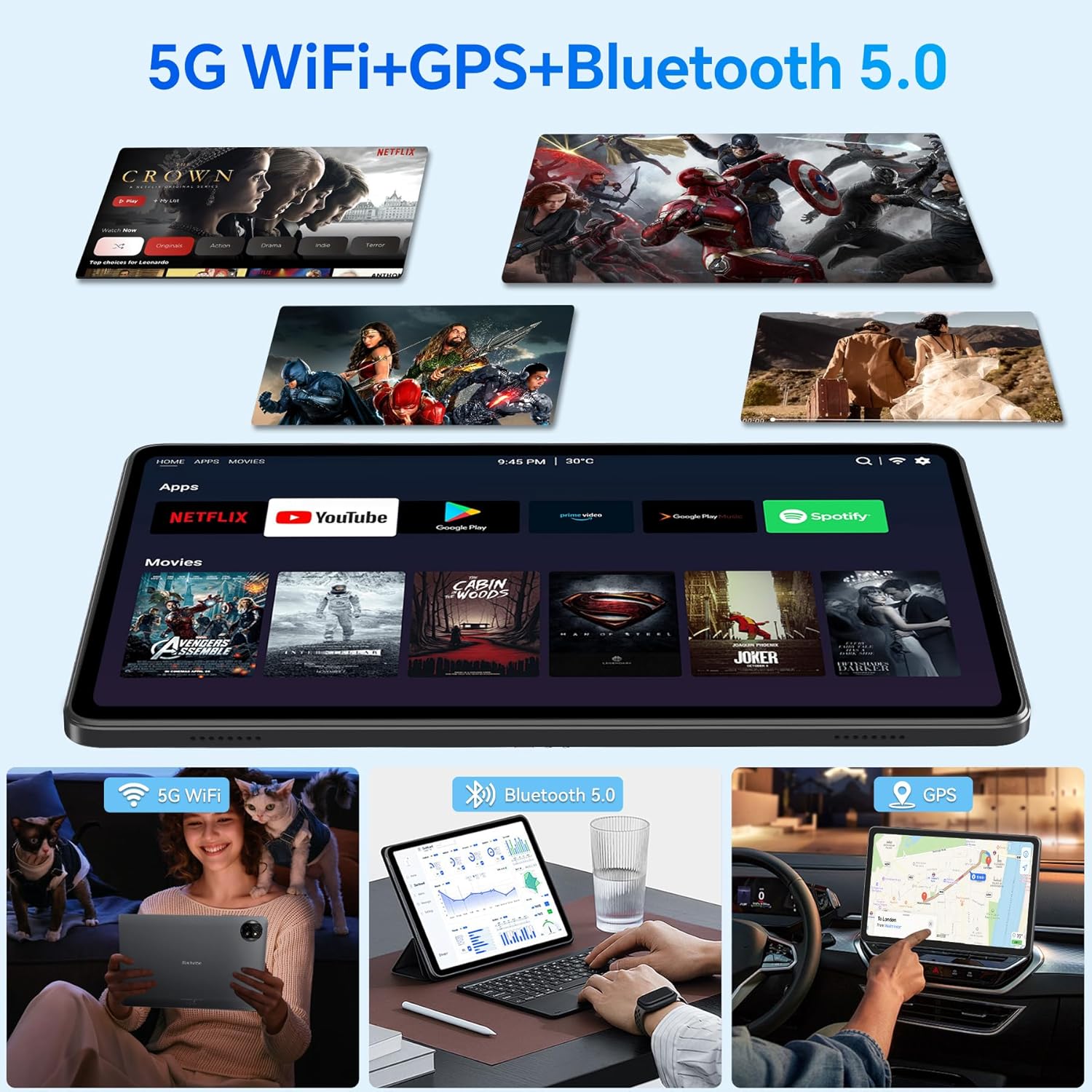
Image: Demonstrations of the tablet's connectivity features, including 5G WiFi for streaming, Bluetooth 5.0 for connecting peripherals, and GPS for navigation.
5.7. బహుళార్ధసాధక ఉపయోగం
ది బ్లాక్view Tab 20WIFI supports various modes of use to enhance your experience:
- స్ప్లిట్ స్క్రీన్: Use two apps simultaneously for multitasking.
- గేమింగ్: Enjoy mobile games with the tablet's performance.
- దృశ్య సంగీతం: Stream or play local media files.
- నావిగేషన్: Utilize GPS and mapping applications.
- పోర్టబుల్ కార్యాలయం: Use productivity apps for work or study.

Image: A collage illustrating the tablet's versatility, showing it used for split-screen multitasking, gaming, listening to music, GPS navigation, watching YouTube, and as a portable office device.
6. నిర్వహణ
6.1. బ్యాటరీ సంరక్షణ
బ్యాటరీ జీవితాన్ని పొడిగించడానికి:
- టాబ్లెట్ను తీవ్రమైన ఉష్ణోగ్రతలకు గురిచేయకుండా ఉండండి.
- బ్యాటరీ తరచుగా పూర్తిగా డిశ్చార్జ్ అవ్వనివ్వకండి.
- సరైన ఛార్జింగ్ కోసం అందించిన ఛార్జర్ మరియు కేబుల్ని ఉపయోగించండి.
- The 6600mAh battery supports 10W fast charging, achieving 6-8 hours of video playback from 2 hours of charging.

Image: A graphic depicting the tablet's 6600mAh high-capacity battery and its convenient Type-C charging port.
6.2. శుభ్రపరచడం
- స్క్రీన్ మరియు బాడీని శుభ్రం చేయడానికి మృదువైన, మెత్తటి బట్టను ఉపయోగించండి.
- కఠినమైన రసాయనాలు లేదా రాపిడి పదార్థాలను ఉపయోగించడం మానుకోండి.
6.3. సాఫ్ట్వేర్ నవీకరణలు
సరైన పనితీరు మరియు భద్రతను నిర్ధారించుకోవడానికి సిస్టమ్ నవీకరణల కోసం క్రమం తప్పకుండా తనిఖీ చేసి, ఇన్స్టాల్ చేయండి. సెట్టింగ్లు > సిస్టమ్ > సిస్టమ్ నవీకరణకు వెళ్లండి.
7. ట్రబుల్షూటింగ్
మీ టాబ్లెట్తో మీకు సమస్యలు ఎదురైతే, ఈ క్రింది సాధారణ పరిష్కారాలను చూడండి:
| సమస్య | సాధ్యమైన పరిష్కారం |
|---|---|
| టాబ్లెట్ ఆన్ అవ్వడం లేదు | Ensure the tablet is charged. Connect it to the charger for at least 30 minutes, then try powering on again. If unresponsive, perform a forced restart by holding the power button for 10-15 seconds. |
| Wi-Fi కనెక్షన్ సమస్యలు | Restart your Wi-Fi router. Go to Settings > Network & internet > Wi-Fi, forget the network, and reconnect. Ensure you are within range of the Wi-Fi signal. |
| నెమ్మదిగా పనితీరు లేదా గడ్డకట్టడం | Close unnecessary background apps. Clear cache for frequently used apps (Settings > Apps > [App Name] > Storage & cache > Clear cache). Restart the tablet. Ensure sufficient storage space is available. |
| యాప్లు క్రాష్ అవుతున్నాయి | Update the app from the Google Play Store. Clear the app's cache and data (Settings > Apps > [App Name] > Storage & cache). Reinstall the app if the issue persists. |
| ఫేస్ అన్లాక్ పనిచేయడం లేదు | Ensure your face is well-lit and positioned correctly in front of the camera. Clean the front camera lens. Re-register your face in Settings > Security > Face Unlock. |
If problems persist, consider performing a factory reset (Settings > System > Reset options > Erase all data (factory reset)). హెచ్చరిక: ఇది మీ టాబ్లెట్లోని మొత్తం డేటాను తొలగిస్తుంది. కొనసాగే ముందు ముఖ్యమైన డేటాను బ్యాకప్ చేయండి.
8. స్పెసిఫికేషన్లు
Key technical specifications for the Blackview Tab 20WIFI tablet:
- మోడల్: T310
- ఆపరేటింగ్ సిస్టమ్: ఆండ్రాయిడ్ 15
- ప్రదర్శన: 10.1-inch IPS, 1280 x 800 pixels
- ప్రాసెసర్: 1.8 GHz Quad-Core (Unisoc)
- RAM: 4GB (up to 12GB virtual RAM)
- అంతర్గత నిల్వ: 64GB
- విస్తరించదగిన నిల్వ: Up to 1TB via MicroSD (TF) card
- వెనుక కెమెరా: 8MP
- ముందు కెమెరా: 5MP
- బ్యాటరీ: 6600mAh
- కనెక్టివిటీ: 5G Wi-Fi, Bluetooth 5.0
- కొలతలు (LxWxH): 9.51 x 0.37 x 6.3 అంగుళాలు
- వస్తువు బరువు: 2.57 పౌండ్లు
9. వారంటీ మరియు మద్దతు
నలుపుview provides comprehensive support for its products.
9.1. వారంటీ సమాచారం
నలుపుview products undergo strict quality control from design to production. For Blackview tablets, users are entitled to a 24-month free repair warranty from the date of purchase. This warranty covers manufacturing defects and ensures high-quality standards.

Image: An icon representing Blackview's two-year warranty support, featuring a headset and a shield.
9.2. సాంకేతిక మద్దతు
In addition to the warranty, Blackview ఆఫర్లు lifetime technician support to assist with any operational or technical queries you may have. For support, please visit the official Blackview webసైట్ లేదా వారి కస్టమర్ సేవను సంప్రదించండి.


