పరిచయం
This manual provides essential information for setting up, operating, maintaining, and troubleshooting your NIMO 17.3 Gaming Laptop. Designed for high performance with an AMD Ryzen 9 8945HS processor and Radeon 780M graphics, this laptop offers a powerful computing experience for gaming, creative work, and everyday tasks. Please read this manual thoroughly to ensure optimal use and longevity of your device.
1. ప్రారంభ సెటప్
1.1 అన్ప్యాకింగ్ మరియు మొదటి పవర్ ఆన్
Carefully remove your NIMO laptop and all accessories from the packaging. Place the laptop on a stable, flat surface. Before first use, it is recommended to fully charge the battery.

The NIMO 17.3 Gaming Laptop, ready for initial setup.
1.2 బ్యాటరీని ఛార్జ్ చేయడం
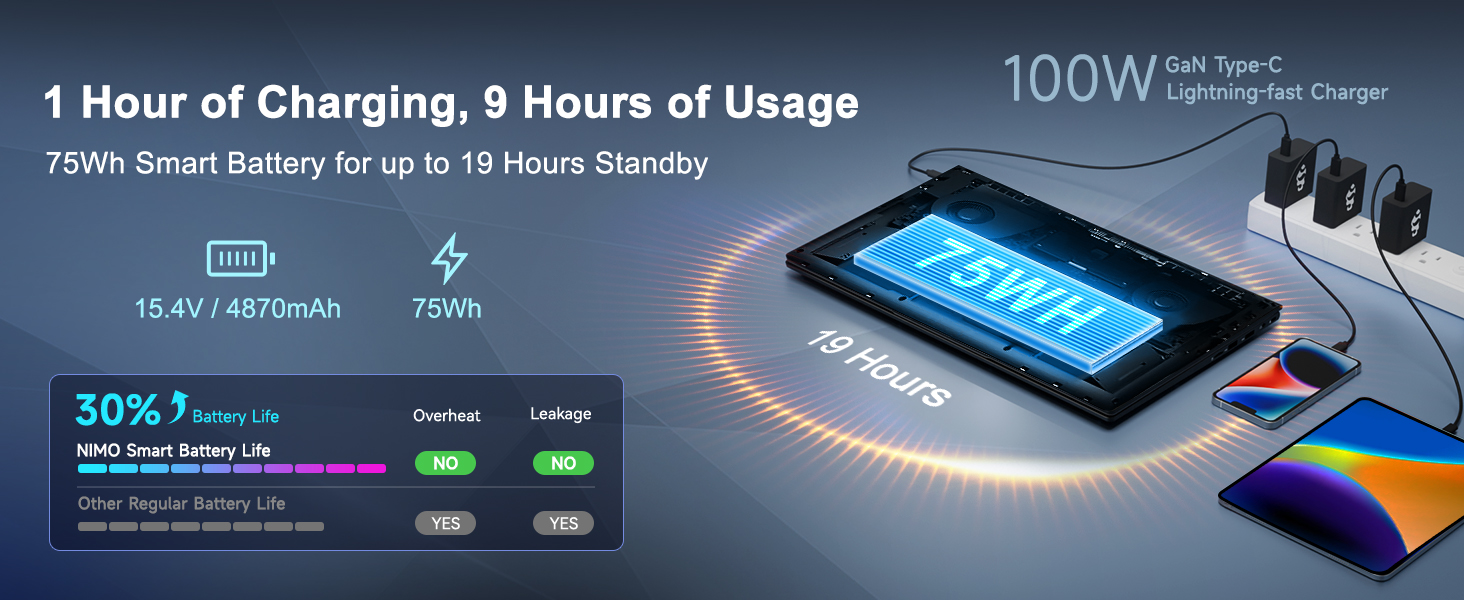
Connect the provided 100W PD Type-C fast charger to the USB-C port on your laptop and then to a power outlet. The charging indicator light will illuminate. Allow the laptop to charge fully before its first use for optimal battery calibration.

The 100W GaN Type-C charger connected to the laptop, illustrating fast charging capability.
1.3 Operating System Configuration
Upon first power-on, you will be guided through the Windows 11 setup process. Follow the on-screen instructions to configure language, region, network settings, and user accounts.
1.4 ఫింగర్ప్రింట్ రీడర్ సెటప్
For enhanced security and quick login, set up the integrated fingerprint reader during the Windows 11 setup or later via Windows Settings > Accounts > Sign-in options. Follow the prompts to register your fingerprints.

Close-up of the backlit keyboard and integrated fingerprint reader for secure access.
1.5 కనెక్ట్ పెరిఫెరల్స్
Your NIMO laptop features a comprehensive multi-port design for various peripherals:
- USB-C 4.0: For ultra-fast data transfer, external displays, and eGPU support.
- USB 3.2: అనుకూల పరికరాల కోసం హై-స్పీడ్ డేటా బదిలీ.
- USB 2.0: ప్రామాణిక USB పరికరాల కోసం.
- HDMI: బాహ్య మానిటర్లు లేదా టీవీలకు కనెక్ట్ చేయండి.
- SD కార్డ్ స్లాట్: మెమరీ కార్డుల కోసం.
- హెడ్ఫోన్ కాంబో జాక్: ఆడియో అవుట్పుట్ మరియు మైక్రోఫోన్ ఇన్పుట్ కోసం.
- కెన్సింగ్టన్ లాక్ స్లాట్: భౌతిక భద్రత కోసం.
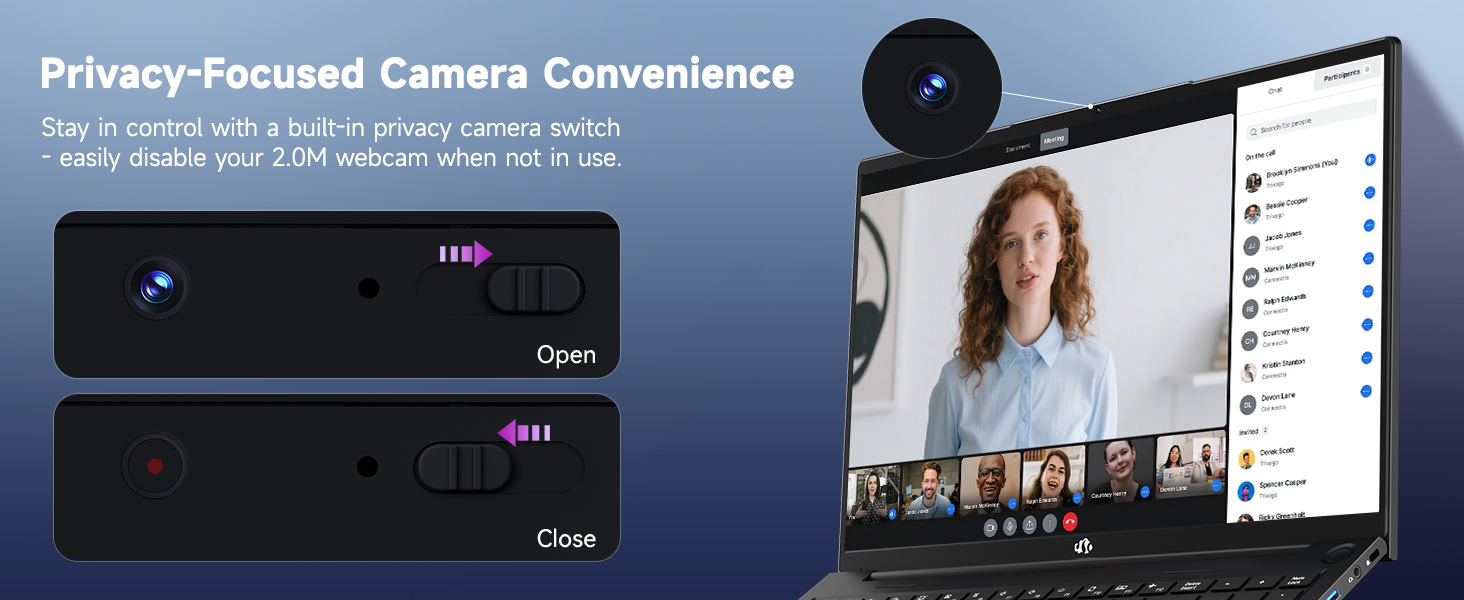
Diagram illustrating the comprehensive multi-port design of the NIMO laptop, including USB-C 4.0, HDMI, USB 3.2, USB 2.0, SD Card slot, Headphone Combo, and Kensington Lock.
2. ఆపరేటింగ్ సూచనలు
2.1 పవర్ ఆన్/ఆఫ్ మరియు స్లీప్ మోడ్లు
- పవర్ ఆన్: కీబోర్డ్పై ఉన్న పవర్ బటన్ను నొక్కండి.
- పవర్ ఆఫ్: స్టార్ట్ బటన్ క్లిక్ చేసి, ఆపై పవర్ > షట్ డౌన్ క్లిక్ చేయండి.
- స్లీప్ మోడ్: స్టార్ట్ బటన్ క్లిక్ చేసి, ఆపై పవర్ > స్లీప్ క్లిక్ చేయండి లేదా ల్యాప్టాప్ మూతను మూసివేయండి.
2.2 కీబోర్డ్ మరియు టచ్ప్యాడ్ని ఉపయోగించడం
The NIMO laptop features a full-size keyboard with a numeric keypad and adjustable backlighting. Press Fn + F10 (or similar function key depending on model) to cycle through backlight brightness levels. The large touchpad supports multi-touch gestures for navigation.
2.3 డిస్ప్లే ఫీచర్లు
Experience clear visuals on the 17.3-inch Full HD (1920x1080) IPS display. This screen provides vibrant colors and wide viewing angles, suitable for various applications from productivity to entertainment.

The NIMO laptop displaying a vibrant image, highlighting its 17.3-inch Full HD IPS screen.
2.4 Webcam Privacy Switch
For privacy, your laptop includes a physical webcam privacy switch. Slide the switch to the left to cover the camera lens and disable the webcam, or to the right to uncover and enable it.
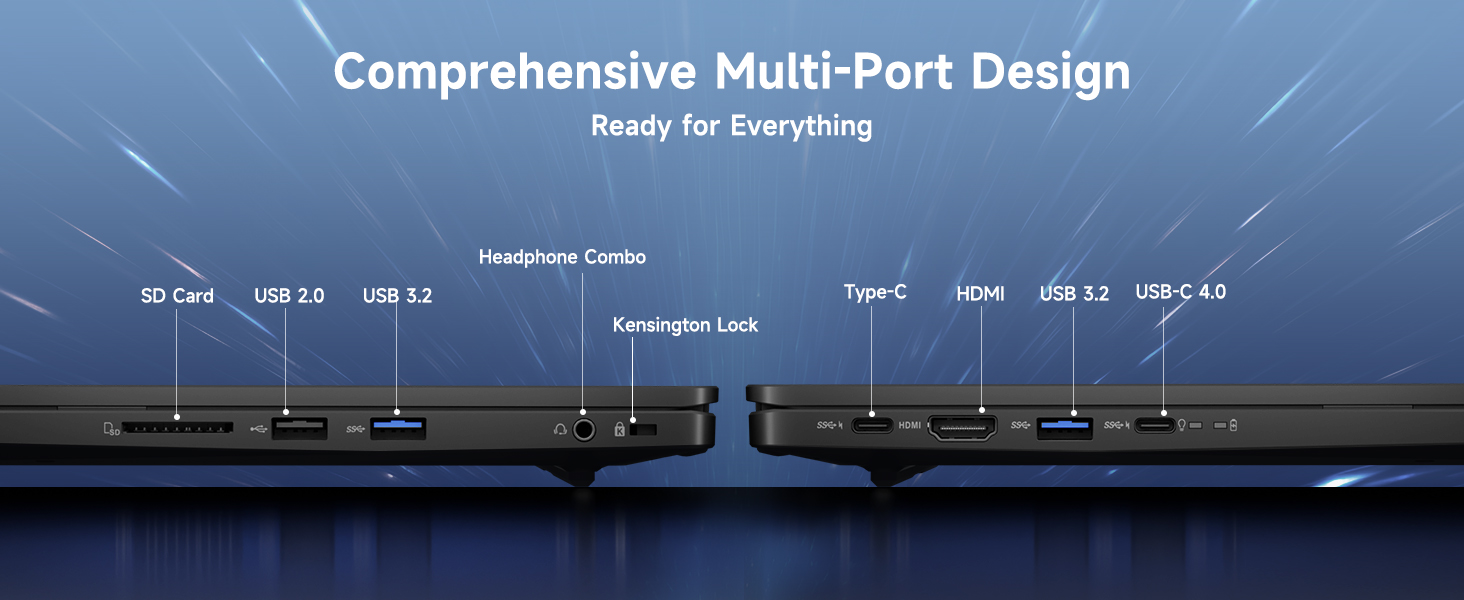
యొక్క ఉదాహరణ webcam privacy switch in both open and closed positions, demonstrating how to control camera access.
2.5 పనితీరు ముగిసిందిview
The NIMO laptop is powered by an AMD Ryzen 9 8945HS processor, offering 8 cores and 16 threads with a max boost clock of 5.2GHz. Integrated AMD Radeon 780M graphics provide capable performance for gaming and demanding creative applications.

రేఖాచిత్రం ప్రదర్శనasing the AMD Ryzen 9 8945HS processor with its 8 cores/16 threads and integrated Ryzen AI NPU.

Visual representation of the AMD Radeon 780M graphics, emphasizing its capabilities for gaming and creative work.
3. సంరక్షణ మరియు నిర్వహణ
3.1 ల్యాప్టాప్ను శుభ్రపరచడం
- స్క్రీన్: మెత్తని, మెత్తని బట్టను తేలికగా ఉపయోగించండి డిampనీరు లేదా స్క్రీన్ క్లీనర్తో నింపబడి ఉండాలి. స్క్రీన్పై నేరుగా ద్రవాన్ని పిచికారీ చేయవద్దు.
- కీబోర్డ్ మరియు చాసిస్: మృదువైన, పొడి వస్త్రాన్ని ఉపయోగించండి. మొండి ధూళి కోసం, కొద్దిగా damp వస్త్రాన్ని ఉపయోగించవచ్చు. కఠినమైన రసాయనాలను నివారించండి.
- పోర్టులు: పోర్టుల నుండి దుమ్మును సున్నితంగా తొలగించడానికి సంపీడన గాలిని ఉపయోగించండి.
3.2 బ్యాటరీ నిర్వహణ
The laptop is equipped with a 75Wh battery. To prolong battery life:
- బ్యాటరీని తరచుగా పూర్తిగా డిశ్చార్జ్ చేయడాన్ని నివారించండి.
- ల్యాప్టాప్ను ఎక్కువ సేపు ఉపయోగించకపోతే చల్లని, పొడి ప్రదేశంలో నిల్వ చేయండి.
- Utilize power-saving settings in Windows 11.

Graphic illustrating smart battery optimization features, including extended battery life, smart power control, safe fast charging, and battery health protection.
3.3 వేడి వెదజల్లడం
The NIMO laptop features an efficient cooling system with dual fans and double copper pipes to manage heat. Ensure that the ventilation openings are not blocked during use to maintain optimal performance and prevent overheating.
అంతర్గత view of the laptop's efficient heat dissipation system, featuring dual fans and double copper pipes.
3.4 సాఫ్ట్వేర్ నవీకరణలు
Regularly update your Windows 11 operating system and device drivers to ensure system stability, security, and optimal performance. You can check for updates via Windows Settings > Windows Update.
4. ట్రబుల్షూటింగ్
ఈ విభాగం మీ NIMO ల్యాప్టాప్తో మీరు ఎదుర్కొనే సాధారణ సమస్యలను పరిష్కరిస్తుంది.
4.1 విద్యుత్ సమస్యలు
- ల్యాప్టాప్ ఆన్ కావడం లేదు: Ensure the charger is securely connected and the power outlet is functional. Try holding the power button for 15-20 seconds to perform a hard reset.
- బ్యాటరీ ఛార్జింగ్ కాదు: Verify the charger is correctly plugged into both the laptop and the wall. Check for any damage to the charger cable or port.
4.2 ప్రదర్శన సమస్యలు
- తెరపై డిస్ప్లే లేదు: Connect an external monitor via HDMI to check if the issue is with the laptop's internal display. If the external monitor works, the internal display or its connection may be faulty.
- మినుకుమినుకుమనే స్క్రీన్: మీ గ్రాఫిక్స్ డ్రైవర్లను నవీకరించండి. Windows సెట్టింగ్లలో డిస్ప్లే రిఫ్రెష్ రేట్ను సర్దుబాటు చేయండి.
4.3 కనెక్టివిటీ సమస్యలు
- Wi-Fi కనెక్ట్ కావడం లేదు: విండోస్ సెట్టింగ్లలో Wi-Fi ప్రారంభించబడిందని నిర్ధారించుకోండి. మీ రౌటర్ మరియు ల్యాప్టాప్ను పునఃప్రారంభించండి. వైర్లెస్ డ్రైవర్లను నవీకరించండి.
- బ్లూటూత్ పరికరం జత కావడం లేదు: Ensure Bluetooth is enabled on both devices. Remove and re-add the device in Windows Bluetooth settings.
4.4 పనితీరు క్షీణత
- నెమ్మది పనితీరు: అనవసరమైన అప్లికేషన్లను మూసివేయండి. అధిక CPU/RAM వినియోగం కోసం టాస్క్ మేనేజర్ను తనిఖీ చేయండి. SSDలో తగినంత ఖాళీ స్థలం ఉందని నిర్ధారించుకోండి. వైరస్ స్కాన్ను అమలు చేయండి.
- వేడెక్కడం: Ensure ventilation vents are clear. Use the laptop on a hard, flat surface. Consider reducing demanding workloads.
5. సాంకేతిక లక్షణాలు
| ఫీచర్ | స్పెసిఫికేషన్ |
|---|---|
| బ్రాండ్ | నిమో |
| మోడల్ పేరు | NIMO N175L |
| స్క్రీన్ పరిమాణం | 17.3 అంగుళాలు |
| స్క్రీన్ రిజల్యూషన్ | 1920 x 1080 పిక్సెల్లు (పూర్తి HD) |
| ప్రాసెసర్ | AMD Ryzen 9 8945HS (Up to 5.2 GHz) |
| RAM | 32 GB DDR5 |
| హార్డ్ డ్రైవ్ | 1024 GB SSD (సాలిడ్ స్టేట్) |
| గ్రాఫిక్స్ కోప్రాసెసర్ | AMD రేడియన్ 780M (ఇంటిగ్రేటెడ్) |
| ఆపరేటింగ్ సిస్టమ్ | Windows 11 |
| వైర్లెస్ రకం | 802.11a/b/g/n/ac |
| USB పోర్ట్లు | 1x USB 2.0, 3x USB 3.0, 1x USB-C 4.0 |
| సగటు బ్యాటరీ జీవితం | 12.8 గంటలు |
| వస్తువు బరువు | 3.84 పౌండ్లు |
| ఉత్పత్తి కొలతలు | 15.66 x 9.99 x 0.74 అంగుళాలు |
| రంగు | నలుపు |
| ప్రత్యేక లక్షణాలు | బ్యాక్లిట్ కీబోర్డ్, ఫింగర్ప్రింట్ రీడర్, HD ఆడియో, న్యూమరిక్ కీప్యాడ్ |
6. వారంటీ మరియు కస్టమర్ మద్దతు
6.1 వారంటీ సమాచారం
మీ NIMO ల్యాప్టాప్ తో వస్తుంది a 2 సంవత్సరాల వారంటీ for support and service. Additionally, NIMO offers a 90-రోజుల రిటర్న్ పాలసీ from the date of purchase for any reason.
Image depicting a technician working on a laptop, symbolizing the 2-year support provided for NIMO products.
Image of a customer receiving a package, representing the 90-day return policy for NIMO products.
6.2 మద్దతును సంప్రదిస్తోంది
For any product-related questions, technical assistance, or warranty claims, please contact NIMO customer support:
- ఇమెయిల్: service@nimopc.com
- Professional customer assistance is available to help resolve your issues.
Image of customer service representatives, indicating professional customer assistance is available.


