1. పరిచయం
This manual provides essential information for setting up, operating, maintaining, and troubleshooting your MINIX ER937-AI Mini PC. Please read this guide thoroughly before using the device to ensure optimal performance and longevity.
ప్యాకేజీ విషయాలు
- MINIX Elite ER937-AI Mini PC x 1
- VESA Mount x 1
- 19V/6.32A పవర్ అడాప్టర్ x 1
- HDMI కేబుల్ x 1
2. ఉత్పత్తి ముగిసిందిview
The MINIX ER937-AI is a high-performance Mini PC designed for demanding tasks, including business applications, gaming, 3D rendering, and AI computing. It features an AMD Ryzen AI 9 HX 370 processor, Radeon 890M graphics, and advanced connectivity options.
Front and Rear Panel Interfaces
మీ మినీ పిసిలోని పోర్ట్లు మరియు బటన్లతో మిమ్మల్ని మీరు పరిచయం చేసుకోండి.

చిత్రం 2.1: Front and Rear Panel Interfaces. The front panel includes USB 4.0, USB 3.2, Microphone, Audio Jack, and Power Button/LED. The rear panel features Power Jack, USB 4.0, 2.5G RJ45 LAN, DP 2.0, HDMI 2.1, USB 3.2, and Kensington Lock.
- ముందు ప్యానెల్: USB-C 4.0 (x2), USB-A 3.2 Gen2 (x2), Audio Jack, Microphone, Power Button with Fingerprint Sensor, Clear CMOS Button.
- వెనుక ప్యానెల్: Power Jack, USB-A 3.2 Gen2 (x1), HDMI 2.1, DisplayPort 2.0, Dual 2.5G RJ45 LAN ports, Kensington Lock.
3. సెటప్ గైడ్
3.1 ప్రారంభ కనెక్షన్
- పెరిఫెరల్స్ కనెక్ట్ చేయండి: Connect your monitor(s) to the HDMI 2.1 and/or DisplayPort 2.0 ports. For multi-monitor setups, utilize the USB-C 4.0 ports which also support 8K@60Hz display output. Connect your keyboard and mouse to the available USB-A ports.
- పవర్ కనెక్షన్: Connect the provided 19V/6.32A power adapter to the Mini PC's power jack and then to a power outlet.
- నెట్వర్క్ కనెక్షన్ (ఐచ్ఛికం): For a wired connection, connect an Ethernet cable to one of the 2.5G RJ45 LAN ports. For wireless, Wi-Fi 7 is available after initial setup.
3.2 First Boot-Up
- ముందు ప్యానెల్లో ఉన్న పవర్ బటన్ను నొక్కండి. పవర్ LED వెలుగుతుంది.
- The system will boot into Windows 11 Pro. Follow the on-screen instructions to complete the initial Windows setup, including language, region, network configuration, and user account creation.
- During setup, you can configure the fingerprint sensor for secure and fast logins using Windows Hello.
3.3 VESA మౌంట్ ఇన్స్టాలేషన్
The included VESA mount allows you to attach the Mini PC to the back of a compatible monitor or TV, saving desk space.
- Attach the VESA mount bracket to the back of your monitor using the screws provided with your monitor (or the VESA mount if included). Ensure the mount is securely fastened.
- Slide the MINIX ER937-AI Mini PC onto the VESA mount until it clicks into place.
4. ఆపరేటింగ్ సూచనలు
4.1 పవర్ ఆన్/ఆఫ్ మరియు పునఃప్రారంభించండి
- పవర్ ఆన్: పవర్ బటన్ను నొక్కండి.
- షట్ డౌన్: విండోస్లో స్టార్ట్ బటన్ను క్లిక్ చేసి, ఆపై పవర్ > షట్ డౌన్ ఎంచుకోండి.
- పునఃప్రారంభించు: విండోస్లో స్టార్ట్ బటన్ను క్లిక్ చేసి, ఆపై పవర్ > రీస్టార్ట్ ఎంచుకోండి.
- Force Shut Down: సిస్టమ్ స్పందించకపోతే, పరికరం పవర్ ఆఫ్ అయ్యే వరకు పవర్ బటన్ను దాదాపు 5-7 సెకన్ల పాటు నొక్కి పట్టుకోండి. దీన్ని చివరి ప్రయత్నంగా మాత్రమే ఉపయోగించండి.
4.2 నెట్వర్క్ కనెక్టివిటీ
- Wi-Fi 7: Access network settings in Windows to connect to available Wi-Fi 7 (2.4GHz/5GHz/6GHz) networks.
- 2.5G LAN: Plug an Ethernet cable into either of the two 2.5G RJ45 LAN ports for a high-speed wired connection.
- బ్లూటూత్ 5.4: Enable Bluetooth in Windows settings to pair with compatible devices such as keyboards, mice, or audio peripherals.
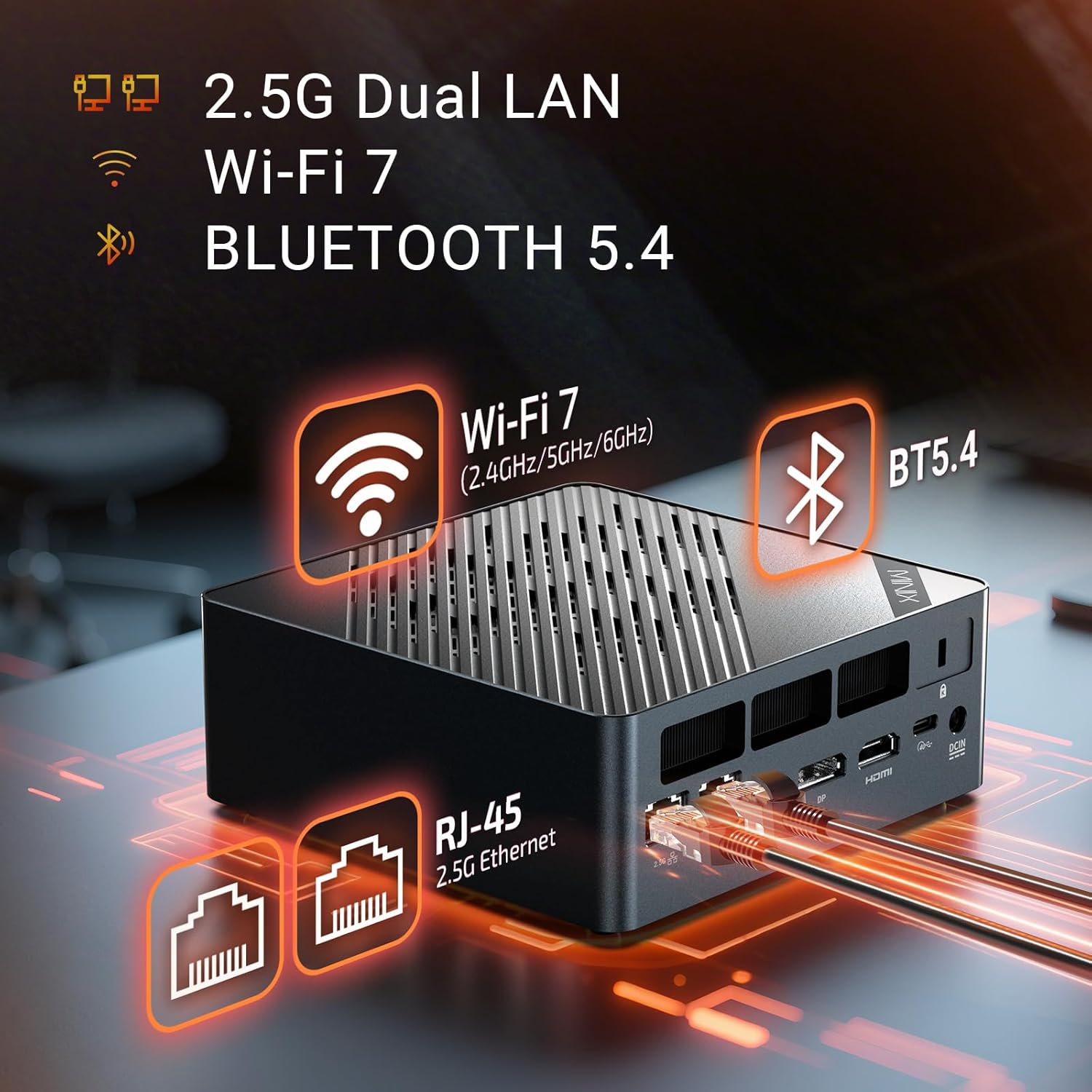
చిత్రం 4.1: Ultra-Fast Connections. The Mini PC supports Wi-Fi 7, Bluetooth 5.4, and dual 2.5G Ethernet for robust network performance.
4.3 డిస్ప్లే కాన్ఫిగరేషన్
The MINIX ER937-AI supports up to four 8K@60Hz displays simultaneously.
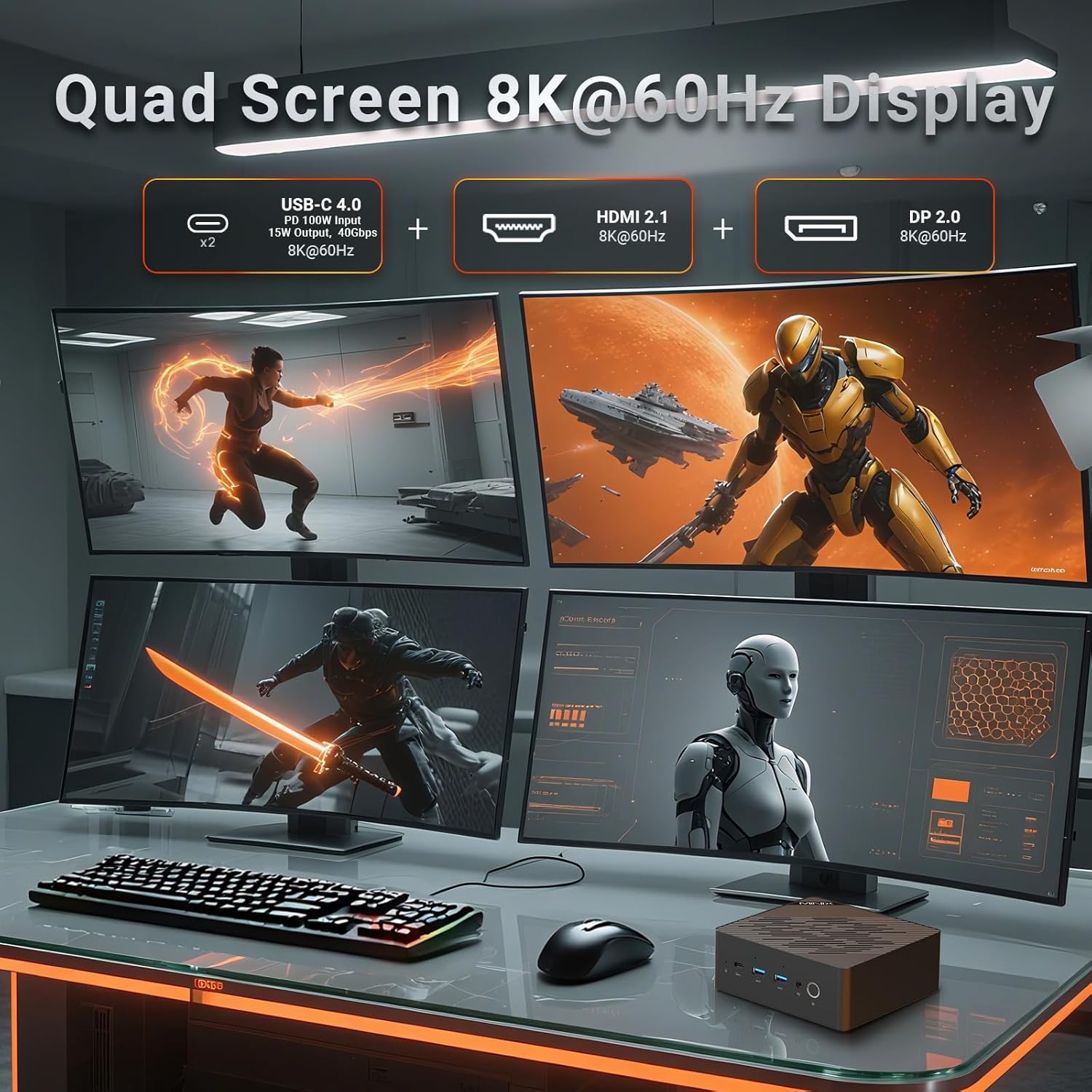
చిత్రం 4.2: Quad Screen 8K@60Hz Display. The Mini PC can drive up to four 8K monitors via USB-C 4.0, HDMI 2.1, and DisplayPort 2.0.
- Connect monitors using the HDMI 2.1, DisplayPort 2.0, and two USB-C 4.0 ports.
- In Windows Display Settings, you can configure display arrangement, resolution, and orientation.
4.4 USB-C 4.0 Functionality
The two USB-C 4.0 ports offer versatile functionality:
- Power Delivery (PD) Input: Supports 100W power input.
- Power Delivery (PD) Output: Provides 15W power output for charging compatible devices.
- డేటా బదిలీ: Up to 40Gbps for high-speed data transfer.
- ప్రదర్శన అవుట్పుట్: Supports 8K@60Hz video output.
4.5 AI లక్షణాలు
Leverage the AMD Ryzen AI 9 HX 370 processor's NPU for enhanced AI capabilities:
- విండోస్ కోపైలట్: Utilize AI-powered features within Windows 11 Pro, such as Recall and real-time translation.
- AI Acceleration: Benefit from up to 80 TOPS (Trillions of Operations Per Second) for AI tasks like drawing and voice interaction in compatible applications.
5. నిర్వహణ మరియు అప్గ్రేడ్లు
5.1 శీతలీకరణ వ్యవస్థ
The Mini PC features dual independent fans for efficient cooling of the CPU and SSD, ensuring stable performance under heavy loads.

చిత్రం 5.1: Dual Cooling Fans. Separate fans cool the CPU and SSD to prevent overheating and maintain performance.
To maintain optimal cooling, ensure the ventilation grilles are not obstructed. Periodically clean dust from the chassis using compressed air. The magnetic quick-release chassis allows for easy access for cleaning.
5.2 నిల్వ విస్తరణ
The Mini PC comes with a 1TB M.2 2280 PCIe 4.0x4 NVMe SSD and includes a second M.2 2280 PCIe 4.0x4 NVMe slot for additional storage, supporting up to 8TB.

చిత్రం 5.2: Ample Memory & Storage. The Mini PC supports 32GB DDR5 RAM and a 1TB PCIe 4.0 NVMe SSD, with expansion options.
To install an additional SSD:
- మినీ PC ని పవర్ ఆఫ్ చేసి, అన్ని కేబుల్స్ డిస్కనెక్ట్ చేయండి.
- Carefully open the chassis (refer to the magnetic quick-release mechanism).
- Locate the empty M.2 slot. Insert the new M.2 NVMe SSD at an angle and secure it with the provided screw.
- Close the chassis and reconnect cables. The new SSD will need to be initialized and formatted in Windows Disk Management.
5.3 RAM అప్గ్రేడ్
The device is equipped with 32GB dual-channel DDR5-5600 RAM (2x DDR5 SO-DIMM slots) and is expandable up to 96GB.
To upgrade RAM:
- మినీ PC ని పవర్ ఆఫ్ చేసి, అన్ని కేబుల్స్ డిస్కనెక్ట్ చేయండి.
- చట్రం జాగ్రత్తగా తెరవండి.
- Locate the DDR5 SO-DIMM slots. If replacing existing modules, gently push the clips on either side of the module outwards to release it.
- Insert new DDR5 SO-DIMM modules at an angle and push down until the clips snap into place.
- Close the chassis and reconnect cables.
5.4 CMOS బటన్ను క్లియర్ చేయండి
A Clear CMOS button is available on the front panel. This button can be used to reset BIOS settings to their default values if you encounter boot issues related to BIOS configuration. Consult technical support before using this feature.
6. ట్రబుల్షూటింగ్
If you encounter issues with your MINIX ER937-AI Mini PC, refer to the following common solutions:
- శక్తి లేదు:
- పవర్ అడాప్టర్ మినీ పిసి మరియు పనిచేసే పవర్ అవుట్లెట్ రెండింటికీ సురక్షితంగా కనెక్ట్ చేయబడిందని నిర్ధారించుకోండి.
- మరొక పరికరాన్ని ప్లగ్ చేయడం ద్వారా పవర్ అవుట్లెట్ పనిచేస్తుందో లేదో ధృవీకరించండి.
- ప్రదర్శన లేదు:
- Check that the monitor is powered on and the correct input source is selected.
- Ensure display cables (HDMI, DisplayPort, USB-C) are securely connected to both the Mini PC and the monitor.
- వేరే డిస్ప్లే పోర్ట్కి కనెక్ట్ చేయడానికి లేదా వేరే కేబుల్ని ఉపయోగించడానికి ప్రయత్నించండి.
- నెట్వర్క్ కనెక్టివిటీ సమస్యలు:
- For Wi-Fi, check Windows network settings, ensure Wi-Fi is enabled, and try reconnecting to your network.
- For wired LAN, ensure the Ethernet cable is properly connected and your router/modem is functioning.
- మీ రౌటర్/మోడెమ్ మరియు మినీ PC ని పునఃప్రారంభించండి.
- ఫింగర్ ప్రింట్ సెన్సార్ పనిచేయకపోవడం:
- మీ వేలు శుభ్రంగా మరియు పొడిగా ఉందని నిర్ధారించుకోండి.
- Re-register your fingerprint in Windows Hello settings.
- System Performance Issues:
- Ensure the Mini PC has adequate ventilation and is not placed in an enclosed space.
- Check for excessive background processes in Task Manager.
- Update drivers and Windows 11 Pro to the latest versions.
If problems persist, refer to the Support section for further assistance.
7. స్పెసిఫికేషన్లు
Detailed technical specifications for the MINIX ER937-AI Mini PC.
| ఫీచర్ | స్పెసిఫికేషన్ |
|---|---|
| మోడల్ | ER937-AI |
| ఆపరేటింగ్ సిస్టమ్ | Windows 11 ప్రో |
| ప్రాసెసర్ | AMD Ryzen AI 9 HX 370 (12C/24T, up to 5.1GHz) |
| గ్రాఫిక్స్ | AMD Radeon 890M, Ryzen AI NPU (80 TOPS overall) |
| RAM | 32GB DDR5-5600 (2x SO-DIMM slots, expandable to 96GB) |
| నిల్వ | 1TB M.2 2280 PCIe 4.0x4 NVMe SSD (second slot expandable to 8TB) |
| వైర్లెస్ కనెక్టివిటీ | వై-ఫై 7, బ్లూటూత్ 5.4 |
| వైర్డు కనెక్టివిటీ | Dual 2.5G RJ45 LAN |
| USB పోర్ట్లు | 2x USB-C 4.0 (PD 100W input, 15W output), 3x USB-A 3.2 Gen2 |
| వీడియో అవుట్పుట్ | HDMI 2.1, DisplayPort 2.0, 2x USB-C 4.0 (Quad 8K@60Hz support) |
| ఆడియో | Audio Jack, Dual Hidden Microphones |
| భద్రత | Fingerprint-enabled Power Button, Kensington Lock |
| శీతలీకరణ | Dual Independent Fans (CPU & SSD) |
| కొలతలు (LxWxH) | 5.52 x 5.5 x 2.2 అంగుళాలు |
| బరువు | 2.06 పౌండ్లు |
8. వారంటీ మరియు మద్దతు
8.1 వారంటీ సమాచారం
For specific warranty terms and conditions, please refer to the documentation included with your product or visit the official MINIX webసైట్. వారంటీ కవరేజ్ సాధారణంగా సాధారణ ఉపయోగంలో పదార్థాలు మరియు పనితనంలో లోపాలను కలిగి ఉంటుంది.
8.2 సాంకేతిక మద్దతు
If you require technical assistance or have questions not covered in this manual, please use the following resources:
- ఆన్లైన్ మద్దతు: Visit your Amazon account, navigate to "Your Orders," and select "Ask Product Question" for the MINIX ER937-AI Mini PC.
- అధికారిక Webసైట్: For offline maintenance services and additional support resources, please visit the official MINIX webసైట్.


