
1. పరిచయం
This manual provides essential information for the safe and efficient use of your URAO 14-inch Android 15 Tablet, model G140L. Please read this manual thoroughly before operating the device to ensure proper setup and functionality. Keep this manual for future reference.
2. ప్యాకేజీ విషయాలు
ప్యాకేజీలో అన్ని అంశాలు ఉన్నాయని నిర్ధారించుకోండి:
- URAO 14-inch Android 15 Tablet (G140L)
- బ్లూటూత్ కీబోర్డ్
- Bluetooth Mouse (Note: Batteries not included)
- స్టైలస్ పెన్
- రక్షణ కేసు
- హెడ్ఫోన్లు
- USB టైప్-సి ఛార్జింగ్ కేబుల్
- పవర్ అడాప్టర్ (ఛార్జర్)

Image: A visual representation of the URAO G140L tablet, highlighting its ports and buttons, alongside all standard accessories provided in the retail package.
3. సెటప్
3.1 ప్రారంభ పవర్ ఆన్
- Press and hold the Power ON/OFF button located on the side of the tablet until the screen illuminates.
- మీ భాషను ఎంచుకోవడానికి, Wi-Fi నెట్వర్క్కు కనెక్ట్ అవ్వడానికి మరియు మీ Google ఖాతాను సెటప్ చేయడానికి స్క్రీన్పై కనిపించే ప్రాంప్ట్లను అనుసరించండి.
3.2 టాబ్లెట్ను ఛార్జ్ చేయడం
Before first use, fully charge the tablet. Use the provided USB Type-C charging cable and power adapter.
- Connect the USB Type-C cable to the tablet's charging port.
- పవర్ అడాప్టర్ను వాల్ అవుట్లెట్లోకి ప్లగ్ చేయండి.
- The battery indicator on the screen will show charging status. A full charge typically takes approximately 2.5 hours with the 30W fast charging capability.
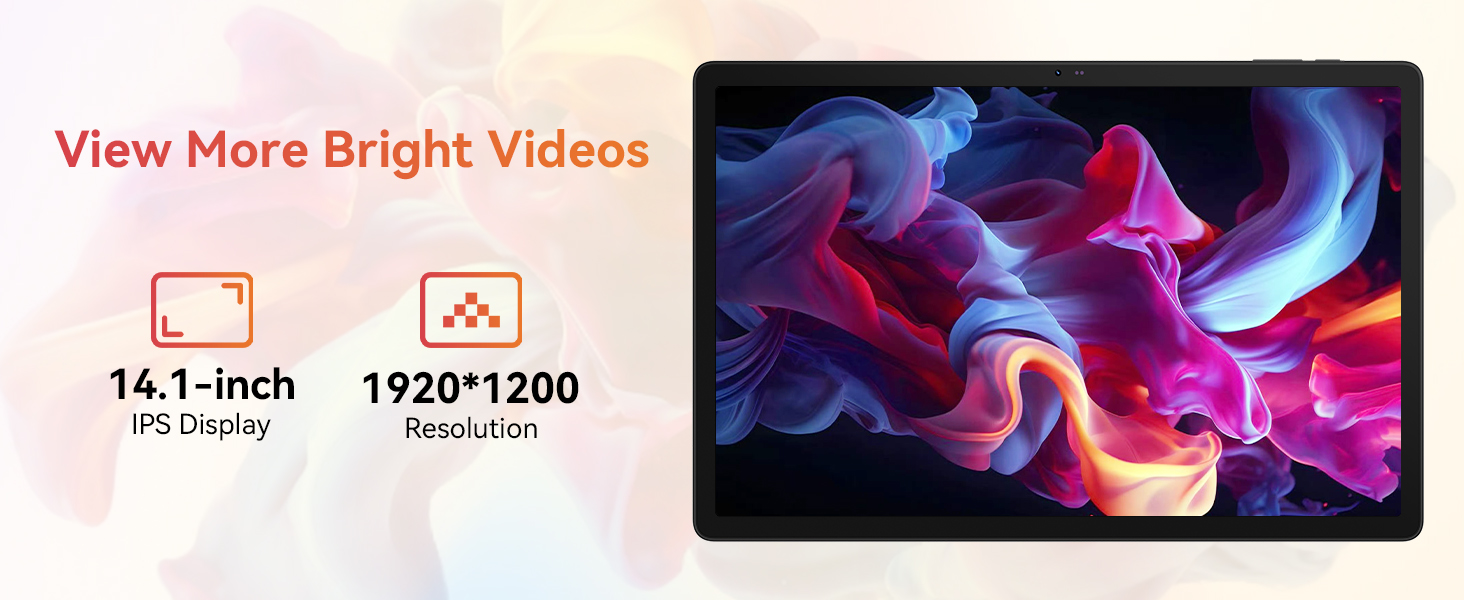
Image: The URAO tablet connected to a charger via its Type-C port, illustrating the 10000mAh battery and 30W fast charging feature.
3.3 Connecting Peripherals (Keyboard, Mouse, Stylus)
The included keyboard, mouse, and stylus connect via Bluetooth.
- వెళ్ళండి సెట్టింగ్లు > కనెక్ట్ చేయబడిన పరికరాలు > బ్లూటూత్ మీ టాబ్లెట్లో.
- బ్లూటూత్ ఆన్ చేయబడిందని నిర్ధారించుకోండి On.
- Put the keyboard, mouse, or stylus into pairing mode (refer to each accessory's individual instructions for specific pairing steps).
- జత చేయడానికి మీ టాబ్లెట్లో అందుబాటులో ఉన్న పరికరాల జాబితా నుండి అనుబంధాన్ని ఎంచుకోండి.
3.4 నెట్వర్క్ కనెక్షన్ (Wi-Fi)
ఇంటర్నెట్ యాక్సెస్ కోసం Wi-Fi నెట్వర్క్కి కనెక్ట్ చేయండి.
- వెళ్ళండి సెట్టింగ్లు > నెట్వర్క్ & ఇంటర్నెట్ > ఇంటర్నెట్.
- తిరగండి Wi-Fi న.
- Select your desired Wi-Fi network from the list and enter the password if required. The tablet supports Wi-Fi 6 (802.11ax) for faster and more stable connections.
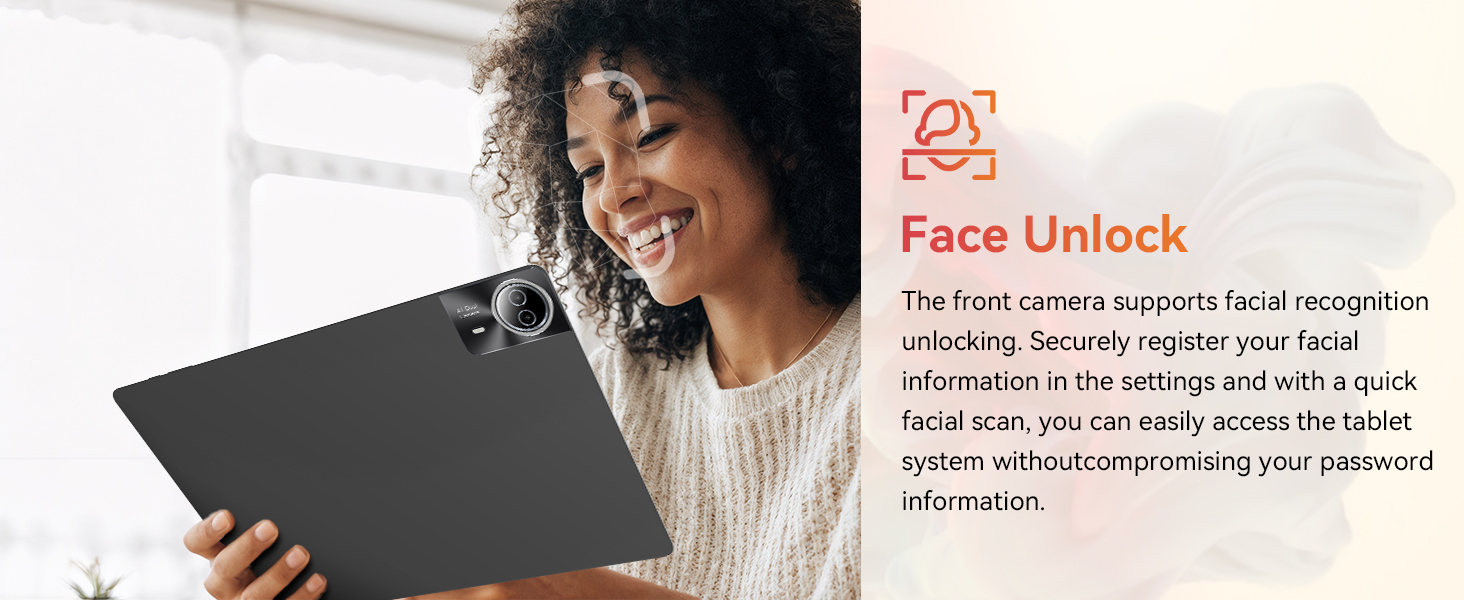
Image: The URAO tablet screen showing icons for dual-band Wi-Fi (2.4G+5G) and Bluetooth 5.4, indicating its connectivity features.
4. ఆపరేటింగ్ సూచనలు
4.1 ప్రాథమిక నావిగేషన్ (ఆండ్రాయిడ్ 15)
Your tablet runs on Android 15, offering an intuitive user interface. Use touch gestures for navigation:
- నొక్కండి: ఒక అంశాన్ని ఎంచుకోండి.
- స్వైప్: పేజీలు లేదా జాబితాల ద్వారా స్క్రోల్ చేయండి.
- చిటికెడు: చిత్రాలను జూమ్ ఇన్ లేదా అవుట్ చేయండి మరియు web పేజీలు.
- లాంగ్ ప్రెస్: సందర్భోచిత మెనూలను యాక్సెస్ చేయండి లేదా చిహ్నాలను తరలించండి.
4.2 ప్రదర్శన సెట్టింగ్లు
The 14.1-inch IPS FHD display offers a resolution of 1920x1200 pixels for clear visuals. Adjust display settings via సెట్టింగ్లు > ప్రదర్శించు.
- ప్రకాశం స్థాయి: స్క్రీన్ ప్రకాశాన్ని సర్దుబాటు చేయండి.
- ముదురు థీమ్: Enable for reduced eye strain in low light.
- కంటి రక్షణ మోడ్: Reduces blue light emission.
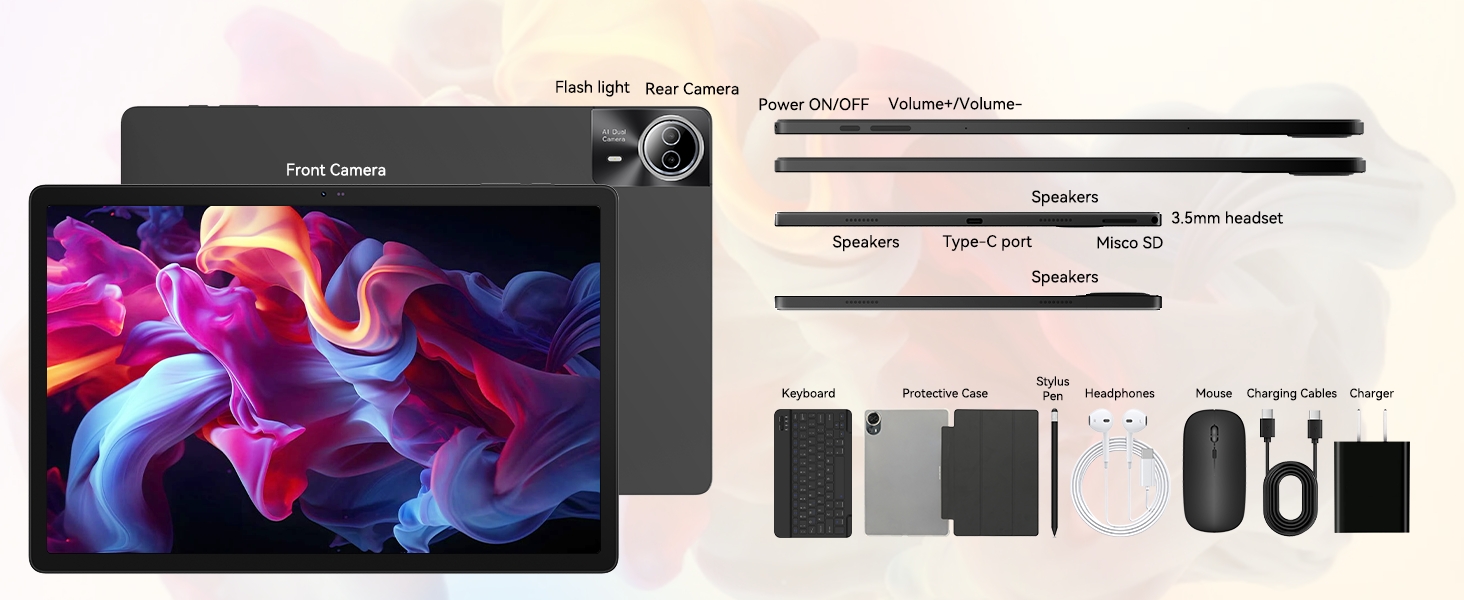
Image: The URAO tablet displaying a high-resolution image, emphasizing its 14.1-inch IPS display and 1920x1200 pixel resolution for bright and clear visuals.
4.3 కెమెరా వినియోగం
ఈ టాబ్లెట్లో 5MP ముందు కెమెరా మరియు 8MP వెనుక కెమెరా ఉన్నాయి.
- తెరవండి కెమెరా హోమ్ స్క్రీన్ లేదా యాప్ డ్రాయర్ నుండి అప్లికేషన్.
- ముందు మరియు వెనుక కెమెరాల మధ్య మారడానికి కెమెరా చిహ్నాన్ని నొక్కండి.
- Tap the shutter button to take photos or start/stop video recording.
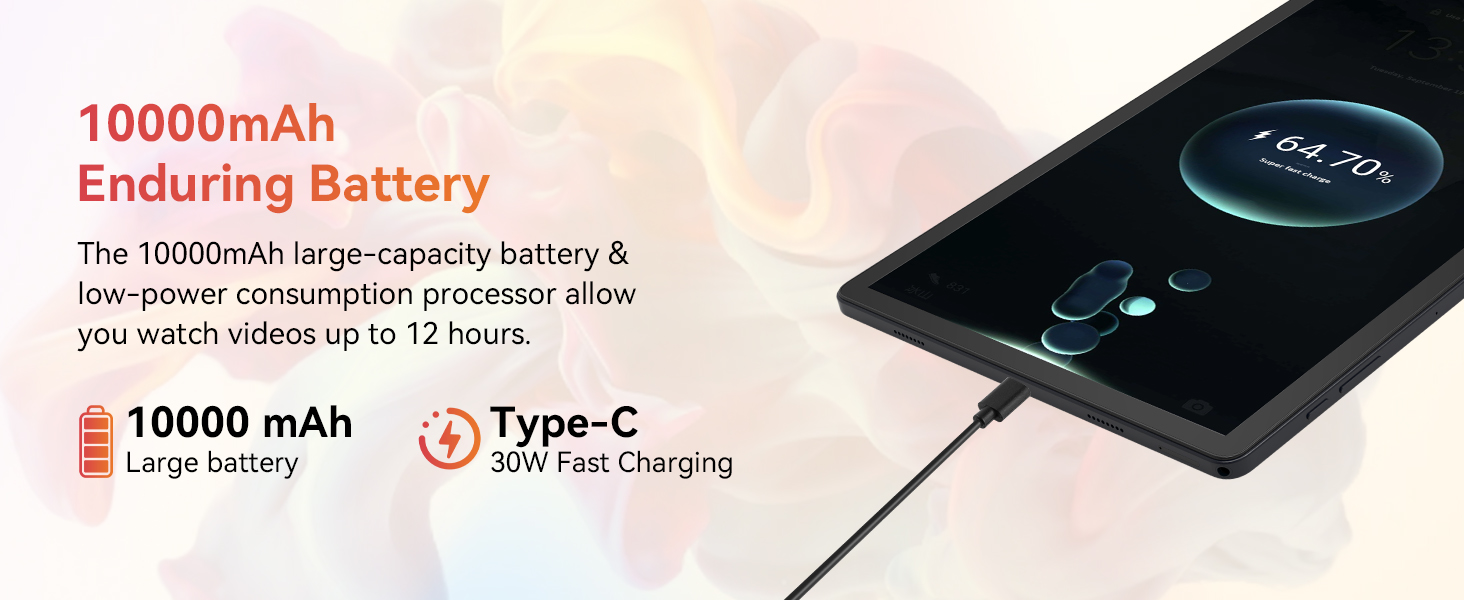
Image: A collage demonstrating the photo capabilities of the URAO tablet, featuring images taken with its 8MP rear camera and 5MP front camera, suitable for video calls and capturing moments.
4.4 ఆడియో
The tablet is equipped with Stereo 4 Speakers for an immersive audio experience. Volume can be adjusted using the Volume +/- buttons on the side of the tablet or through the on-screen controls.
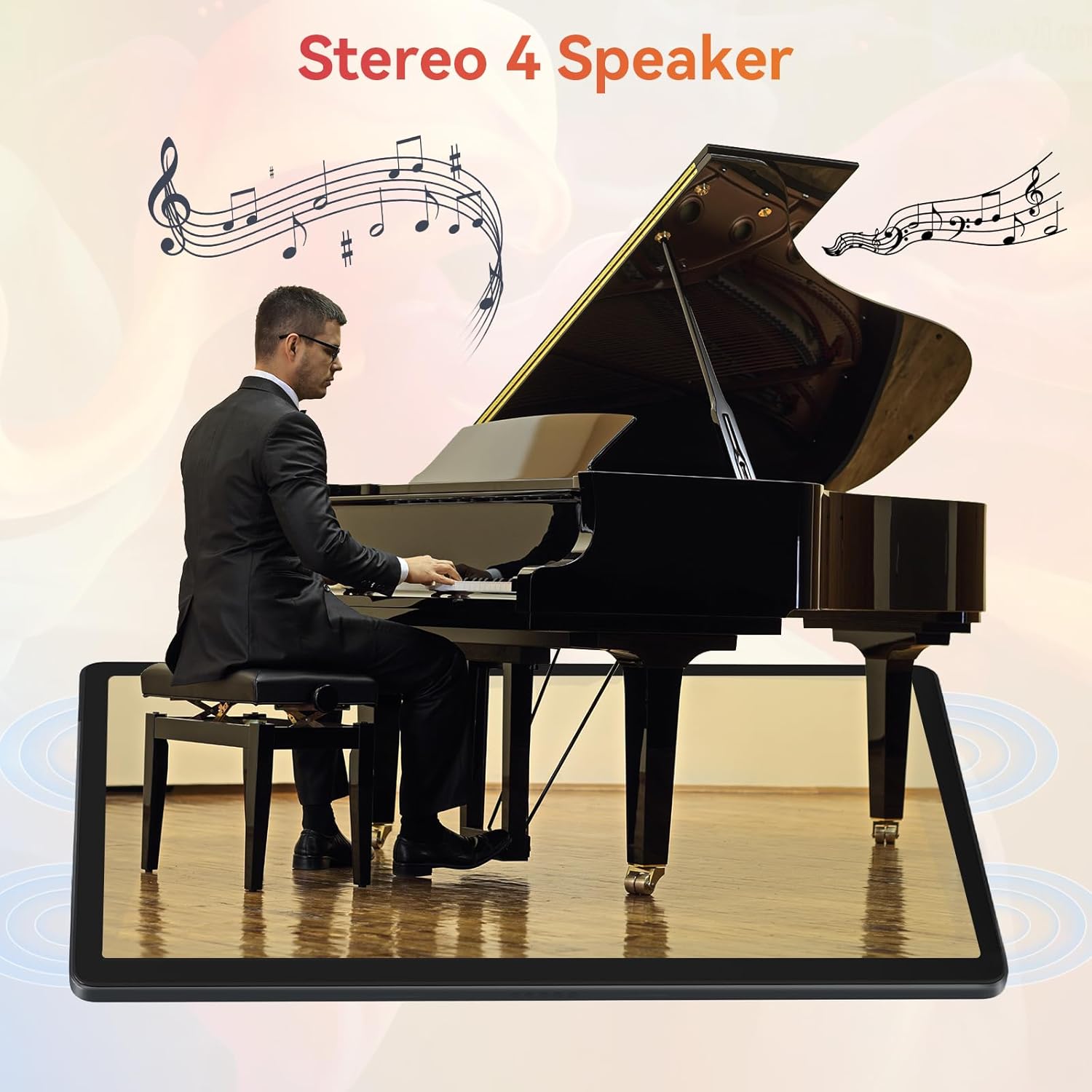
Image: The URAO tablet positioned in front of a piano player, with a graphic overlay indicating the presence of Stereo 4 Speakers for enhanced sound.
4.5 నిల్వ నిర్వహణ
Your tablet comes with 256GB of internal storage and 30GB of RAM (6GB physical + 24GB virtual expansion). Storage can be expanded up to 1TB using a TF (Micro SD) card (not included).
- To insert a TF card, locate the card slot on the side of the tablet and gently push the card in until it clicks.
- Manage storage via సెట్టింగ్లు > నిల్వ.
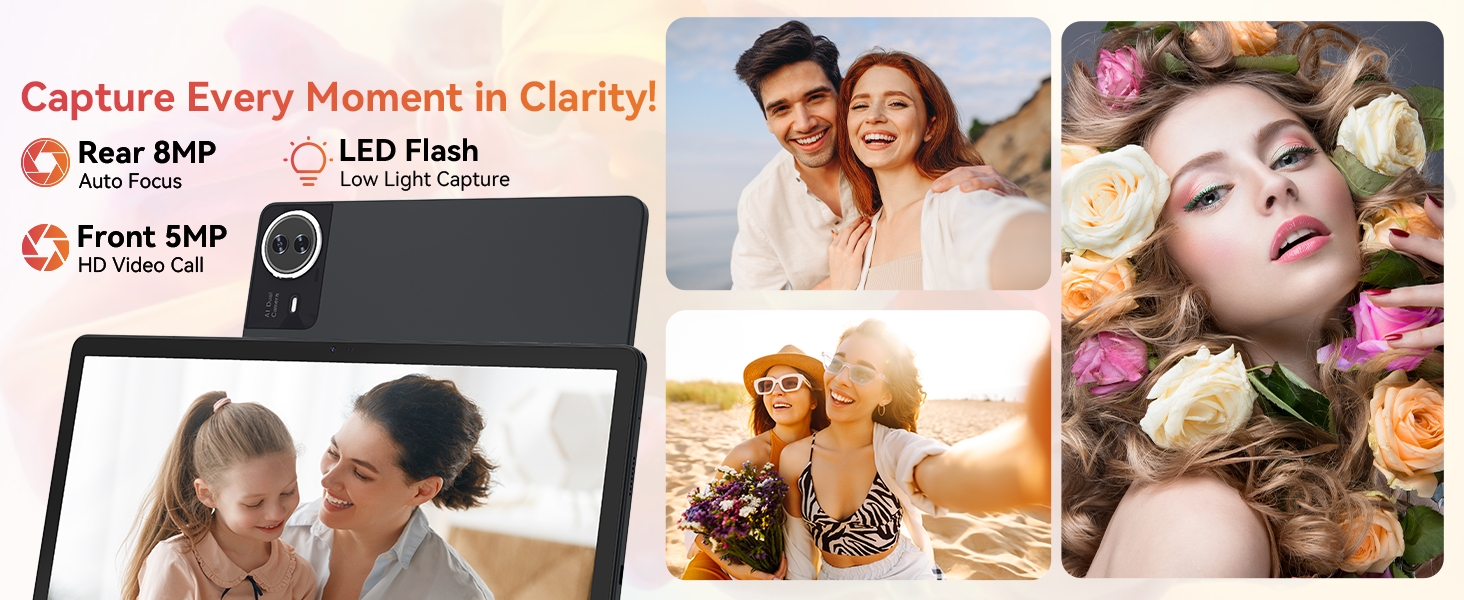
Image: The URAO tablet displaying multiple application icons, with graphics indicating its 30GB RAM (6+24GB), 256GB ROM, and support for up to 1TB external storage.
4.6 2-in-1 Mode
Transform your tablet into a laptop-like experience by connecting the Bluetooth keyboard and mouse. The protective case can also function as a stand.

Image: A multi-panel image showing the URAO tablet in different usage scenarios, including note-taking with a stylus, typing with the keyboard and mouse, and watching videos, demonstrating its versatility.
4.7 ముఖ గుర్తింపు
The front camera supports facial recognition for convenient unlocking.
- వెళ్ళండి సెట్టింగ్లు > భద్రత & గోప్యత > ఫేస్ అన్లాక్.
- Follow the on-screen instructions to register your facial data.
- సెటప్ చేసిన తర్వాత, మీరు ముందు కెమెరాను చూడటం ద్వారా మీ టాబ్లెట్ను అన్లాక్ చేయవచ్చు.
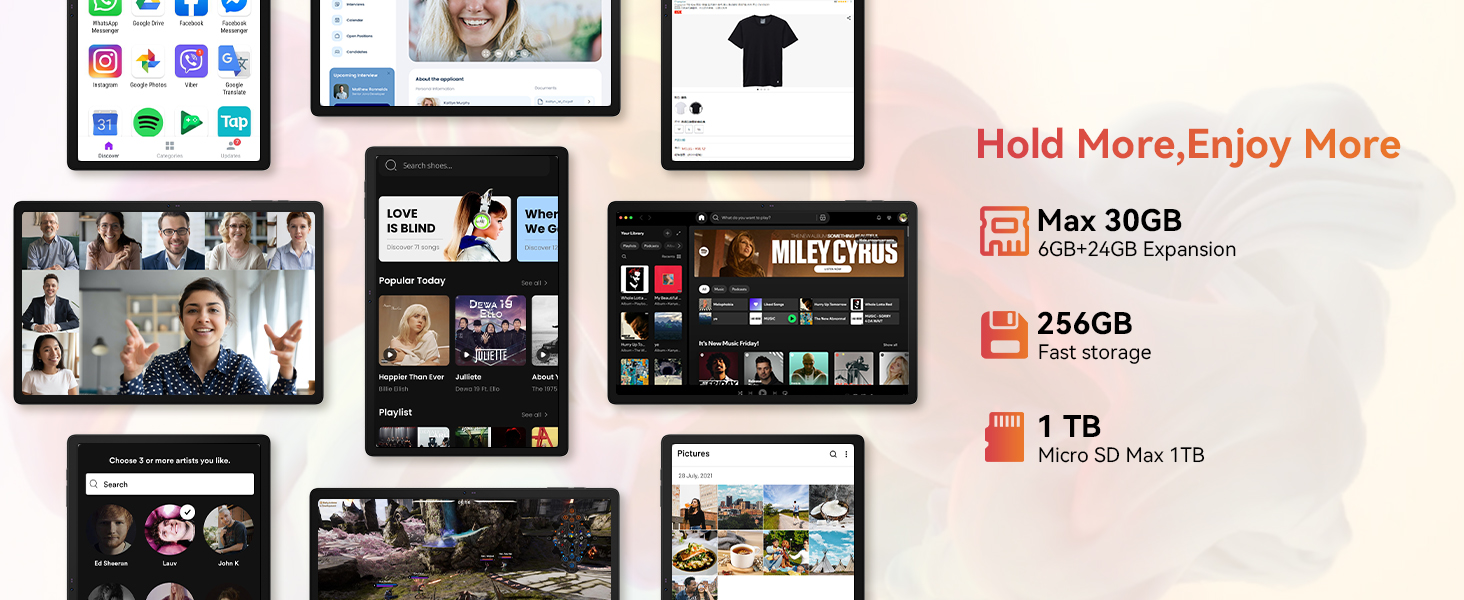
Image: A woman demonstrating the face unlock feature of the URAO tablet, with an icon indicating facial recognition technology.
5. నిర్వహణ
5.1 పరికరాన్ని శుభ్రపరచడం
- టాబ్లెట్ స్క్రీన్ మరియు బాడీని శుభ్రం చేయడానికి మృదువైన, మెత్తటి బట్టను ఉపయోగించండి.
- కఠినమైన రసాయనాలు లేదా రాపిడి పదార్థాలను ఉపయోగించడం మానుకోండి.
- క్లీనర్లను నేరుగా స్క్రీన్పై పిచికారీ చేయవద్దు.
5.2 సాఫ్ట్వేర్ నవీకరణలు
సరైన పనితీరు మరియు భద్రతను నిర్ధారించుకోవడానికి కాలానుగుణంగా సిస్టమ్ నవీకరణల కోసం తనిఖీ చేయండి.
- వెళ్ళండి సెట్టింగ్లు > వ్యవస్థ > సిస్టమ్ నవీకరణ.
- అందుబాటులో ఉన్న ఏవైనా నవీకరణలను డౌన్లోడ్ చేసి, ఇన్స్టాల్ చేయడానికి స్క్రీన్పై ఉన్న సూచనలను అనుసరించండి.
5.3 బ్యాటరీ సంరక్షణ
బ్యాటరీ జీవితాన్ని పొడిగించడానికి:
- టాబ్లెట్ను తీవ్రమైన ఉష్ణోగ్రతలకు గురిచేయకుండా ఉండండి.
- బ్యాటరీ తరచుగా పూర్తిగా డిశ్చార్జ్ అవ్వనివ్వకండి.
- అందించిన ఛార్జర్ మరియు కేబుల్ను మాత్రమే ఉపయోగించండి.
6. ట్రబుల్షూటింగ్
6.1 పరికరం ఆన్ కావడం లేదు
- టాబ్లెట్ తగినంత ఛార్జ్ చేయబడిందని నిర్ధారించుకోండి. కనీసం 30 నిమిషాలు దానిని ఛార్జర్కు కనెక్ట్ చేయండి.
- Press and hold the Power ON/OFF button for 10-15 seconds to perform a forced restart.
6.2 Wi-Fi కనెక్షన్ సమస్యలు
- మీ Wi-Fi రౌటర్ మరియు టాబ్లెట్ను పునఃప్రారంభించండి.
- మీరు Wi-Fi సిగ్నల్ పరిధిలో ఉన్నారని నిర్ధారించుకోండి.
- Wi-Fi పాస్వర్డ్ సరిగ్గా నమోదు చేయబడిందని ధృవీకరించండి.
6.3 Peripherals Not Connecting (Keyboard/Mouse/Stylus)
- Ensure Bluetooth is enabled on the tablet and the accessory is in pairing mode.
- Check if the accessory has sufficient battery (e.g., replace mouse batteries).
- Unpair and re-pair the accessory from the tablet's Bluetooth settings.
6.4 Touchscreen Unresponsiveness
- టాబ్లెట్ను పునఃప్రారంభించండి.
- Ensure the screen is clean and free of debris or liquids.
- If the issue persists, a factory reset may be necessary (back up your data first).
7. స్పెసిఫికేషన్లు
Technical Specifications for URAO G140L Tablet:
| మోడల్ | G140L |
| ఆపరేటింగ్ సిస్టమ్ | ఆండ్రాయిడ్ 15 |
| స్క్రీన్ పరిమాణం | 14.1 అంగుళాలు |
| స్క్రీన్ రిజల్యూషన్ | 1920 x 1200 పిక్సెల్స్ (FHD IPS) |
| ప్రాసెసర్ | 2.0 GHz ఆక్టా-కోర్ |
| RAM | 30GB (6GB భౌతిక + 24GB వర్చువల్) |
| అంతర్గత నిల్వ (ROM) | 256GB |
| విస్తరించదగిన నిల్వ | Up to 1TB (TF card, not included) |
| బ్యాటరీ కెపాసిటీ | 10000mAh |
| ఛార్జింగ్ | 30W Fast Charging, USB Type-C |
| సగటు బ్యాటరీ జీవితం | Up to 12 hours (mixed use) |
| వైర్లెస్ కనెక్టివిటీ | వై-ఫై 6 (802.11ax), బ్లూటూత్ 5.4 |
| ఫ్రంట్ కెమెరా | 5MP |
| వెనుక కెమెరా | 8MP |
| ఆడియో | Stereo 4 Speakers |
| సెన్సార్లు | గ్రావిటీ యాక్సిలరేషన్ సెన్సార్ |
| కొలతలు (LxWxH) | 12.8 x 8.39 x 0.39 అంగుళాలు |
| వస్తువు బరువు | 4.29 పౌండ్లు |
8. వారంటీ మరియు మద్దతు
8.1 వారంటీ సమాచారం
Your URAO G140L Tablet is covered by a manufacturer's warranty. Please refer to the warranty card included in your package for specific terms and conditions. Keep your proof of purchase for warranty claims.
8.2 కస్టమర్ మద్దతు
For technical assistance, troubleshooting, or warranty inquiries, please contact URAO customer support through the retailer where the product was purchased or visit the official URAO webసంప్రదింపు సమాచారం కోసం సైట్.

