1. పరిచయం
This manual provides detailed instructions for the setup, operation, maintenance, and troubleshooting of your ATK VXE Dragonfly R1 SE+ Wireless Gaming Mouse. Please read this manual thoroughly to ensure optimal performance and longevity of your device.

చిత్రం 1.1: పైభాగం view of the ATK VXE Dragonfly R1 SE+ Wireless Gaming Mouse in black.
వీడియో 1.1: ఒక ఓవర్view of the ATK VXE Dragonfly R1 Gaming Mouse, showcasing its design and features. This video highlights the mouse's aesthetic and general functionality.
2. సెటప్
2.1 అన్బాక్సింగ్
Carefully open the product packaging and ensure all components are present. The package should contain the ATK VXE Dragonfly R1 SE+ mouse, a USB-C charging cable, a 2.4G wireless receiver, and documentation.
Video 2.1: An unboxing video for the ATK R1 Gaming Mouse, demonstrating the contents of the package including the mouse, cables, and accessories. This video provides a visual guide to what is included with your purchase.
2.2 Connectivity Options (Tri-Mode)
The R1 SE+ mouse supports three connection modes: 2.4G Wireless, Bluetooth, and Wired USB-C.

Image 2.1: Diagram illustrating the Tri-Mode connectivity options: Bluetooth 5.4, 2.4GHz/Nearlink, and Type-C wired connection. This image highlights the versatility of the mouse's connection methods.
2.2.1 2.4G వైర్లెస్ కనెక్షన్
- Locate the 2.4G wireless receiver (USB dongle) in the packaging.
- మీ కంప్యూటర్లో అందుబాటులో ఉన్న USB పోర్ట్కి రిసీవర్ని ప్లగ్ చేయండి.
- Turn on the mouse using the switch on the bottom. The mouse will automatically connect to the receiver.
2.2.2 బ్లూటూత్ కనెక్షన్
- Turn on the mouse and switch it to Bluetooth mode using the selector on the bottom.
- మీ కంప్యూటర్లో, బ్లూటూత్ సెట్టింగ్లకు నావిగేట్ చేసి, కొత్త పరికరాల కోసం శోధించండి.
- Select "ATK R1 SE+" (or similar) from the list of available devices to pair.
2.2.3 Wired USB-C Connection
- Connect one end of the provided USB-C cable to the mouse.
- USB-C కేబుల్ యొక్క మరొక చివరను మీ కంప్యూటర్లో అందుబాటులో ఉన్న USB పోర్ట్కు కనెక్ట్ చేయండి.
- The mouse will function immediately in wired mode and will also charge simultaneously.
2.3 మౌస్ను ఛార్జ్ చేయడం
Connect the mouse to your computer using the USB-C cable. The mouse features a 500mAh battery, providing approximately 70-75 hours of continuous use at 1000Hz polling rate. An indicator light will show charging status.
2.4 Software Installation (V HUB)
For advanced customization of DPI, polling rate, button macros, and other parameters, download the V HUB software from the official ATK website. V HUB supports Windows 10 and above systems.
3. ఆపరేటింగ్ సూచనలు
3.1 DPI సర్దుబాటు
The R1 SE+ utilizes the PAW3395 SE sensor, offering adjustable DPI settings up to 18,000 DPI. Pre-set profiles include 400, 800 (default), 1600, and 3200 DPI. You can cycle through these settings using the dedicated DPI button on the mouse or customize them further via the V HUB software.

Image 3.1: Comparison table detailing the specifications of the PixArt PAW3395 SE sensor (used in R1 SE+) and the PixArt PAW3395 sensor. It shows DPI ranges, tracking speed, acceleration, and pre-set profileప్రతి సెన్సార్ కోసం s.
3.2 పోలింగ్ రేటు సర్దుబాటు
The R1 SE+ supports polling rates from 125Hz to 2,000Hz. The polling rate can be adjusted through the V HUB software to match your preference and system capabilities. Higher polling rates provide more responsive tracking.
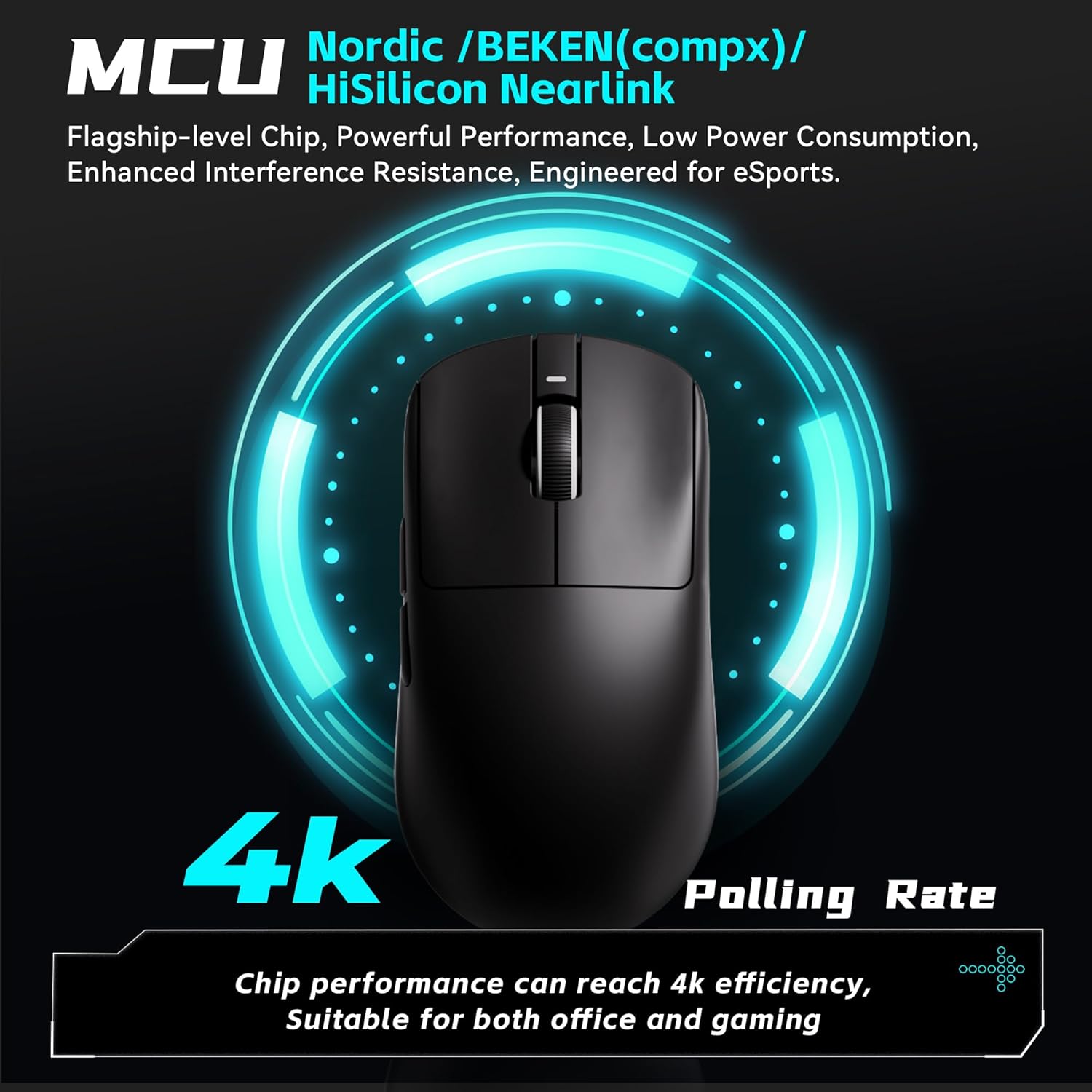
Image 3.2: Illustration highlighting the Nordic/BEKEN(compx)/HiSilicon Nearlink MCU and the capability for 2K/4K polling rates. This image emphasizes the mouse's internal processing power and responsiveness.
3.3 SmartSpeed X Wireless Technology
The mouse incorporates SmartSpeed X wireless transmission technology, ensuring low-latency performance and stable connectivity, even in environments with potential signal interference. This technology is based on a Nordic master chip for enhanced endurance and responsiveness.

Image 3.3: Graphic illustrating the Smart Speed X self-developed transmission technology, emphasizing low latency and endurance for gaming. This image explains the advanced wireless capabilities of the mouse.
3.4 ప్రోగ్రామబుల్ బటన్లు
The ATK VXE Dragonfly R1 SE+ features programmable buttons. Use the V HUB software to assign custom functions, macros, or key remappings to these buttons for a personalized gaming experience.
4. నిర్వహణ
4.1 శుభ్రపరచడం
The mouse features a smooth ice-feeling coating that is dirt-resistant and easy to clean. To clean your mouse, use a soft, dry cloth. For stubborn dirt, slightly dampనీటితో లేదా తేలికపాటి శుభ్రపరిచే ద్రావణంతో గుడ్డను తుడవండి. కఠినమైన రసాయనాలు లేదా రాపిడి పదార్థాలను ఉపయోగించకుండా ఉండండి.

Image 4.1: Visual representation of the mouse's smooth ice-feeling coating, highlighting its dirt-resistant and easy-to-clean properties. This image demonstrates the texture and finish of the mouse surface.
4.2 బ్యాటరీ సంరక్షణ
To maximize battery life, avoid fully discharging the mouse frequently. Charge the mouse when the battery indicator shows low power. Store the mouse in a cool, dry place when not in use for extended periods.
5. ట్రబుల్షూటింగ్
5.1 కనెక్టివిటీ సమస్యలు
- 2.4G వైర్లెస్: Ensure the USB receiver is securely plugged into a working USB port. Check that the mouse is switched to 2.4G mode. Try plugging the receiver into a different USB port.
- బ్లూటూత్: Verify Bluetooth is enabled on your computer and the mouse is in Bluetooth pairing mode. Remove and re-pair the device in your computer's Bluetooth settings.
- వైర్డ్: Ensure the USB-C cable is properly connected to both the mouse and the computer. Try a different USB port or cable if issues persist.
5.2 DPI/Polling Rate Not Responding
- Ensure the V HUB software is installed and up to date.
- Restart the V HUB software and the mouse.
- Check for any conflicting software that might be overriding mouse settings.
5.3 ఛార్జింగ్ సమస్యలు
- Confirm the USB-C cable is fully inserted into both the mouse and the power source (computer USB port or wall adapter).
- Try a different USB-C cable or USB port.
- Ensure the power source is active and providing sufficient power.
6. స్పెసిఫికేషన్లు
Below are the key specifications for the ATK VXE Dragonfly R1 SE+ Wireless Gaming Mouse, along with a comparison to other models in the R1 Series.

చిత్రం 6.1: అంతర్గత view and weight breakdown of various ATK R1 Series mice, including the R1 SE+. This image illustrates the lightweight design and internal components like the PAW3395/SE sensor and 2.4G storage compartment.
| ఫీచర్ | ATK R1 SE+ | Other R1 Series Models (General) |
|---|---|---|
| ఉత్పత్తి కొలతలు | 4.72 x 2.51 x 0.1 అంగుళాలు | Varies slightly by model |
| వస్తువు బరువు | 1.94 ఔన్సులు (55గ్రా) | 48g (R1 Pro) to 54g (R1 Pro Max) |
| సెన్సార్ | PAW3395 SE (up to 18,000 DPI) | PAW3395 (up to 26,000 DPI) |
| పోలింగ్ రేటు | 125-2,000Hz | 125–4,000Hz (R1 Pro & Pro Max) |
| కనెక్టివిటీ | 2.4G Wireless, Bluetooth, Wired USB-C | Tri-Mode (R1 SE, R1, R1 NearLink), Dual-Mode (R1 Pro, R1 Pro Max) |
| బ్యాటరీ లైఫ్ (1000Hz) | ~ 70-75 గంటలు | ~40 hours (R1), ~75 hours (R1 Pro), ~150 hours (R1 Pro Max) |
| మైక్రోస్విచ్లు | Huanuo Blue Glow V2 | Huanuo Ice Berry Pink Dot, Kailh White Blade |
| ప్రత్యేక లక్షణాలు | Lightweight, Programmable Buttons, Rechargeable | Similar across series |

Image 6.2: A comprehensive table outlining the product name, model, dimensions, coating, sensor, chip, transmission technology, polling rate, battery, operating battery life, weight, microswitch, scroll wheel, mouse feet, connection method, and 2.4G receiver for various VXE Dragonfly R1 Series models.
6.1 మైక్రో స్విచ్లు
The R1 SE+ model features Huanuo Blue Glow V2 microswitches. Other models in the R1 series may use Huanuo Ice Berry Pink Dot or Kailh White Blade switches, offering different tactile feedback and lifespan characteristics.

చిత్రం 6.3: వివరణాత్మకమైనది view of Kailh White Blade and Ice Berry Pink Dot microswitches, highlighting their design and specifying their click lifespans (100 Million and 90 Million clicks, respectively). This image provides insight into the durability and feel of the mouse's buttons.
7. వారంటీ మరియు మద్దతు
Your ATK VXE Dragonfly R1 SE+ Wireless Gaming Mouse comes with a product warranty. Please refer to the included 'Product Warranty Certificate' for specific terms and conditions regarding warranty coverage and duration.
For technical support, troubleshooting assistance, or warranty claims, please contact ATK customer service through their official website or the contact information provided in your product documentation. Keep your proof of purchase for warranty validation.


