1. పరిచయం
This manual provides essential information for the proper setup, operation, and maintenance of your KTC 27M1 27-inch QHD 210Hz Fast IPS Gaming Monitor. This monitor features a native 2560 x 1440 QHD resolution, a 210Hz refresh rate, 1ms (MPRT) response time, built-in dual 2W speakers, and a detachable shielding hood for an optimized viewing అనుభవం.

Figure 1: KTC 27M1 27-inch QHD 210Hz Fast IPS Gaming Monitor with Shielding Hood.
2. పెట్టెలో ఏముంది
ప్యాకేజీలో అన్ని భాగాలు ఉన్నాయని నిర్ధారించుకోండి:
- మానిటర్ x1
- బేస్ x1
- Monitor Shielding Hood x2
- క్విక్ స్టార్ట్ గైడ్ (QSG) x1
- DisplayPort (DP) Cable x1
- అడాప్టర్ x1
- పవర్ కార్డ్ x1

Figure 2: Package contents for the KTC 27M1 monitor.
3. సెటప్
3.1. అసెంబ్లీని పర్యవేక్షించండి
- Carefully remove the monitor and base from the packaging.
- Attach the base to the monitor stand. Ensure it clicks securely into place.
- Attach the monitor shielding hoods to the sides of the monitor. These are designed to absorb light and reduce reflections, enhancing visual immersion.
3.2. మానిటర్ను కనెక్ట్ చేస్తోంది
The KTC 27M1 monitor offers versatile connectivity options:
- DisplayPort 1.4 (DP): Supports up to 200Hz (overclocked to 210Hz) QHD resolution. Use the included DP cable for optimal performance.
- HDMI2.0: Supports up to 144Hz QHD resolution.
- USB 2.0: ఫర్మ్వేర్ అప్గ్రేడ్ల కోసం మాత్రమే.
- ఇయర్ ఫోన్ జాక్: ఆడియో అవుట్పుట్ కోసం.
Connect the appropriate cable(s) from your computer or device to the monitor. Then, connect the power adapter and power cord to the monitor and a power outlet.
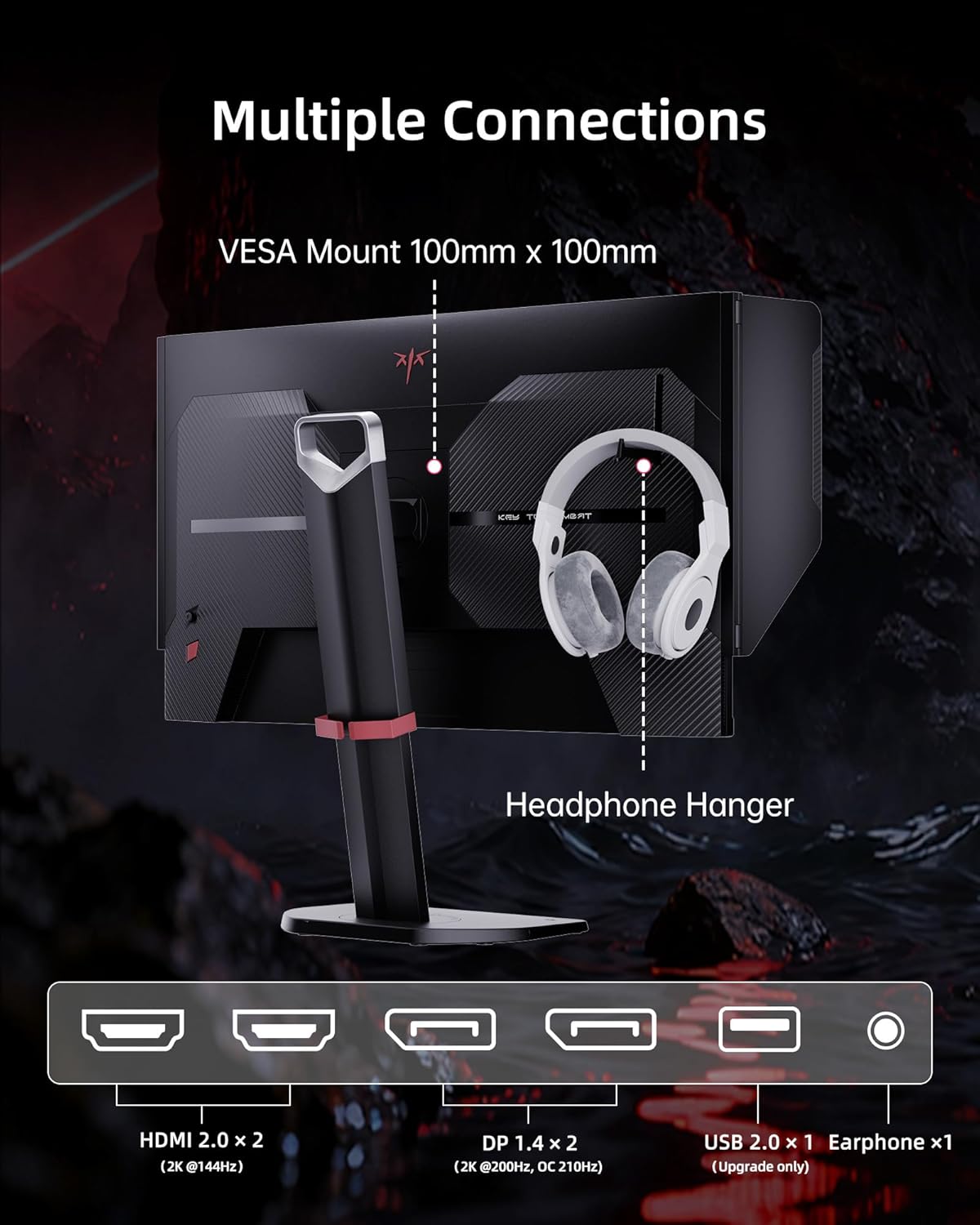
Figure 3: Multiple connection options and features on the KTC 27M1 monitor.
4. మానిటర్ను నిర్వహించడం
4.1. పవర్ ఆన్/ఆఫ్
Press the power button located on the monitor to turn it on or off.
4.2. ఆన్-స్క్రీన్ డిస్ప్లే (OSD) మెనూ నావిగేషన్
The monitor features a 5-way navigation joystick for easy access and control of the OSD menu. Push the joystick in to open the menu, then move it up, down, left, or right to navigate and select options.
4.3. ప్రదర్శన సెట్టింగ్లు
- రిజల్యూషన్: The monitor supports a native 2560 x 1440 QHD resolution for sharp and clear visuals.
- రిఫ్రెష్ రేట్: Enjoy a smooth experience with a 210Hz refresh rate (when overclocked via DisplayPort 1.4).
- ప్రతిస్పందన సమయం: A 1ms (MPRT) response time minimizes motion blur and ghosting.
- రంగు ఖచ్చితత్వం: Features 130% sRGB color gamut area, 1.07 billion colors, 1000:1 contrast ratio, and 450cd/m² brightness with HDR support for professional, true-to-life colors.

Figure 4: QHD 2K Resolution for clear visual detail.
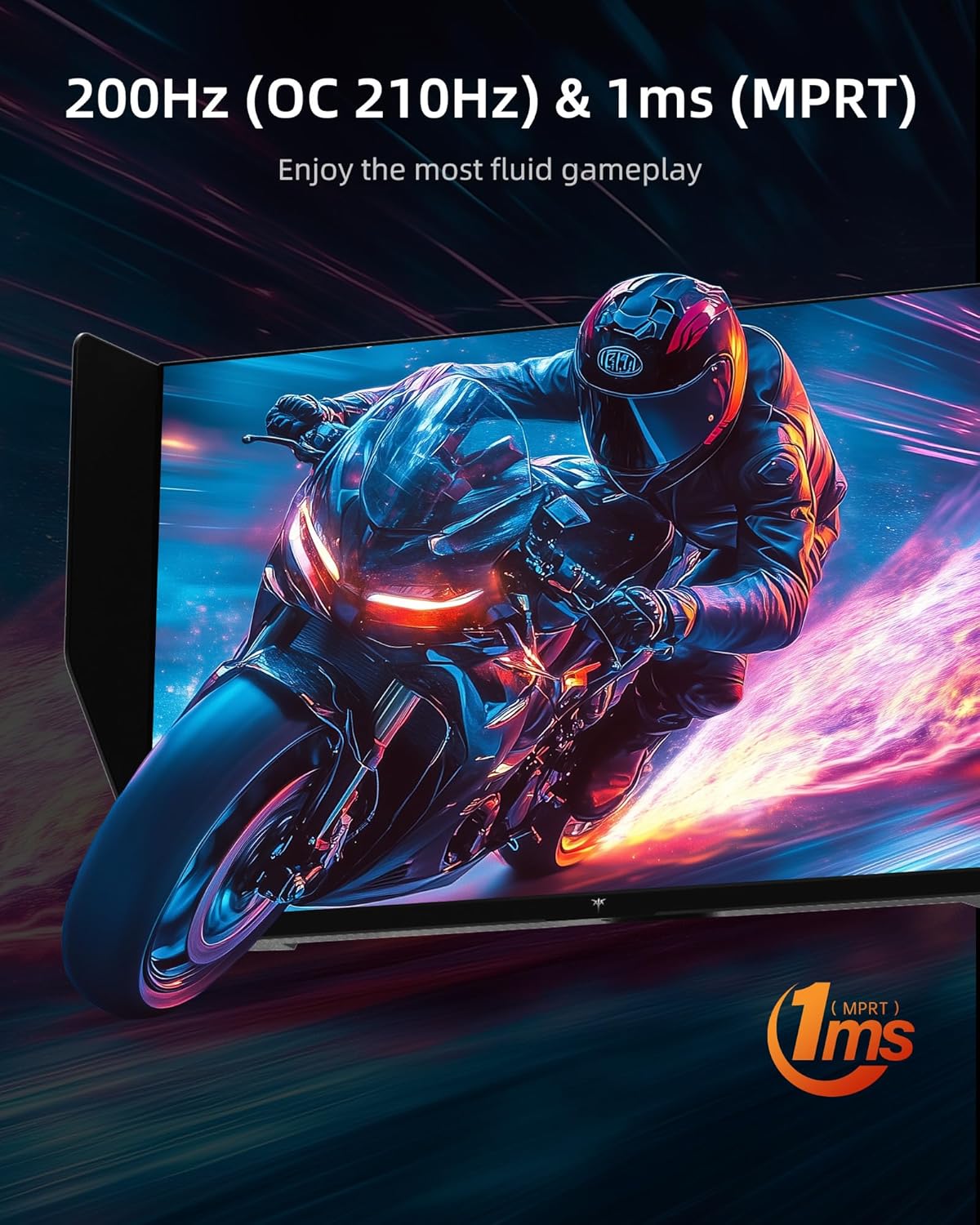
Figure 5: High refresh rate and fast response time for fluid gameplay.
4.4. గేమింగ్ ఫీచర్లు
- అనుకూల సమకాలీకరణ: Supports Adaptive Sync technology for tear-free and stutter-free gaming.
- ఓవర్డ్రైవ్: Adjust the overdrive setting for faster pixel response times.
- MPRT: Motion Picture Response Time can be enabled for reduced motion blur.
- గేమ్ అసిస్ట్: Access various in-game enhancements like crosshairs or timers.
- బ్లాక్ ఈక్వలైజర్: Adjust dark areas in games for better visibility.
- Game Mode/FPS Mode: Pre-set display modes optimized for different game genres.
4.5. ఆడియో
The monitor includes built-in dual 2W speakers, providing convenient audio without external speakers. An earphone jack is also available for private listening.
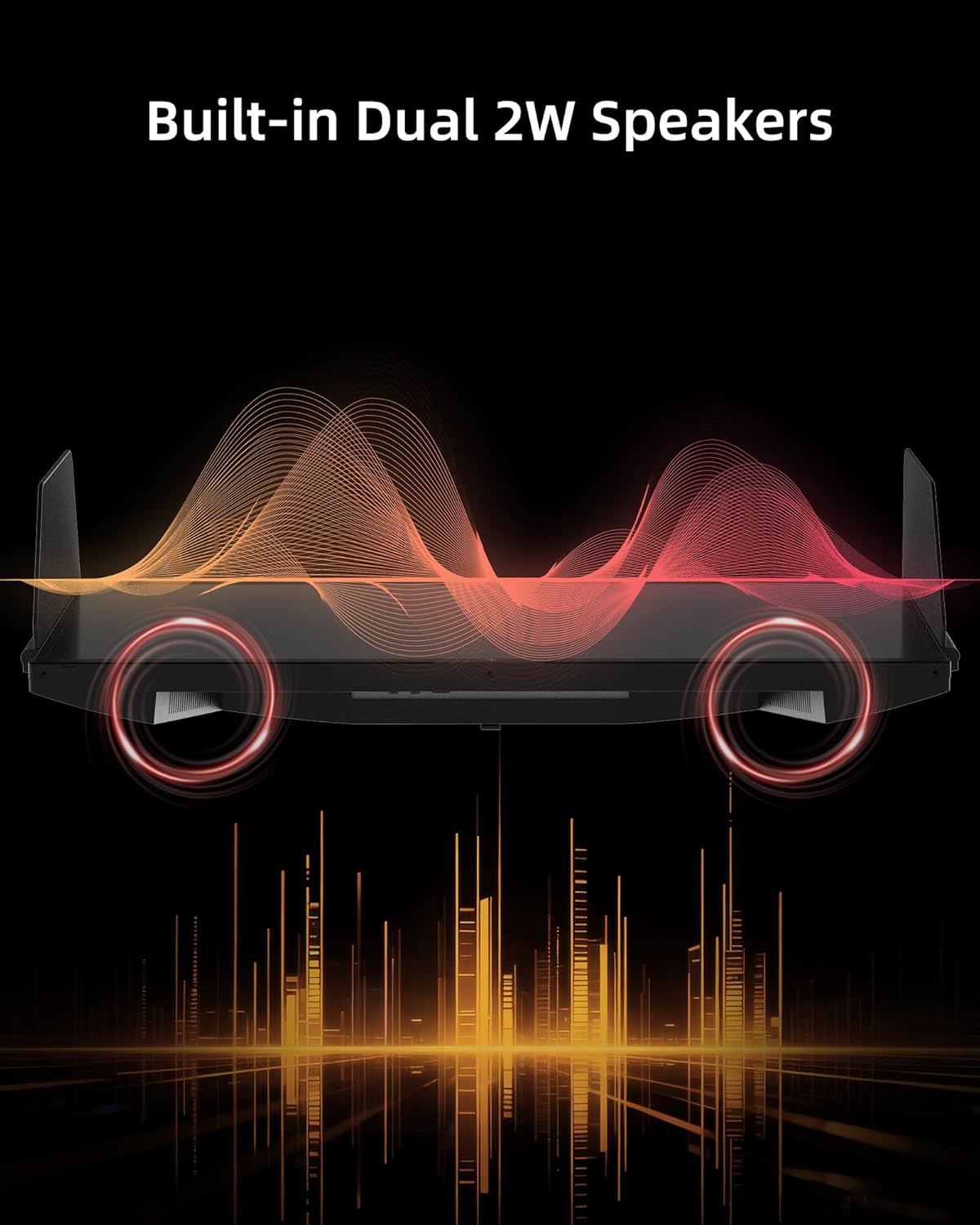
Figure 6: Built-in Dual 2W Speakers.
4.6. Shielding Hood
The detachable monitor hood, made of flocking material, helps eliminate frame reflections by absorbing ambient light. This enhances visual immersion and image contrast, and also provides a soft texture with sound-absorbing effects.

Figure 7: Detachable Monitor Hood to eliminate ambient light and reflection.
4.7. ఎర్గోనామిక్ సర్దుబాట్లు
The monitor stand supports a range of adjustments for optimal viewసౌలభ్యం:
- ఎత్తు సర్దుబాటు: 150 ± 5మి.మీ
- వంపు: -5° నుండి 35°
- స్వివెల్: -60° నుండి 60°
- పివోట్: -5° to 90° (for vertical orientation)
The monitor also supports VESA 100 x 100 mm mounting for alternative mounting solutions.

Figure 8: Flexible angle adjustments for personalized viewing.
4.8. Eye Comfort Features
The monitor incorporates low blue light and flicker-free technologies to reduce eye strain and enhance comfort during prolonged use.
4.9. అధికారిక ఉత్పత్తి వీడియో
వీడియో 1: ముగిసిందిview of the KTC 27 Inch 210Hz 2K Gaming Monitor with Shielding Hood, showcasing దాని లక్షణాలు మరియు డిజైన్.
5. నిర్వహణ
మీ మానిటర్ యొక్క దీర్ఘాయువు మరియు సరైన పనితీరును నిర్ధారించడానికి, ఈ నిర్వహణ మార్గదర్శకాలను అనుసరించండి:
- స్క్రీన్ క్లీనింగ్: మెత్తటి, మెత్తటి బట్టతో స్క్రీన్ను సున్నితంగా తుడవండి. మొండి మరకల కోసం, dampen the cloth slightly with water or a mild, non-abrasive screen cleaner. Avoid using harsh chemicals or abrasive materials.
- సి ని శుభ్రపరచడంasing: మానిటర్ యొక్క సి ని శుభ్రం చేయడానికి మృదువైన, పొడి వస్త్రాన్ని ఉపయోగించండి.asing.
- నిల్వ: If storing the monitor for an extended period, place it in its original packaging or a protective cover in a cool, dry place.
6. ట్రబుల్షూటింగ్
If you encounter any issues with your KTC 27M1 monitor, refer to the following common problems and solutions:
- ప్రదర్శన లేదు:
- పవర్ కేబుల్ మానిటర్ మరియు పవర్ అవుట్లెట్ రెండింటికీ సురక్షితంగా కనెక్ట్ చేయబడిందని నిర్ధారించుకోండి.
- Verify that the video cable (DP or HDMI) is correctly connected to both the monitor and your computer/device.
- OSD మెనులో సరైన ఇన్పుట్ సోర్స్ ఎంచుకోబడిందో లేదో తనిఖీ చేయండి.
- Test the monitor with another device or cable if possible.
- మినుకుమినుకుమనే తెర:
- వీడియో కేబుల్ సురక్షితంగా కనెక్ట్ చేయబడిందని నిర్ధారించుకోండి.
- Check your graphics card drivers and update them if necessary.
- Disable any overclocking settings if enabled.
- Verify that the refresh rate is set correctly in your operating system's display settings.
- రంగు సమస్యలు:
- OSD మెనూలో రంగు సెట్టింగ్లను (ప్రకాశం, కాంట్రాస్ట్, రంగు ఉష్ణోగ్రత) సర్దుబాటు చేయండి.
- Ensure HDR is enabled or disabled as desired in both the monitor's OSD and your device's settings.
- OSD మెను ద్వారా మానిటర్ను ఫ్యాక్టరీ డిఫాల్ట్ సెట్టింగ్లకు రీసెట్ చేయండి.
- స్పీకర్ల నుండి శబ్దం లేదు:
- Check the volume level on the monitor and your connected device.
- Ensure the audio output is correctly routed to the monitor in your device's sound settings.
- If using the earphone jack, ensure headphones are properly plugged in.
7. స్పెసిఫికేషన్లు
| ఫీచర్ | స్పెసిఫికేషన్ |
|---|---|
| మోడల్ సంఖ్య | 27M1 |
| స్క్రీన్ పరిమాణం | 27 అంగుళాలు |
| రిజల్యూషన్ | 2560 x 1440 పిక్సెల్స్ (QHD వైడ్ 1440p) |
| రిఫ్రెష్ రేట్ | 210Hz (OC) via DisplayPort 1.4, 144Hz via HDMI 2.0 |
| ప్రతిస్పందన సమయం | 1ms (MPRT) |
| ప్యానెల్ రకం | వేగవంతమైన IPS |
| కారక నిష్పత్తి | 21:9 |
| రంగు స్వరసప్తకం | 130% sRGB |
| రంగులు మద్దతు | 1.07 బిలియన్ |
| కాంట్రాస్ట్ రేషియో | 1000:1 |
| ప్రకాశం | 450 cd/m² |
| HDR మద్దతు | అవును |
| వక్తలు | Built-in Dual 2W Speakers |
| కనెక్టివిటీ | DisplayPort 1.4 x2, HDMI 2.0 x2, USB 2.0 x1 (Upgrade only), Earphone x1 |
| వెసా మౌంట్ | 100 x 100 మి.మీ |
| ఎర్గోనామిక్స్ | Height Adjustment (150±5mm), Tilt (-5°~35°), Swivel (-60°~60°), Pivot (-5°~90°) |
| కంటి సంరక్షణ లక్షణాలు | తక్కువ నీలి కాంతి, ఆడు-రహితం |
| ఉత్పత్తి కొలతలు | 8.03 x 24.09 x 21.18 అంగుళాలు |
| వస్తువు బరువు | 12.54 పౌండ్లు |
8. వారంటీ మరియు మద్దతు
KTC provides a three-year warranty for the 27M1 monitor. For any issues or inquiries, please contact Ktcmonitor-Official customer support. They aim to respond within 12 hours.
You can typically find contact information on the seller's page or through your purchase platform.


