1. పరిచయం
This manual provides essential information for the setup, operation, maintenance, and troubleshooting of your Thunderobot Zero 16 Pro Gaming Laptop. Designed for high-performance computing, this laptop integrates advanced hardware and features to deliver a robust user experience.
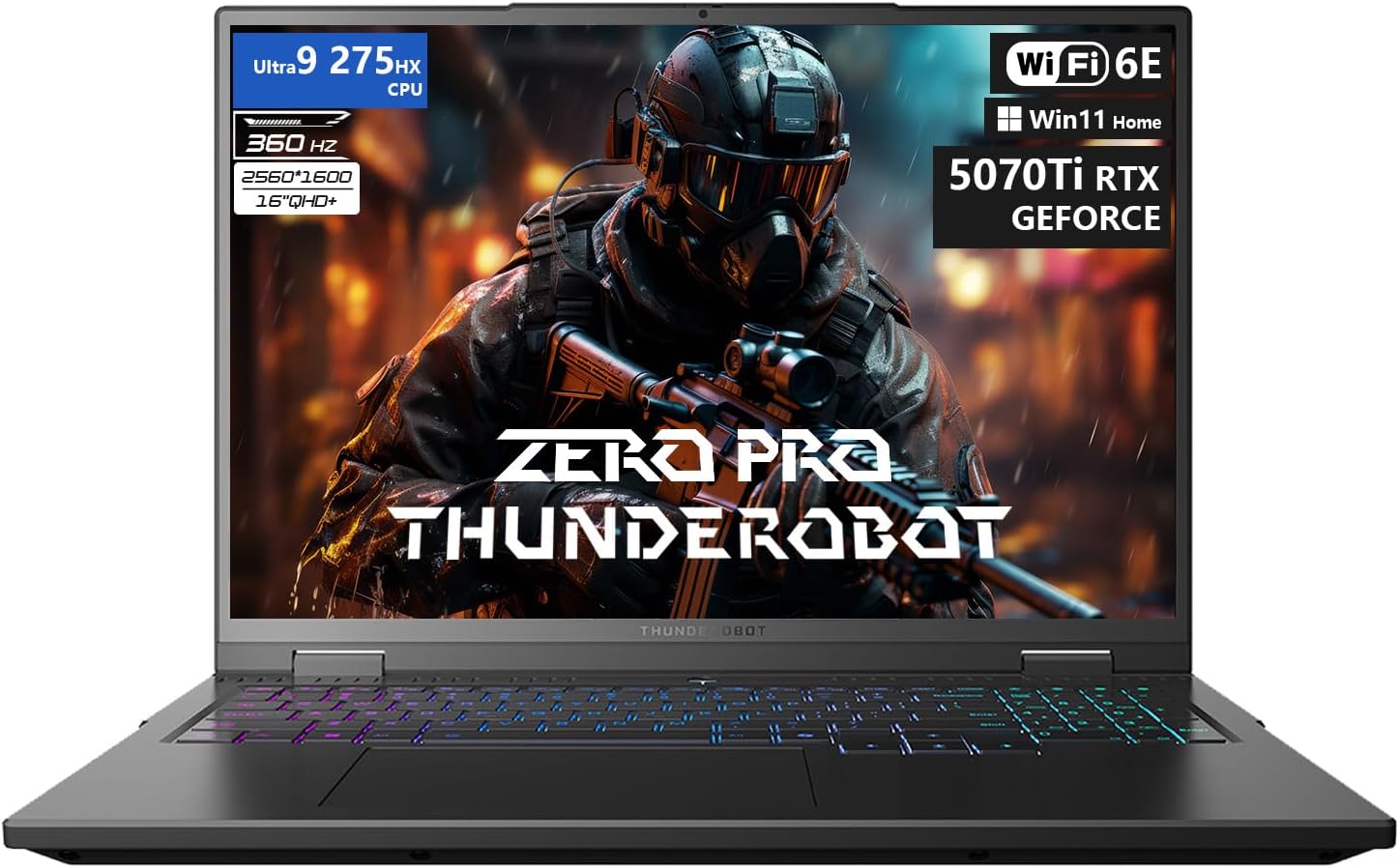
చిత్ర వివరణ: ఒక ఫ్రంట్ view of the Thunderobot Zero 16 Pro Gaming Laptop, showcasing its 16-inch display with a game scene, the backlit keyboard, and the overall sleek design. Key specifications like Ultra 9 275HX CPU, 360Hz refresh rate, QHD+ resolution, Wi-Fi 6E, and RTX 5070 Ti GPU are visible on the screen.
2. ప్రారంభించడం (సెటప్)
2.1 అన్బాక్సింగ్ మరియు ప్రారంభ కనెక్షన్
Carefully remove the laptop and all accessories from the packaging. Connect the power adapter to the laptop's power port and then to a wall outlet. Ensure the battery is sufficiently charged before the first use.
2.2 మొదటి బూట్ మరియు ఆపరేటింగ్ సిస్టమ్ సెటప్
Press the power button to turn on the laptop. Follow the on-screen instructions to complete the Windows 11 Home operating system setup. This process typically involves selecting language, region, network connection, and creating a user account.
2.3 Driver Installation and Updates
It is recommended to update all system drivers after the initial setup. Visit the official Thunderobot support website for your specific model (ZERO 16 Pro) to download and install the latest drivers for optimal performance and stability. This includes drivers for the graphics card, chipset, audio, and network adapters.
3. మీ ల్యాప్టాప్ను ఆపరేట్ చేయడం
3.1 హార్డ్వేర్ ఫీచర్లు
- ప్రదర్శన: The 16-inch QHD+ (2560x1600) display features a 360Hz refresh rate and eye-care technology, including anti-glare, anti-reflection, and blue-light reduction for comfortable viewing.
- ప్రాసెసర్: Equipped with the Intel Core Ultra 9 275HX processor, featuring 24 cores and turbo speeds up to 5.40GHz for demanding tasks.
- గ్రాఫిక్స్: NVIDIA GeForce RTX 5070 Ti graphics card provides advanced rendering capabilities for gaming and creative applications.
- మెమరీ & నిల్వ: 32GB DDR5 RAM and a 1TB PCIe M.2 SSD ensure fast data access and multitasking performance.
- శీతలీకరణ వ్యవస్థ: Features dual Night Owl fans, 7 extended heat pipes, and 316 ultra-thin copper fins for efficient heat dissipation.
- కీబోర్డ్: A per-key RGB backlit keyboard with an independent numeric keypad offers customizable lighting and full functionality.
- కనెక్టివిటీ: Includes USB-A (x3), USB-C, HDMI, RJ-45, and an audio port. Wireless connectivity is provided by Wi-Fi 6E and Bluetooth.
- కెమెరా: An FHD IR Camera is integrated for video conferencing and secure login.
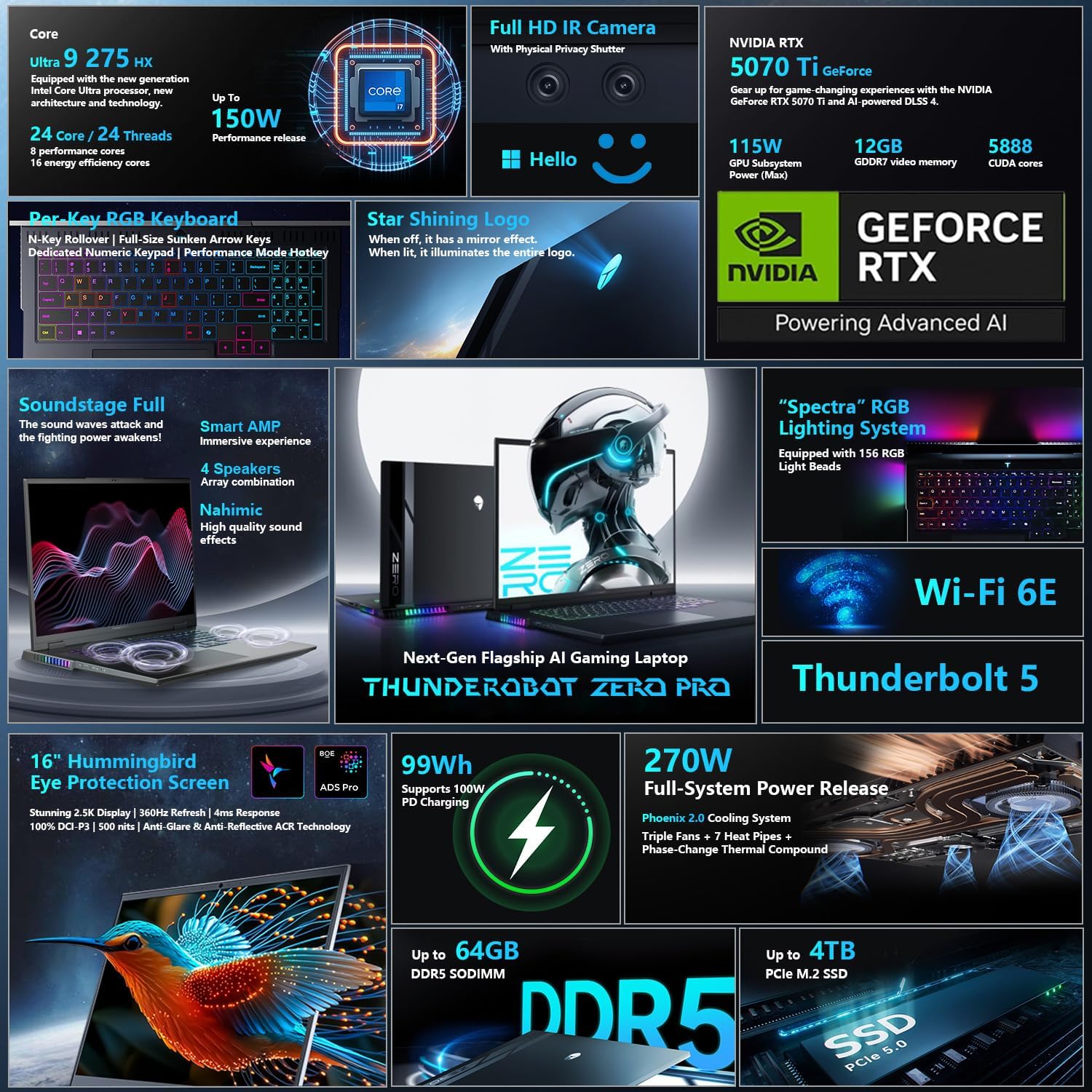
చిత్ర వివరణ: A detailed graphic illustrating various features of the Thunderobot Zero 16 Pro, including the Intel Core Ultra 9 275HX CPU, NVIDIA RTX 5070 Ti GPU, Full HD IR Camera, Per-Key RGB keyboard, Star Shining Logo, Soundstage Full audio, Spectra RGB lighting, Wi-Fi 6E, Thunderbolt 5, 16-inch QHD+ 360Hz display, 99Wh battery, 270W power, DDR5 memory, and PCIe 5.0 SSD.
3.2 AI Intelligent Control Center
The AI Intelligent Control Center software allows for personalized customization and performance management. This includes:
- Performance Tuning: Select between Quiet Mode, Balance Mode, and Turbo Mode to optimize system performance, power saving, and fan noise.
- Intelligent Light Adjustment: Customize the RGB lighting effects for the keyboard, strip, and logo zones.
- Comprehensive Adjustment: Monitor CPU and GPU temperatures, fan speeds, and memory usage. Adjust display settings and other system parameters.
Note: System mode switching in the Control Center requires the device to be connected to a power source.
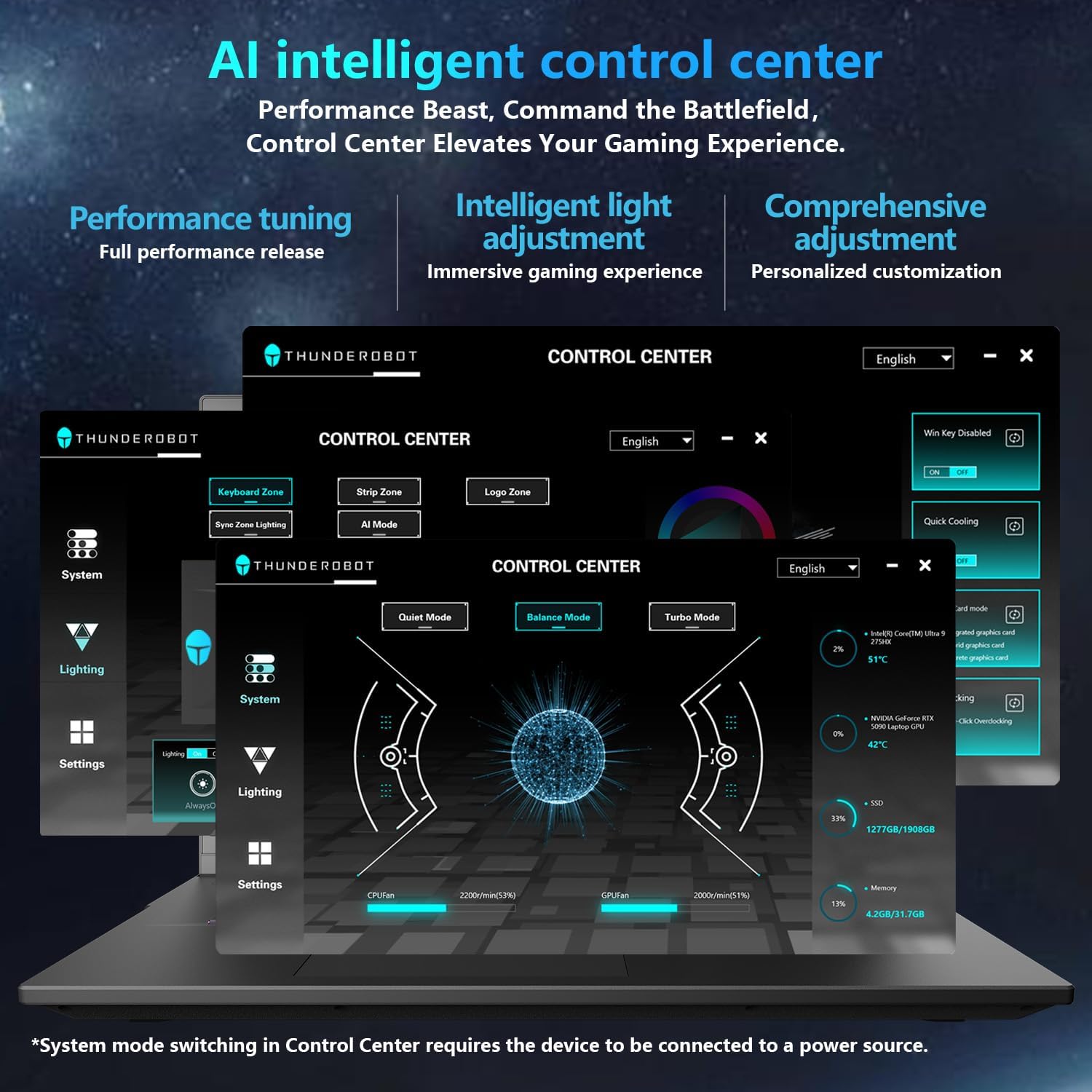
చిత్ర వివరణ: A screenshot of the Thunderobot AI Intelligent Control Center software interface, showing options for performance tuning (Quiet, Balance, Turbo modes), lighting customization (keyboard, strip, logo), and system monitoring (CPU/GPU usage, fan speed, temperature). The interface is in English.
4. నిర్వహణ మరియు సంరక్షణ
4.1 శుభ్రపరచడం
Regularly clean the laptop's exterior with a soft, dry, lint-free cloth. For the screen, use a specialized screen cleaner and a microfiber cloth. Ensure ventilation grilles are free from dust buildup to maintain optimal cooling performance.
4.2 బ్యాటరీ సంరక్షణ
To prolong battery life, avoid fully discharging the battery frequently. If storing the laptop for an extended period, ensure the battery is charged to approximately 50-70% and store it in a cool, dry place.
4.3 Durability and Reliability
The Thunderobot Zero 16 Pro is engineered for reliability, having undergone various tests including 180G impacts, 74cm drops, 10kg palm stress, 20kg screen pressure, and operation in temperatures from -20°C to 60°C with 20-90% humidity. It has also passed 200,000 touchpad clicks, 40,000 power button presses, 500 charge cycles, 360 hours of stress tests, 21 hours of thermal shock, and 74 hours of environmental trials.
5. ట్రబుల్షూటింగ్
5.1 సాధారణ సమస్యలు మరియు పరిష్కారాలు
- ల్యాప్టాప్ ఆన్ కావడం లేదు: పవర్ అడాప్టర్ ల్యాప్టాప్ మరియు పనిచేసే పవర్ అవుట్లెట్ రెండింటికీ సురక్షితంగా కనెక్ట్ చేయబడిందని నిర్ధారించుకోండి. పవర్ అవుట్లెట్ పనిచేస్తుందో లేదో తనిఖీ చేయండి.
- బిగ్గరగా ఫ్యాన్ శబ్దం: High fan noise is normal during intensive tasks (e.g., gaming) as the cooling system works to dissipate heat. Ensure ventilation grilles are not obstructed. Adjust performance modes in the AI Intelligent Control Center to a quieter setting if high performance is not required.
- తక్కువ బ్యాటరీ జీవితం: Battery life can vary based on usage. For optimal battery performance, reduce screen brightness, close unnecessary applications, and use power-saving modes. Performance-intensive tasks will consume more power.
- ప్రదర్శన సమస్యలు: If the screen is blank or flickering, try connecting an external monitor to verify if the issue is with the laptop's display or the graphics output. Ensure graphics drivers are up to date.
- Driver-Related Problems: If experiencing unexpected behavior or performance issues, verify that all drivers are correctly installed and updated from the official Thunderobot support webసైట్.
5.2 సాధారణ ట్రబుల్షూటింగ్ దశలు
- Restart the Laptop: ఒక సాధారణ పునఃప్రారంభం అనేక తాత్కాలిక సాఫ్ట్వేర్ లోపాలను పరిష్కరించగలదు.
- కనెక్షన్లను తనిఖీ చేయండి: Ensure all cables and peripherals are securely connected.
- సాఫ్ట్వేర్ను నవీకరించండి: మీ ఆపరేటింగ్ సిస్టమ్ మరియు డ్రైవర్లను తాజాగా ఉంచండి.
- ఆన్లైన్ వనరులను సంప్రదించండి: Refer to the Thunderobot support website for FAQs and additional troubleshooting guides.
6. సాంకేతిక లక్షణాలు
| ఫీచర్ | స్పెసిఫికేషన్ |
|---|---|
| బ్రాండ్ | థండర్బోట్ |
| మోడల్ పేరు | ZERO 16 Pro |
| స్క్రీన్ పరిమాణం | 16 అంగుళాలు |
| స్క్రీన్ రిజల్యూషన్ | 2560 x 1600 పిక్సెల్లు |
| గరిష్ట స్క్రీన్ రిజల్యూషన్ | 2560x1600 పిక్సెల్స్ |
| ప్రాసెసర్ | 5.4 GHz ఇంటెల్ కోర్ అల్ట్రా 9 275HX |
| ప్రాసెసర్ల సంఖ్య | 24 |
| RAM | 32 GB DDR5 |
| మెమరీ వేగం | 4800 MHz |
| హార్డ్ డ్రైవ్ | 1 TB SSD (PCIE x 4) |
| గ్రాఫిక్స్ కోప్రాసెసర్ | GeForce RTX 5070Ti |
| కార్డ్ వివరణ | అంకితం చేయబడింది |
| వైర్లెస్ రకం | 802.11ax (Wi-Fi 6E) |
| USB 3.0 పోర్ట్ల సంఖ్య | 3 |
| ఆపరేటింగ్ సిస్టమ్ | Windows 11 హోమ్ |
| వస్తువు బరువు | 12 పౌండ్లు |
| ఉత్పత్తి కొలతలు (LxWxH) | 14.09 x 10.52 x 1.03 అంగుళాలు |
| రంగు | నలుపు |
| శక్తి మూలం | AC & బ్యాటరీ |
| ప్రత్యేక ఫీచర్ | సంఖ్యా కీప్యాడ్ |
7. వారంటీ మరియు మద్దతు
Every Thunderobot laptop includes a 12 నెలల వారంటీ, offering expert support, thorough diagnostics, and genuine parts if a repair is needed. Additionally, a 90-రోజుల వారంటీ is provided on all warranty replacement parts, ensuring hassle-free repairs.
For technical assistance, driver downloads, or warranty claims, please visit the official Thunderobot support website or contact their customer service. Refer to the documentation included with your product for specific contact details.


