1. పరిచయం
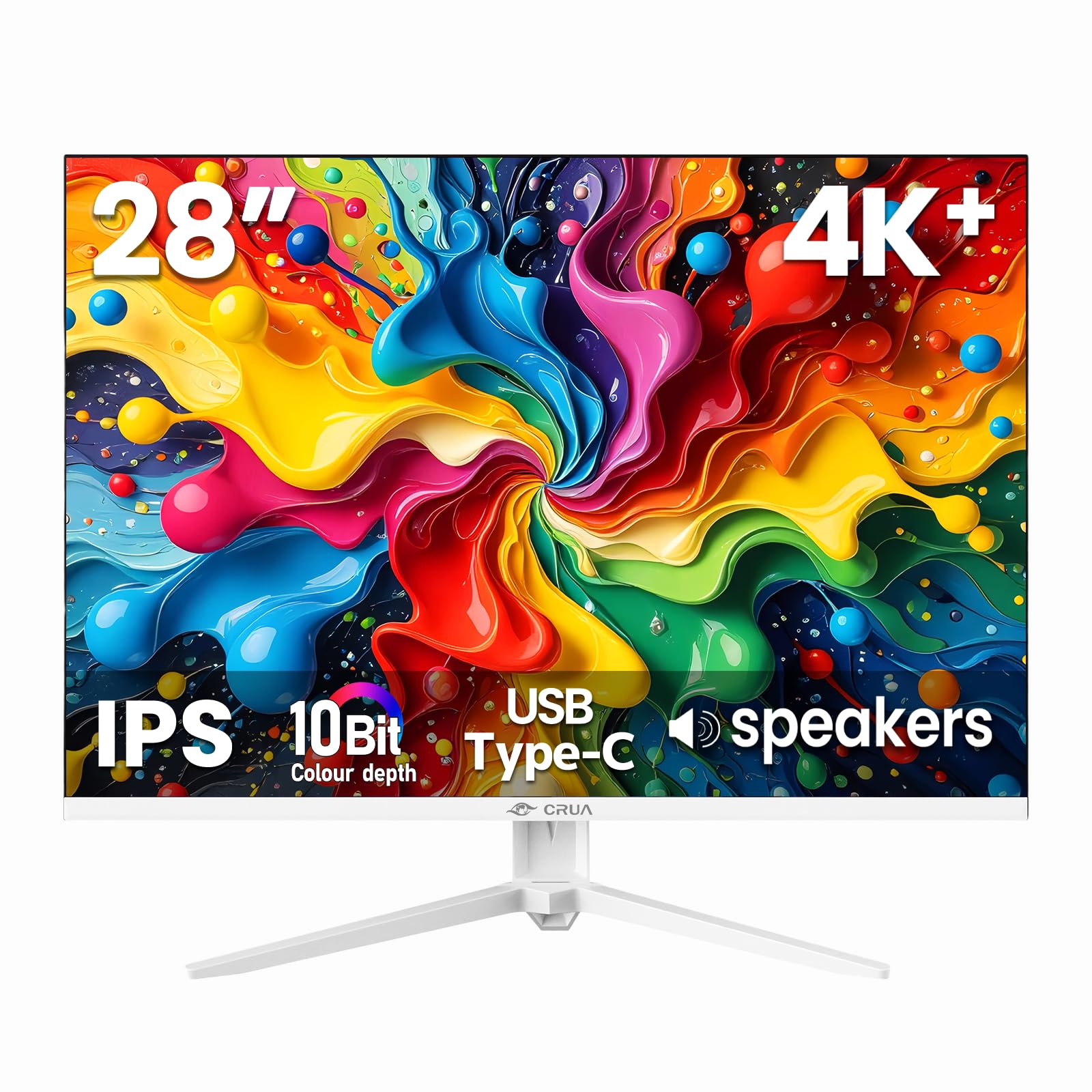
Thank you for choosing the CRUA 28 Inch 4K UHD+ IPS Monitor. This monitor is designed to deliver stunning visual clarity and vibrant colors for an immersive viewing experience, whether for work, gaming, or creative projects. Featuring a 3840×2560p resolution, 60Hz refresh rate, and extensive connectivity options, it is built to enhance your digital interactions.
Please read this manual carefully before operating your monitor to ensure proper setup and optimal performance. Keep this manual for future reference.
2. ప్యాకేజీ విషయాలు
సెటప్తో కొనసాగడానికి ముందు అన్ని అంశాలు పెట్టెలో ఉన్నాయని నిర్ధారించుకోండి:
- 28-inch white monitor
- Base and support
- User instructions (this manual)
- DP cable x1 (4.92 ft)
- Type-C cable x1 (4.92 ft)
- Power adapter x1 (4.92 ft)
3. సెటప్
3.1. అసెంబ్లీని పర్యవేక్షించండి
మానిటర్ స్టాండ్ను సమీకరించడానికి:
- మానిటర్ను దాని ప్యాకేజింగ్ నుండి జాగ్రత్తగా తీసివేసి, గీతలు పడకుండా ఉండటానికి మృదువైన, శుభ్రమైన ఉపరితలంపై ముఖం కిందకు ఉంచండి.
- Attach the stand support to the back of the monitor.
- Secure the base to the stand support using the provided screws.
Alternatively, the monitor is wall-mountable (75×75mm VESA compatible) for flexible ergonomic setups.
3.2. మీ మానిటర్ను కనెక్ట్ చేయడం
The CRUA monitor offers versatile connectivity options:
- HDMI2.0: Connect your computer, gaming console, or other HDMI-enabled devices using one of the two HDMI 2.0 ports.
- డిస్ప్లేపోర్ట్ 1.4: For high-resolution and refresh rate connections, use the DisplayPort 1.4.
- USB టైప్-C: Connect compatible devices for video, data transfer, and power delivery (charging).
- 3.5mm ఆడియో జాక్: బాహ్య స్పీకర్లు లేదా హెడ్ఫోన్లను కనెక్ట్ చేయండి.
Ensure the power adapter is securely connected to the monitor and a power outlet.

4. మీ మానిటర్ను ఆపరేట్ చేయడం
4.1. ఆన్-స్క్రీన్ డిస్ప్లే (OSD) మెనూ
The OSD menu allows you to adjust various monitor settings. Buttons are typically located on the back or bottom edge of the monitor. Common controls include:
- పవర్ బటన్: మానిటర్ను ఆన్/ఆఫ్ చేస్తుంది.
- మెనూ బటన్: OSD మెనూను యాక్సెస్ చేస్తుంది.
- నావిగేషన్ బటన్లు: Used to move through menu options and adjust values (e.g., brightness, contrast, input source).
4.2 కీ ఫీచర్లు
- Ultra-Sharp 4K Visuals: Enjoy a 3840×2560p resolution on a 28-inch IPS panel with a 15:10 aspect ratio, 1.07 billion colors (8-bit+FRC), 120% sRGB, 270 cd/m² brightness, and 1200:1 contrast ratio for vivid and true-to-life images.
- IPS Panel & Wide Viewకోణాలు: Consistent and accurate colors are maintained across a wide 178° viewing angle, ideal for various professional and entertainment uses.
- Smooth Gaming & Eye Protection: AMD FreeSync technology and a 60Hz refresh rate provide tear-free gameplay. A built-in blue light filter helps reduce eye strain during extended use.
- Flexible Ergonomic Setup: Adjust the monitor with tilt support (-5° forward, 15° backward) or mount it on a wall using the 75×75mm VESA standard.
- అంతర్నిర్మిత స్పీకర్లు: Integrated speakers deliver clear audio, eliminating the need for external audio devices.


5. నిర్వహణ
To ensure the longevity and optimal performance of your CRUA monitor, follow these maintenance guidelines:
- స్క్రీన్ క్లీనింగ్: మెత్తటి, మెత్తటి బట్టతో స్క్రీన్ను సున్నితంగా తుడవండి. మొండి మరకల కోసం, తేలికగా dampనీటితో లేదా స్క్రీన్-క్లీనింగ్ ద్రావణంతో వస్త్రాన్ని తుడవండి. కఠినమైన రసాయనాలు లేదా రాపిడి పదార్థాలను నివారించండి.
- సి ని శుభ్రపరచడంasing: మానిటర్ యొక్క సి ని శుభ్రం చేయడానికి మృదువైన, పొడి వస్త్రాన్ని ఉపయోగించండి.asing.
- వెంటిలేషన్: వేడెక్కకుండా నిరోధించడానికి మానిటర్ యొక్క వెంటిలేషన్ ఓపెనింగ్లు స్పష్టంగా మరియు అడ్డంకులు లేకుండా ఉన్నాయని నిర్ధారించుకోండి.
- పవర్ ఆఫ్: శుభ్రపరిచే ముందు లేదా ఎక్కువ కాలం ఉపయోగించకపోతే మానిటర్ను ఎల్లప్పుడూ పవర్ ఆఫ్ చేసి, పవర్ అవుట్లెట్ నుండి అన్ప్లగ్ చేయండి.
6. ట్రబుల్షూటింగ్
మీ మానిటర్తో మీకు సమస్యలు ఎదురైతే, ఈ క్రింది సాధారణ ట్రబుల్షూటింగ్ దశలను చూడండి:
- డిస్ప్లే/నలుపు స్క్రీన్ లేదు:
- మానిటర్ ఆన్ చేయబడిందో లేదో మరియు పవర్ కేబుల్ సురక్షితంగా కనెక్ట్ చేయబడిందో లేదో తనిఖీ చేయండి.
- Verify that the video cable (HDMI, DisplayPort, or USB-C) is correctly connected to both the monitor and your computer/device.
- OSD మెను ద్వారా మానిటర్లో సరైన ఇన్పుట్ సోర్స్ ఎంచుకోబడిందని నిర్ధారించుకోండి.
- Test with a different video cable or device to rule out cable or source issues.
- Flickering/Unstable Image:
- Check the video cable connections for looseness.
- మీ కంప్యూటర్ డిస్ప్లే సెట్టింగ్లలో రిఫ్రెష్ రేట్ను సర్దుబాటు చేయండి.
- Disable AMD FreeSync in the OSD menu if issues persist.
- బిల్ట్-ఇన్ స్పీకర్ల నుండి ఆడియో లేదు:
- మానిటర్ వాల్యూమ్ మ్యూట్ చేయబడలేదని లేదా OSD మెనూలో చాలా తక్కువగా సెట్ చేయబడలేదని నిర్ధారించుకోండి.
- మానిటర్ ప్లేబ్యాక్ పరికరంగా ఎంచుకోబడిందని నిర్ధారించుకోవడానికి మీ కంప్యూటర్ యొక్క ఆడియో అవుట్పుట్ సెట్టింగ్లను తనిఖీ చేయండి.
- Verify the audio source is working correctly.
- Image Too Dark/Bright/Incorrect Colors:
- OSD మెను ద్వారా ప్రకాశం, కాంట్రాస్ట్ మరియు రంగు సెట్టింగ్లను సర్దుబాటు చేయండి.
- OSD మెను ద్వారా మానిటర్ను ఫ్యాక్టరీ డిఫాల్ట్ సెట్టింగ్లకు రీసెట్ చేయండి.
If these steps do not resolve the issue, please contact CRUA customer support for further assistance.
7. స్పెసిఫికేషన్లు
| ఫీచర్ | స్పెసిఫికేషన్ |
|---|---|
| ఉత్పత్తి కొలతలు | 18.58 x 24.09 x 19.97 అంగుళాలు |
| వస్తువు బరువు | 11.08 పౌండ్లు |
| తయారీదారు | CRUA |
| అంశం మోడల్ సంఖ్య | CR280HDM |
| స్టాండింగ్ స్క్రీన్ డిస్ప్లే సైజు | 28.2 అంగుళాలు |
| కారక నిష్పత్తి | 3:2 (Note: Marketing materials mention 15:10, which is approximately 1.5:1, while 3:2 is 1.5:1. These are very similar.) |
| రిజల్యూషన్ | 3840x2560 Pixels (4K UHD+) |
| చిత్రం ప్రకాశం | 270 క్యాండెలా (cd/m²) |
| మొత్తం USB పోర్ట్లు | 1 (USB టైప్-C) |
| స్క్రీన్ ఉపరితల వివరణ | మాట్టే |
| ప్యానెల్ రకం | IPS |
| రిఫ్రెష్ రేట్ | 60Hz |
| రంగు లోతు | 10-Bit (8-bit + FRC) |
| రంగు స్వరసప్తకం | 120% sRGB |
| అడాప్టివ్ సింక్ టెక్నాలజీ | AMD ఫ్రీసింక్ |
8. వారంటీ మరియు మద్దతు
CRUA provides high-quality computer monitors and premium services. For any questions or issues regarding your CRUA 28 Inch 4K UHD+ IPS Monitor, please contact our customer support team. We are committed to serving you and solving all your problems.
నిర్దిష్ట వారంటీ వివరాలు మరియు సంప్రదింపు సమాచారం కోసం దయచేసి మీ కొనుగోలు డాక్యుమెంటేషన్ను చూడండి.


