1. పరిచయం
This manual provides essential information for the setup, operation, maintenance, and troubleshooting of your Thunderobot Zero 18 Pro Gaming Laptop. Please read this manual thoroughly before using your device to ensure optimal performance and longevity.
2. సెటప్
2.1 అన్బాక్సింగ్ మరియు ప్రారంభ తనిఖీ
ప్యాకేజింగ్ నుండి అన్ని భాగాలను జాగ్రత్తగా తీసివేయండి. "పెట్టెలో ఏముంది" విభాగంలో జాబితా చేయబడిన అన్ని అంశాలు ఉన్నాయని మరియు పాడైపోలేదని ధృవీకరించండి. ఏవైనా వస్తువులు తప్పిపోయినా లేదా దెబ్బతిన్నా, వెంటనే కస్టమర్ మద్దతును సంప్రదించండి.
- థండర్బాట్ జీరో 18 ల్యాప్టాప్
- పవర్ అడాప్టర్
- డాక్యుమెంటేషన్ (ఈ మాన్యువల్)
2.2 పవర్ అడాప్టర్ను కనెక్ట్ చేస్తోంది
పవర్ అడాప్టర్ను ల్యాప్టాప్ పవర్ ఇన్పుట్ పోర్ట్కు కనెక్ట్ చేసి, ఆపై దానిని వాల్ అవుట్లెట్లోకి ప్లగ్ చేయండి. ప్రారంభ ఉపయోగం ముందు బ్యాటరీని పూర్తిగా ఛార్జ్ చేయాలని సిఫార్సు చేయబడింది.
చిత్రం: వెనుక view of the Thunderobot Zero 18 Pro laptop showing the power input port and other connections.
2.3 ప్రారంభ బూట్-అప్ మరియు విండోస్ సెటప్
Press the power button to turn on the laptop. Follow the on-screen instructions to complete the Windows 11 Home setup process. This includes selecting your region, language, connecting to a network, and creating a user account.
3. ఆపరేటింగ్ సూచనలు
3.1 కీబోర్డ్ మరియు టచ్ప్యాడ్
The laptop features a full-featured backlit keyboard with a numeric pad and a responsive touchpad. Refer to the image below for key layout and special function keys.
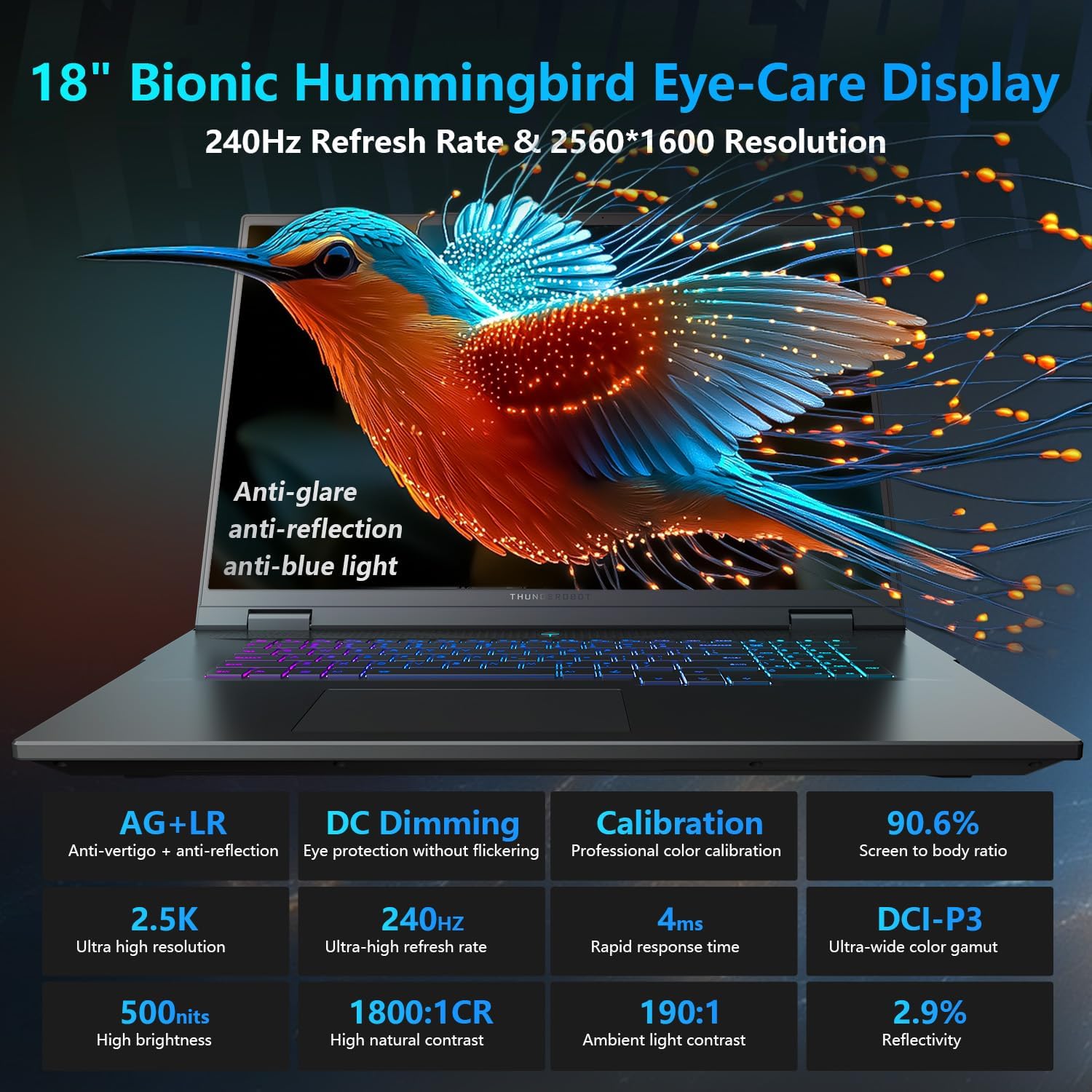
Image: Close-up of the Thunderobot Zero 18 Pro's per-key RGB backlit keyboard and touchpad.
ఫంక్షన్ కీలు: ఉపయోగించండి Fn key in combination with the F1-F12 keys for various functions such as adjusting brightness, volume, and toggling Wi-Fi.
3.2 డిస్ప్లే ఫీచర్లు
Your laptop is equipped with an 18-inch QHD+ 2.5K Eye-Care display with a 240Hz refresh rate. This display offers anti-glare, anti-reflection, and blue-light reduction features for extended viewing సౌకర్యం.

Image: The Thunderobot Zero 18 Pro laptop display showcasing its vibrant QHD+ resolution and narrow bezels.
3.3 కనెక్టివిటీ పోర్ట్లు
The laptop provides a range of ports for connecting peripherals and external devices:
- 3x SuperSpeed USB-A ports
- 2x USB-C ports (including Thunderbolt 5)
- HDMI పోర్ట్
- RJ-45 ఈథర్నెట్ పోర్ట్
- ఆడియో జాక్

చిత్రం: వైపు view of the Thunderobot Zero 18 Pro laptop highlighting the various connectivity ports.
3.4 AI ఇంటెలిజెంట్ కంట్రోల్ సెంటర్
Utilize the pre-installed AI Intelligent Control Center software to manage performance modes, RGB lighting, and monitor system status. System mode switching requires the device to be connected to a power source.
Image: Screenshot of the AI Intelligent Control Center software interface, showing options for performance tuning, intelligent light adjustment, and comprehensive system adjustments.
4. నిర్వహణ
4.1 ల్యాప్టాప్ను శుభ్రపరచడం
Regularly clean the screen with a soft, lint-free cloth and a screen-safe cleaning solution. Use a soft brush or compressed air to remove dust from the keyboard and ventilation grilles. Avoid using harsh chemicals or abrasive materials.
4.2 బ్యాటరీ సంరక్షణ
To prolong battery life, avoid fully discharging the battery frequently. Store the laptop in a cool, dry place when not in use for extended periods. The laptop supports 100W PD charging.
4.3 సాఫ్ట్వేర్ నవీకరణలు
Keep your operating system and drivers updated to ensure optimal performance and security. Check the Thunderobot official webమీ నిర్దిష్ట మోడల్ కోసం తాజా డ్రైవర్ నవీకరణల కోసం సైట్.
5. ట్రబుల్షూటింగ్
5.1 ల్యాప్టాప్ పవర్ ఆన్ అవ్వడం లేదు
- పవర్ అడాప్టర్ ల్యాప్టాప్ మరియు పనిచేసే పవర్ అవుట్లెట్ రెండింటికీ సురక్షితంగా కనెక్ట్ చేయబడిందని నిర్ధారించుకోండి.
- మరొక పరికరాన్ని ప్లగ్ చేయడం ద్వారా పవర్ అవుట్లెట్ పనిచేస్తుందో లేదో ధృవీకరించండి.
- బ్యాటరీ పూర్తిగా ఖాళీ అయిపోతే, పవర్ ఆన్ చేయడానికి ప్రయత్నించే ముందు కనీసం 30 నిమిషాలు ఛార్జ్ అవ్వనివ్వండి.
5.2 ప్రదర్శన సమస్యలు
- If the screen is black, try adjusting the brightness using the function keys.
- సమస్య ల్యాప్టాప్ డిస్ప్లేలో ఉందా లేదా గ్రాఫిక్స్ కార్డ్లో ఉందా అని తనిఖీ చేయడానికి బాహ్య మానిటర్ను కనెక్ట్ చేయండి.
- Update your graphics drivers via the AI Intelligent Control Center or Thunderobot's official webసైట్.
5.3 పనితీరు మందగమనం
- Check for background applications consuming high CPU or RAM resources using Task Manager.
- Ensure the laptop's cooling system is not obstructed and is functioning correctly. Use the AI Intelligent Control Center to monitor temperatures and fan speeds.
- Run a disk cleanup and defragmentation (for HDDs) or TRIM (for SSDs) to optimize storage.
6. స్పెసిఫికేషన్లు
| ఫీచర్ | వివరాలు |
|---|---|
| మోడల్ పేరు | జీరో 18 ప్రో |
| ప్రాసెసర్ | Intel Core Ultra 9 275HX (24 Cores, up to 5.40GHz) |
| గ్రాఫిక్స్ | GeForce RTX 5070 Ti (Dedicated) |
| RAM | 32GB DDR5 (4800 MHz) |
| నిల్వ | 1TB PCIe M.2 SSD |
| ప్రదర్శించు | 18-inch QHD+ (2560x1600) 240Hz Eye-Care Display |
| ఆపరేటింగ్ సిస్టమ్ | Windows 11 హోమ్ |
| వైర్లెస్ కనెక్టివిటీ | Wi-Fi 6E, Bluetooth |
| ఓడరేవులు | 3x USB-A, 2x USB-C (Thunderbolt 5), HDMI, RJ-45, Audio Jack |
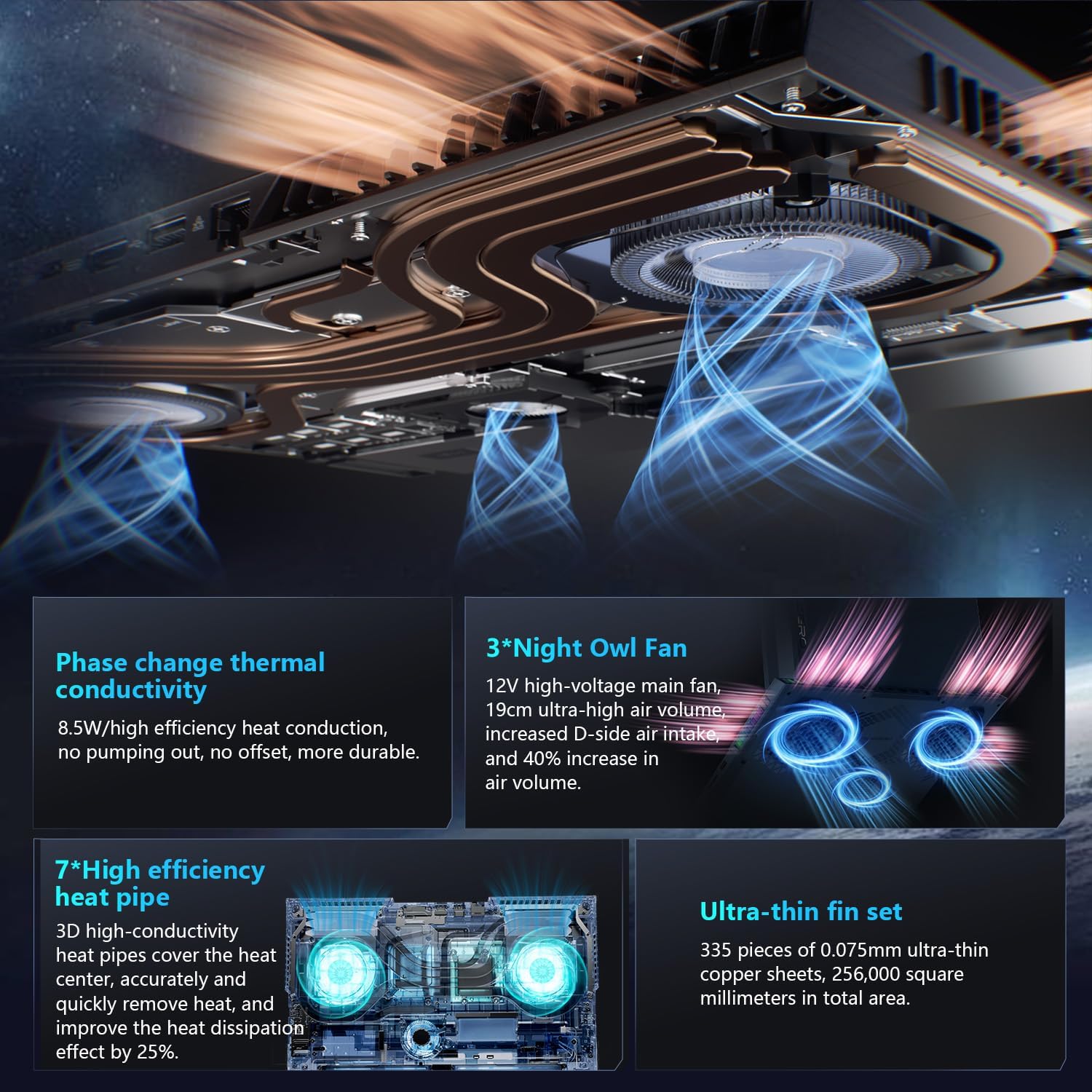
| శీతలీకరణ వ్యవస్థ | 270W Thermal System with 3x Night Owl fans, 7x heat pipes |
| కొలతలు (LxWxH) | 16.04 x 11.78 x 1.41 అంగుళాలు |
| బరువు | 15 పౌండ్లు |
7. వారంటీ మరియు మద్దతు
Every Thunderobot laptop includes a 12-month warranty, offering expert support, thorough diagnostics, and genuine parts if a repair is needed. A 90-day warranty is provided on all warranty replacement parts, ensuring hassle-free repairs.
For technical assistance, warranty claims, or further information, please visit the official Thunderobot support website or contact their customer service. Upgrading RAM or adding a second SSD may void the warranty; please consult with customer service before making such modifications.
Image: Graphic detailing Thunderobot's warranty and support policy.
8. ఉత్పత్తి వీడియోలు
8.1 THUNDEROBOT Gaming E-Sports Partner
వీడియో: ఒక ఓవర్view of Thunderobot's involvement in e-sports and their commitment to gaming performance.
8.2 THUNDEROBOT Series Display
Video: A demonstration of the display features and visual quality of the Thunderobot Zero series laptops.
8.3 Thunderobot RGB lights
Video: A showcase of the customizable RGB lighting features on Thunderobot laptops, including keyboard and chassis lighting.


